If you have ever installed an IPTV app and stared at an empty screen, you already know the problem. A good player needs two things to work: the app itself and valid content from a provider. Many people only have one of them.
This guide explains how an IPTV stream player works, how to install and set it up, which features matter and how to fix the problems users report most often. It draws on the public app listings and independent reviews, plus practical streaming experience.
What Is an IPTV Stream Player?
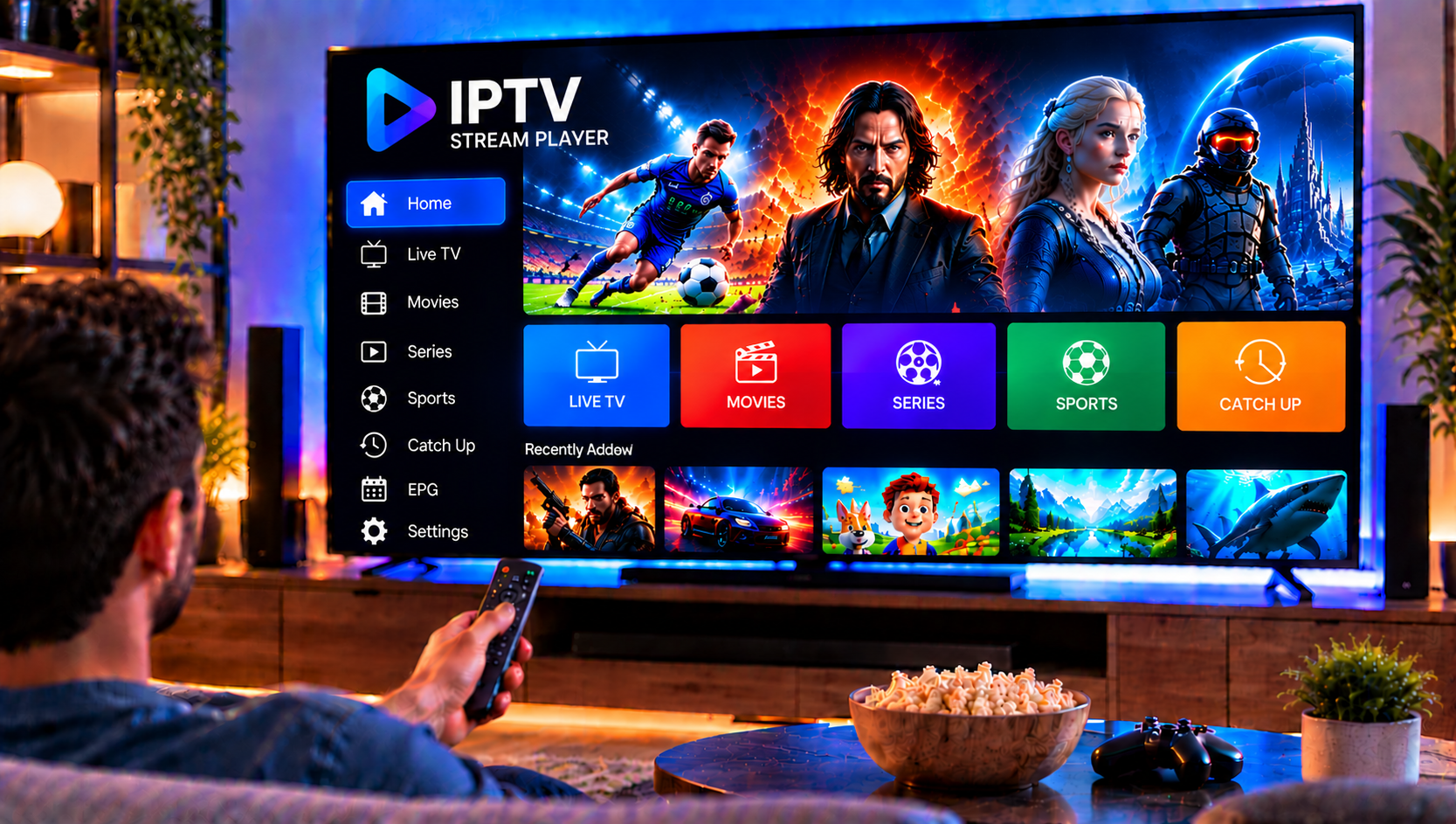
An IPTV stream player is an app that plays live TV, movies and series delivered over the internet. It does not supply channels itself. The popular Android app “IPTV Stream Player: Watch TV” says as much in its own notes: it is a video player, and users must bring their own content.
Think of it as a TV with no cable plugged in. Your IPTV provider supplies the “cable” in the form of an account login or an M3U playlist link, and the player turns that into a browsable channel list.
How an IPTV Stream Player Works
Most players accept content in one of two ways:
- Provider login: you enter details such as a server address, username and password. This usually loads channels, categories, on-demand titles and the TV guide automatically.
- M3U playlist: you add a link or file that lists streams. It is simpler, but extras like the TV guide depend on what the playlist includes.
Once the content loads, you can usually choose between live and on-demand sections, open the full channel list and use the TV guide (EPG) if your provider supports it.
Key Features to Look For
Based on the public listings for the Android app, a capable player should offer:
- Support for major video formats and 4K playback when the stream allows it
- Subtitles and multiple audio tracks
- Global search across live TV, movies and series
- Favorites and recent playlists for quick access
- Parental controls and the ability to hide content
- Casting to Android TV, Smart TVs and Fire TV devices
- Live recording, where supported
- Multiple languages and a built-in speed test
A fast interface matters as much as the feature list. Reviewers praise quick-loading menus and near-instant channel starts, which is what you want when you are flicking through channels.
Which Devices Work Best?
The Android app is built for phones, Android TV and Fire TV sticks, and the store listing says it needs Android 5.0 or higher. If you use iPhone, iPad or a mix of devices, check which version of any player is available for your platform before you commit.
For a complete overview of how to set up IPTV across phones and tablets, our Android and iOS setup guide walks through the process device by device.
How to Install an IPTV Stream Player
- Open the official store on your device, such as Google Play for Android.
- Search for the app name and check the developer details before installing.
- Install and open the app, then allow any permissions it genuinely needs.
- Choose your input method, either provider login or M3U playlist.
A Word on Safe Downloads
Third-party download sites often host APK files. Some are legitimate, but you cannot always be sure a file is unmodified. Stick to official stores where you can, keep your device updated and avoid unknown sources that ask you to disable security settings.
Also check the app’s version history. One independent review page lists version 3.8.2 from April 2025, so confirm that the version you install is current and still maintained.
How to Set Up Your IPTV Stream Player
Adding a Login
Enter the server address, username and password exactly as your provider supplied them. Copy and paste where you can, because even a single wrong character or trailing space will cause a failed login.
Adding an M3U Link
Paste the full playlist URL into the app, or load it from a file if your provider supplies one. Wait for the channel list to finish loading before judging the app. Large playlists can take a minute or two.
Personalizing the Experience
After the content loads, take a few minutes to:
- Add your most-watched channels to favorites
- Set up parental controls if children use the device
- Choose your preferred audio and subtitle languages
- Adjust brightness and volume controls for comfortable viewing
Common IPTV Stream Player Problems and Fixes
The App Opens but Shows No Channels
This almost always means the player has no valid content. Check that your login or playlist link is correct and that your subscription is active. Some users on app-download pages report that an app “does not work as a player” until an account is added. That is how these apps are designed.
Buffering and Freezing
Buffering has three usual causes: your connection, your device or the provider’s servers. Test your speed first, then switch to a wired connection if possible. For HD streams, a stable 15 to 25 Mbps per stream is a sensible target, and 4K needs more. If buffering only happens at peak times, the provider is likely overloaded.
App Crashes
Reviewers occasionally report crashes. Clear the app cache, update to the latest version and restart the device. If the problem continues, reinstall the app and re-enter your details.
Streams Stop Working Suddenly
One user comment on a download page mentions a service that “no longer works.” When a single provider stops loading while other content plays fine, the provider’s server or subscription is usually the cause, not the player. Contact your provider before changing apps.
Missing TV Guide
The EPG only appears if your provider supplies guide data. Try refreshing the playlist, and ask your provider whether EPG is included.
Limits to Be Aware Of
Independent reviews list a few honest drawbacks for this type of app: limited customer support options, channel availability that can depend on region, and buffering that appears during busy periods. None of these is unusual for IPTV players. They are a reminder that your experience depends heavily on your network and your provider, not only on the app.
How to Choose the Right IPTV Provider
A strong player cannot rescue a weak service. Look for stable streams at peak times, clear setup help, support for both login and M3U methods, and a range of channels that fits your household. Viewers comparing services sometimes look at names such as Monster IPTV, but whichever provider you pick, test it on a short plan and make sure it offers properly licensed content.
If you want to see how a supported installation works from start to finish, our IPTV installation guide covers the steps for different devices and apps.
Frequently Asked Questions
Is an IPTV stream player free?
Many players can be downloaded for free, but the player alone shows no channels. You still need content from an IPTV provider.
Does an IPTV stream player include channels?
No. It plays what you add through a provider login or M3U playlist.
Can I use it on Android TV and Fire TV?
The Android app is designed for phones, Android TV and Fire TV sticks. Check the store listing for compatibility with your exact device.
Why is my IPTV stream player buffering?
The cause is usually your internet speed, Wi-Fi quality or provider server load. Try a wired connection and test at different times of day.
How do I add an M3U playlist?
Open the app, choose the playlist option and paste the link your provider gave you. Wait for the list to load completely.
Final Thoughts
An IPTV stream player is only half of the experience. Install it from a trusted source, add your login or playlist carefully, and pair it with a provider that delivers stable streams. If you want a Swedish IPTV service with easy installation help, a wide choice of channels and flexible plans, visit Sverige IPTV and find the subscription that suits your home.