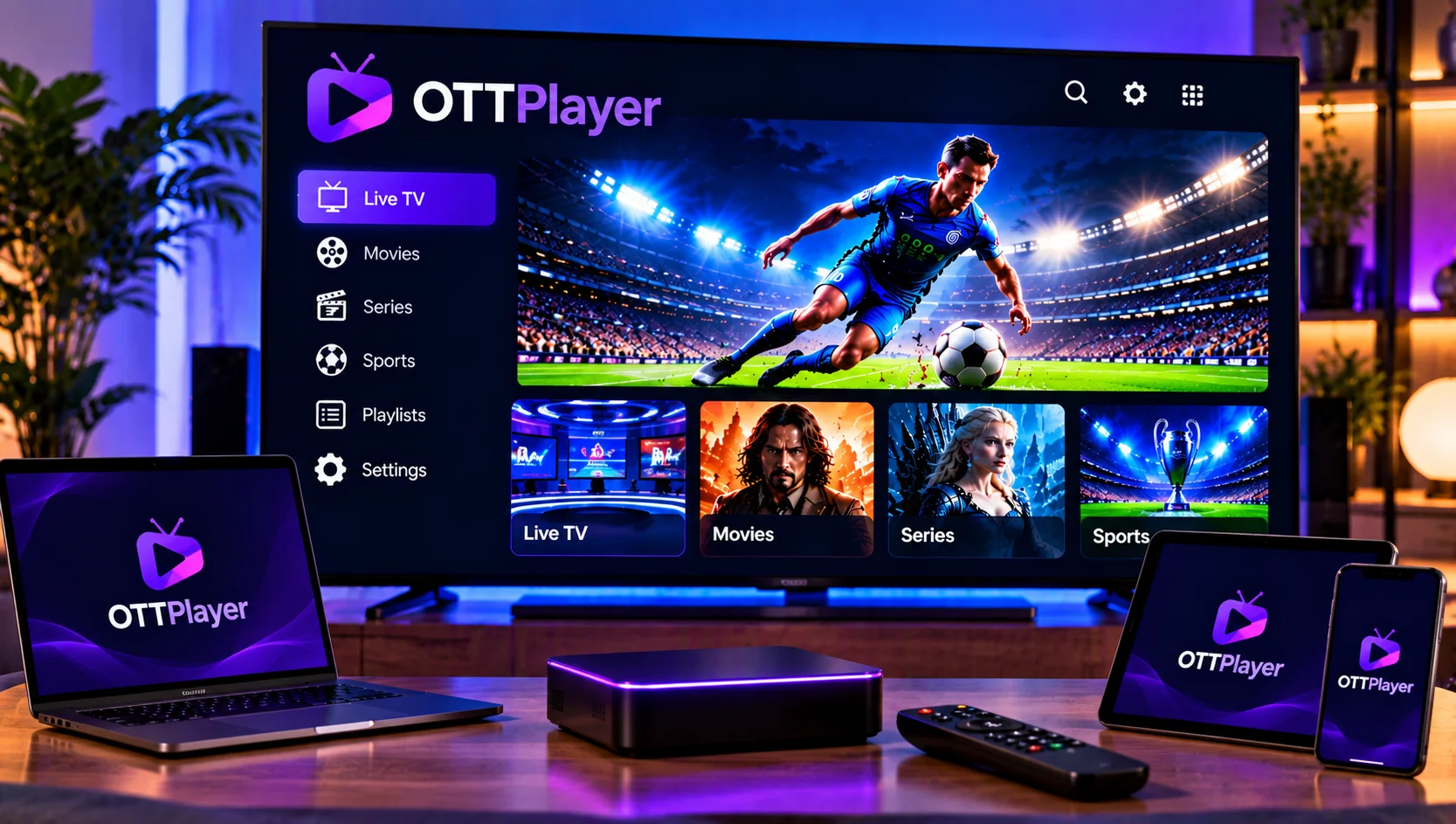
If you have an IPTV playlist but no good way to watch it, OTTPlayer is one of the most widely used apps for the job. It is free to download, works on phones, tablets, computers and smart TVs, and keeps all your channels in one place. Many new users get stuck on the same few steps: creating the account, uploading the playlist and linking the device.
This guide walks through each step in plain language. You will learn what the app does, how to install it, how to load a playlist and how to fix the usual problems.
What Is OTTPlayer?
OTTPlayer is an IPTV player, not an IPTV provider. It does not include any TV channels. It is a tool for watching the channels in a playlist you supply, whether that comes from your internet provider or an IPTV subscription.
The app supports the M3U8 playlist format and common streaming protocols such as HLS, RTSP, UDP/TS and RTMP. It also has an account-based system. You upload your playlist to a web account once, then connect any number of devices to it. According to its Google Play listing, the app has over five million downloads and shows no ads, which explains much of its popularity.
What You Need Before You Start
Check four things first:
- A working playlist. You need an M3U or M3U8 link or file from your provider.
- A stable connection. For HD streams, aim for at least 10 Mbps. For 4K, 25 Mbps or more is safer.
- A compatible device. The player has versions for Android, iOS, Windows, macOS and several smart TV platforms, including Samsung and LG.
- An email address. You need it to register on the OTTPlayer website.
Without a valid playlist the app will open but show an empty channel list.
How to Install OTTPlayer on Your Device
Installation is quick on every platform. Here is how it works on the most common ones.
Android Phones, Tablets and Android TV
Open Google Play, search for “OttPlayer” and tap Install. The app works the same way on phones and Android TV boxes, though a remote control makes browsing easier on a big screen.
iPhone and iPad
Search for the app in the App Store and install it. Because iOS handles background playback differently from Android, keep the screen active if a stream stops when you lock the phone.
Samsung and LG Smart TVs
These TVs use a widget or store version. Search for the app in your TV’s app store. If it is not listed for your model or region, our IPTV installation guides cover alternative player setups that work on most modern TVs.
Windows and Mac
On a computer you can use the available desktop or web version. This suits users who like a larger screen and quick searching through long channel lists.
How to Set Up Your Playlist in OTTPlayer
This is where most beginners get confused. The process is simple once you see how the pieces connect.
Step 1: Create Your Account
Go to the OTTPlayer website and open the registration page. All fields are required, so fill them in carefully and confirm your email if asked. Keep your login details somewhere safe, because you will need them inside the app too.
Step 2: Upload Your Playlist
Log in to your account and add a new playlist. You can usually paste an M3U link or upload the file directly. Give the playlist a clear name so you can recognize it later, especially if you plan to add more than one.
Step 3: Log In on Your Device
Open the app on your TV, phone or computer and sign in with the same username and password. The app will fetch the playlists stored in your account.
Step 4: Link the Device to the Playlist
Back on the website, attach your device to the playlist you just added. Restart the app or refresh the list. Your channels should appear within a few seconds.
Step 5: Organize and Watch
Once the channels load, sort them into groups, mark favorites and change channel icons if you like. A tidy list saves a lot of scrolling later.
Key OTTPlayer Features Worth Knowing
The app is not flashy, but it covers the essentials well:
- Central control. You manage playlists from one web account and the changes appear on every linked device.
- Multi-device support. One account can power several screens, so you can start in the living room and continue on your phone.
- Playlist icon management. You can adjust channel logos so the list looks clean and is easy to scan.
- Protocol flexibility. Support for several streaming protocols means it handles a wide range of sources.
- No ads. The player stays out of the way, with no banners or pop-ups interrupting playback.
Compared with basic players, the biggest advantage is the account system. You never have to retype a long playlist link on a TV remote again.
Choosing a Reliable Playlist Source
A player is only as good as the stream behind it. Even the best app cannot fix a slow, unstable or incomplete channel list. When you compare sources, look at uptime, channel variety, picture quality and how fast support responds to problems.
Plenty of providers sell playlists, and some, such as Viking IPTV, are known to Nordic viewers. Whichever service you choose, test it with a short plan first and check that sports, news and your local channels all load smoothly.
If you want a Swedish-focused option, Sverige IPTV’s flexible packages give you live TV, sports, movies and series in HD, FHD and 4K, with plans that range from a short trial to a full year.
Common OTTPlayer Problems and Fixes
The channel list is empty. Confirm the playlist was uploaded and that the device is linked to it. Then sign out of the app and sign back in.
Channels buffer or freeze. Test your internet speed first. If the connection is fine, try a wired connection or move closer to the router. Peak evening hours can also slow some sources.
Login fails. Check for typing errors and make sure you are using the OTTPlayer account details, not your IPTV provider’s credentials. They are two separate logins.
Playlist will not load. Expired or incorrectly copied links are the usual cause. Ask your provider for a fresh link and paste it again.
No picture on a smart TV. Update the TV firmware and the app. Older software often struggles with newer stream formats.
A quick restart of both the app and the router solves more issues than most people expect.
OTTPlayer FAQ
Is OTTPlayer free?
Yes, the app itself is free to download and use. You still need a playlist from a provider, which usually costs money.
Does OTTPlayer include TV channels?
No. It only plays the content in the playlist you add. It has no built-in channels.
What playlist format does OTTPlayer use?
It works with M3U and M3U8 playlists. Most providers supply one of these two formats.
Can I use OTTPlayer on more than one device?
Yes. Link each device to your account and playlist, and they will all show the same channel list.
Why is my OTTPlayer playlist not loading?
The usual reasons are an expired link, a typing error in the URL or a device that has not been linked to the playlist in your account.
Final Thoughts
OTTPlayer is a dependable, ad-free way to organize and watch IPTV once you understand the account, playlist and device steps. Pair it with a stable, high-quality source and you will have a smooth viewing setup across all your screens. If you are ready for a Swedish IPTV service that works well with your player of choice, visit Sverige IPTV and pick the plan that suits you.