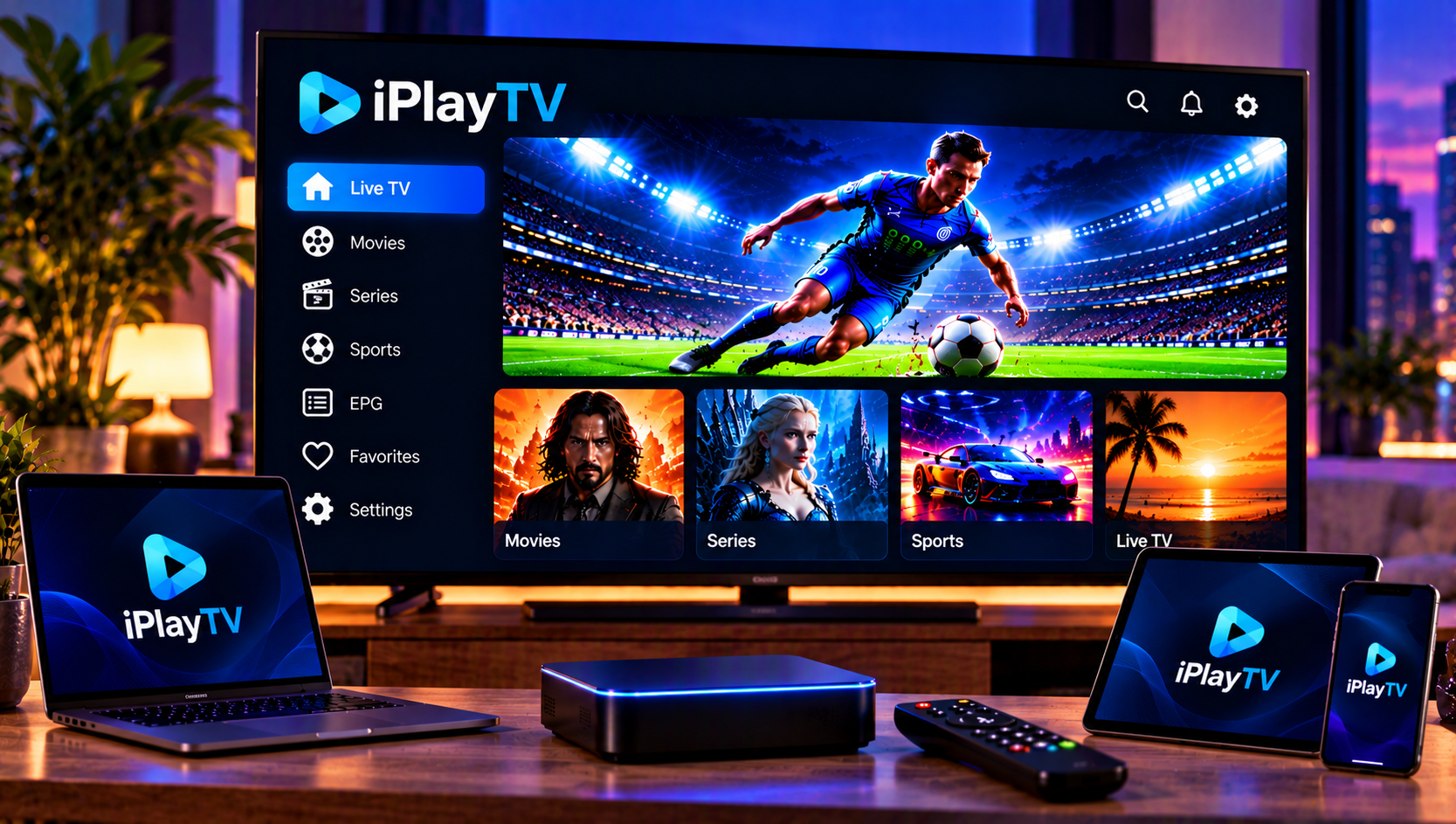
If you own an Apple TV, iPhone or iPad, you have probably come across iPlayTV. It is one of the most polished IPTV player apps on Apple platforms. But the app is only a player: it shows what your playlist gives it, and how well it works depends on how you configure it.
This guide explains which version to download, how to add playlists, how to get the TV guide working properly, and which settings improve playback. It also covers fixes for the problems people hit most often.
What Is iPlayTV and Which Version Do You Need?
iPlayTV is not one app. There are two, and mixing them up is a common mistake.
iPlayTV for Apple TV
The Apple TV version, listed as “iPlayTV – IPTV/M3U Player,” is a paid tvOS app (79 kr in the Swedish App Store at the time of writing). It supports multiple playlists, favourites, channel logos, a full electronic program guide, catch-up through Xtream Codes, multiple audio and subtitle tracks, and AirPlay 2. It currently requires tvOS 18.6 or later, so check your Apple TV is up to date before buying.
iPlayTV AIO for iPhone, iPad and Mac
iPlayTV AIO is the version for iOS, iPadOS and Apple Silicon Macs. It adds extras such as iCloud sync, parental controls, TMDB metadata, programme reminders, TV archive and offline downloads, as long as your stream source supports them. If you mostly watch on a phone or tablet, our iOS and Android setup guide shows how to get your channels running on mobile.
What You Need Before You Start
iPlayTV does not include channels or content. You need a playlist from your own provider, in one of three formats:
- An M3U URL (a web link to your channel list)
- Xtream Codes login details (server, username and password)
- An M3U file you upload manually
An EPG source is also worth having. This is usually an XMLTV link supplied with your subscription. Keep these details somewhere you can copy them from, because typing long URLs with a remote is slow.
How to Add a Playlist in iPlayTV
Open the app, go to the playlist settings and choose to add a new playlist. The best method depends on what your provider gave you.
Using an M3U URL
Paste the full link and give the playlist a clear name. A remote playlist refreshes automatically, so new channels appear without extra work. This is the simplest option for most people.
Using Xtream Codes
Enter the server address, username and password exactly as supplied. Xtream Codes is often the better choice because it usually brings catch-up, and it separates live TV, movies and series cleanly. If the connection fails, double-check whether the server address needs http:// or https://, since some servers are strict about this.
Uploading a File
If you only have an M3U file, upload it directly. This works well for testing, but it will not update itself, so you will need to re-upload when your channel list changes.
If you want a clean starting point, our IPTV installation guide walks through preparing your subscription details before you add them to any player app.

Advanced EPG Settings That Make a Real Difference
A good program guide turns a long channel list into something you can actually browse. These are the settings that matter.
Adding the Right EPG URL
When you add a playlist, iPlayTV tries to fill in the EPG address automatically. If the guide stays empty, enter the XMLTV link manually. The app supports compressed EPG files (gzip or tar), which keeps the download small and quick.
Using EPG Time Shift
If programmes show at the wrong time, the guide’s time zone does not match yours. Time shift lets you move the whole guide forward or back by whole hours. For viewers in Sweden, start by testing a one-hour offset in either direction, then check a live programme you know the start time of. Do not shift individual channels. Fix the guide as a whole.
Matching Logos and Channel Names
iPlayTV can match channel logos automatically from channel names. It works best when names are clean and consistent. If many logos are missing, the problem is usually inconsistent naming in the playlist rather than the app itself. You can also use custom logos and names for the channels you watch most.
Best Apple TV Playback Settings
Once the playlist and guide work, a few playback settings are worth adjusting.
Match frame rate. This tells your Apple TV to switch refresh rate to suit the content. It helps with smooth motion in football, ice hockey and films, though your TV needs “Match Content” enabled in Apple TV video settings as well.
Audio and subtitle tracks. iPlayTV remembers your chosen tracks and lets you set preferred languages. This is useful for Swedish subtitles on foreign series and films. OpenSubtitles support is also built in, and you can add your own credentials in settings.
Favourites and reordering. Build a favourites group with the 15 to 20 channels you really watch, and reorder it so news, sport and entertainment sit where you expect them. This saves far more time than scrolling through thousands of channels.
Channel preview. If enabled, preview shows a small live picture while you browse. It looks nice but uses more bandwidth, so turn it off on slower connections.
AirPlay 2. You can send streams to other screens. Note that after your Apple TV wakes from sleep, you may need to select the AirPlay target again.
Fixing Common iPlayTV Problems
Most problems come down to a handful of causes.
Constant buffering. Test your connection first, preferably with the Apple TV on Ethernet rather than Wi-Fi. If speeds are fine, try a different stream quality or a different channel. If every channel buffers, the issue is likely your network or the stream source, not the app. Some IPTV brands, such as Viking IPTV, also publish their own network and troubleshooting tips that can help you rule things out.
Playlist will not load. Re-copy the URL and remove any trailing spaces. Then refresh the playlist and restart the app.
Empty or wrong guide. Confirm the EPG link, update the playlist, then adjust time shift. Large guides can take a few minutes to process the first time.
Missing channels after an update. Refresh the playlist and check that no groups are hidden in the manage content screen.
Crashes after a tvOS update. Update iPlayTV from the App Store. The developer regularly releases fixes for new tvOS versions.
Frequently Asked Questions
Is iPlayTV free?
The Apple TV app is a paid download. The AIO version for iPhone, iPad and Mac has a free app with PRO features available as an upgrade. Prices can change, so check the App Store listing before buying.
Does iPlayTV include channels?
No. It is a player only. You must supply your own playlist, and the developer does not provide or recommend any content.
Can I use the same playlist on Apple TV and iPhone?
Yes, if you enter the same details in each app. The AIO version also supports iCloud sync for favourites and watch history across your Apple devices.
Why is my guide one hour off?
The EPG time zone differs from your local time. Use the EPG time shift setting to correct it.
Final Thoughts
iPlayTV is a capable player, and a few minutes spent on your playlist, EPG and playback settings gives you a far smoother experience than the defaults. If you are looking for a reliable Swedish IPTV service to use with iPlayTV and other devices, visit Sverige IPTV to explore subscriptions with live channels, sports, movies and series in HD, FHD and 4K, plus help with setup.