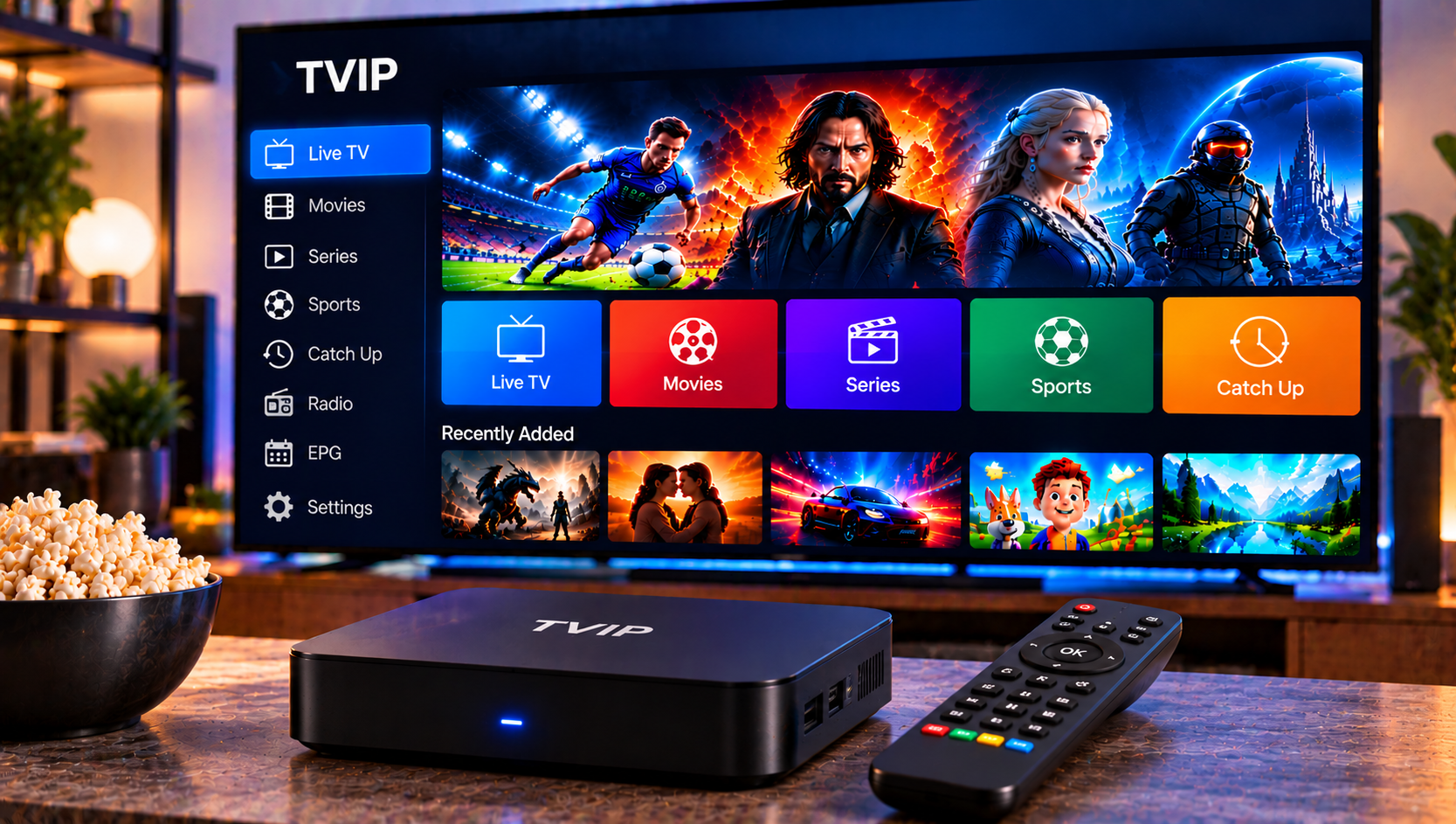
A TVIP box is one of the better-known hardware options for people who want a dedicated device for internet-based TV. It plugs into your television, connects to your network and plays whatever your IPTV provider supplies. The part that confuses most new owners is the setup, especially portals, MAC addresses and the TV guide.
This guide explains what a TVIP box is, how the main S-Box models differ, how to set up a portal and EPG, and what to do when something does not work.
What Is a TVIP Box?
A TVIP box is a set-top media player built for IPTV. It connects to your TV through HDMI and to your router through Ethernet or Wi-Fi. Retailers describe it as a technical playback device, and that wording matters: the box itself does not include channels, subscriptions or content. You must supply those through a legal provider and compatible apps or portals.
Think of it as a very capable empty TV tuner. The hardware is ready, and your provider fills it with content.
TVIP S-Box Models Explained
TVIP sells several S-Box generations, and the model number tells you a lot about what to expect. Based on retailer listings, they fall into two broad groups.
Linux-Based Models
Earlier and some current models, such as the v.530 and v.610, are Linux-based. They are built around a portal (middleware) experience, where your provider’s interface loads on the box much like a traditional set-top box. They tend to be simple, fast to start and easy to use once the portal is configured.
Android-Based Models
The 700 series, including the v.705, v.706, v.710 and v.726, runs Android 11 according to the listings. These offer 4K output, dual-band Wi-Fi and Bluetooth on several models, plus access to Android apps. The v.726 is listed with 4 GB of RAM and 32 GB of storage, which suits users who want more apps and smoother multitasking.
Hybrid Option
The v.605 appears in listings as a Linux/Android model with 4K and dual Wi-Fi, so check the exact version of the device you are buying.
Which Should You Choose?
- Choose Linux if your provider supplies a portal and you want a simple, stable, set-top-box feel.
- Choose Android if you also want to install player apps or use other streaming services.
- Check the remote before ordering. Several models use a Bluetooth remote, and replacements are sold separately.
What You Need Before Setup
Gather these items first:
- Your TVIP box, power supply and HDMI cable
- A stable internet connection, ideally wired
- Your provider’s portal URL or app login details
- The box’s MAC address, which is usually printed on a label and shown in the network settings
Many providers register your MAC address, so keep it handy.
How to Set Up a TVIP Box Step by Step
Menu names vary by model and firmware, but the general process is the same.
- Connect the hardware. Plug in HDMI and power, then add an Ethernet cable if you can.
- Turn on the TV and select the correct HDMI input.
- Complete the first-time wizard. Choose your language, region and network connection.
- Check the network. Confirm the box has an IP address and internet access.
- Open the portal or middleware settings. On Linux models, this is where you enter the portal address.
- Enter your portal URL exactly as your provider supplied it.
- Save, reboot and wait for the channel list to load.
Copy details carefully. A single missing character in a portal address is the most common reason a box opens to an empty screen.
How to Add an IPTV Portal
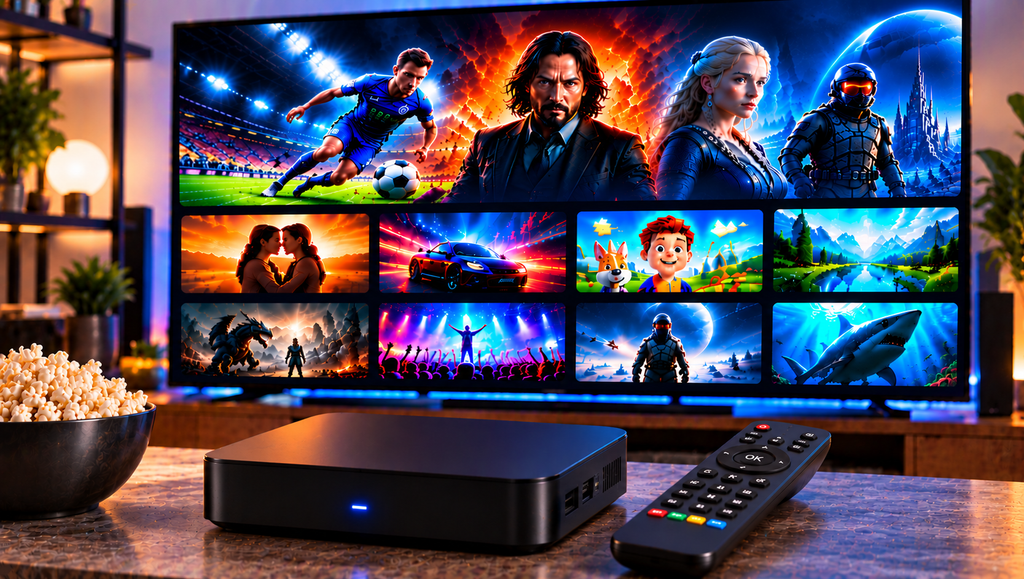
A portal is a web address that loads a complete channel interface, including groups, a video library and often a TV guide. The TVIP learning centre lists separate guides for adding a portal and for adding multiple portals, which tells you the box can store more than one source.
Practical tips:
- Add one portal first and test it before adding others.
- Label each portal clearly so you can tell them apart later.
- If a portal fails to load, confirm that your subscription is active and that your MAC address is registered with your provider.
On Android models, you may instead install a player app and add your login or playlist there. If you want to see how apps and boxes are set up in practice, our IPTV installation guide walks through the steps for different devices.
How to Set Up the EPG (TV Guide)
The EPG, or electronic program guide, shows what is on now and next. TVIP lists EPG as a system feature, but whether it works depends on your configuration and your provider.
To get the guide working:
- Make sure the box’s time zone and clock are correct, because wrong time settings are the number one cause of misaligned guides.
- Confirm your provider includes EPG data for your channel list.
- Refresh the channel list or restart the box after changing settings.
- Give the guide a few minutes to download the first time.
If the guide is blank for some channels only, the provider’s data may not cover them.
Useful Everyday Settings
Once the box is running, spend a few minutes on these:
- Favorites: save your most-watched channels for quick access.
- Channel sorting: reorder lists so you are not scrolling through hundreds of channels.
- Remote pairing: if your Bluetooth remote does not respond, pair it again through the box’s settings.
- Sleep and restart options: useful for saving power and clearing small glitches.
Common TVIP Box Problems and Fixes
Blank Screen After Entering the Portal
Re-enter the portal address and check for typos. Then confirm your account is active and your MAC address is registered.
Box Cannot Connect to the Internet
Test your router with another device. If Wi-Fi is weak, use a cable, or try a USB Wi-Fi adapter if your model supports one.
Buffering or Freezing
Buffering usually comes from your network or the provider’s servers rather than the box. For FHD and 4K streams, aim for a stable 15 to 25 Mbps per stream, and more for 4K. Switch to a wired connection if you can.
Remote Not Responding
Replace the batteries, then re-pair the Bluetooth remote. If the box still does not react, a restart or a spare remote will tell you whether the remote is at fault.
Wrong or Missing Guide Data
Check the time zone and ask your provider whether EPG is included.
Box Behaves Strangely After Many Changes
A factory reset can clear configuration problems. Note down your portal details first, because you will need to enter them again.
What to Look for in an IPTV Provider
Your box is only as good as the service you connect to it. Check that your provider offers a portal or compatible login, stable streams at peak hours, clear installation help and a channel range that suits your household. Some viewers compare several services before choosing, and names such as JA IPTV come up in those discussions. Whichever you consider, test it on a short plan first and make sure it uses properly licensed content.
If you want to check what a typical line-up looks like, you can browse the IPTV channel categories before deciding how many channels you really need.
Frequently Asked Questions
Does a TVIP box come with channels?
No. It is a playback device only. You need a subscription from an IPTV provider.
What is the difference between Linux and Android TVIP models?
Linux models focus on portal-based viewing, while Android models also support apps and extra streaming services.
How do I find my TVIP box MAC address?
It is usually printed on the label on the box and shown in the network or system information menu.
Can I add more than one portal?
Yes. The learning centre includes a guide for adding multiple portals, so the box supports several sources.
Why is my EPG empty?
The most common causes are an incorrect time zone, missing guide data from your provider or a channel list that needs refreshing.
Final Thoughts
A TVIP box is a reliable way to bring IPTV to the living room once you understand the basics: pick the right S-Box generation, enter your portal correctly, set the time zone for a working guide and use a stable connection. If you want a Swedish IPTV service to pair with your box, with easy installation help, a wide channel selection and flexible plans, visit Sverige IPTV and find the subscription that fits your home.