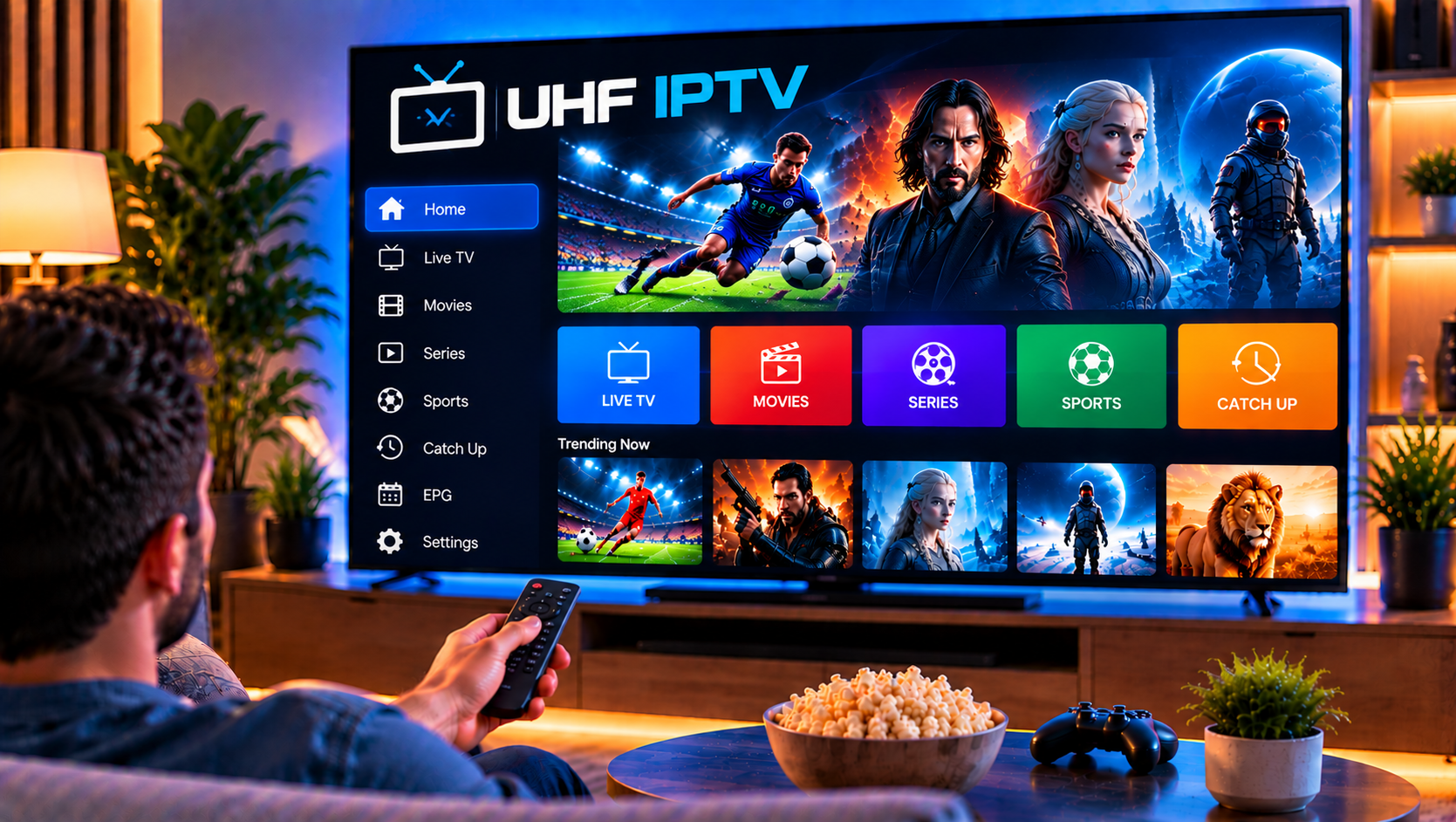
UHF IPTV is a modern media player built around the Apple ecosystem. It lets users connect their own compatible playlists and organize live television, movies, series, EPG data, favorites, and other media inside one interface.
The app is particularly useful if you switch between an iPhone, iPad, Apple TV, and Mac because its optional synchronization tools can keep viewing activity and playlist organization consistent across devices.
UHF does not provide television channels or an IPTV subscription. You need your own authorized content source before setting it up.
This guide explains how UHF works, how to install it across Apple devices, how to add Xtream or M3U8 playlists, and what to try when channels, EPG data, or device syncing do not work correctly.
What Is UHF IPTV?
UHF, officially listed as UHF – Love your IPTV, is a media player developed by Short Wavelength Applications.
It supports several types of media sources, including:
- M3U8 playlists
- Xtream-compatible logins
- Plex
- Jellyfin
- Emby
For IPTV users, M3U8 and Xtream are the most relevant options.
UHF also includes features such as global search, EPG, catch-up support, Picture-in-Picture, favorites, content organization, subtitles, multi-audio support, AirPlay, Chromecast, and parental controls.
Supported content can also take advantage of 4K HDR, Dolby Vision, and Dolby Atmos.
UHF IPTV Device Compatibility
UHF is primarily designed for Apple’s ecosystem.
| Device | UHF Support | Best Use |
|---|---|---|
| iPhone | Yes | Portable viewing and playlist management |
| iPad | Yes | Larger mobile screen and EPG browsing |
| Apple TV | Yes | Main television viewing |
| Mac | Supported on compatible Apple Silicon Macs | Desktop viewing and management |
One detail is important for Mac users. UHF’s Mac experience uses Apple’s compatibility system for running the iPad application on Apple Silicon rather than being a completely separate native macOS application.
That means the interface may behave slightly differently from traditional Mac software.
How to Install UHF IPTV on iPhone
Installation on an iPhone is straightforward.
Step 1: Open the App Store
Search for UHF – Love your IPTV.
Check the developer information before downloading so you do not accidentally install a similarly named application.
Step 2: Install and Open UHF
Download the application and open it.
On your first launch, you can start a new configuration and add your content source.
Step 3: Choose Your Playlist Type
Select the format that matches the information you received.
If you have a server address, username, and password, use the Xtream option.
If you received a complete playlist link, choose M3U8 instead.
For more general Apple mobile setup information, see the IPTV setup guide for iOS and Android.
How to Set Up UHF IPTV on iPad
The iPad installation process is almost identical to the iPhone.
Open the App Store, install UHF, launch the application, and choose Add Playlist.
The main advantage of using UHF on an iPad is screen space. The larger display makes categories, search results, channel lists, and the electronic program guide easier to browse.
Picture-in-Picture is also useful when you want compatible video to continue playing while using another application.
If you already configured UHF on another Apple device, optional UHF Pro synchronization can reduce the need to organize everything again manually.
How to Install UHF IPTV on Apple TV
Apple TV is where UHF becomes particularly useful for everyday television viewing.
Step 1: Download UHF
Open the App Store on Apple TV and search for UHF.
Install the official application and launch it.
Step 2: Add Your Source
Choose Add Playlist and select the appropriate connection type.
For an Xtream-compatible setup, you will normally need:
- Playlist name
- Server URL
- Username
- Password
Enter each field exactly as supplied.
Step 3: Allow the Playlist to Load
Once saved, UHF begins organizing the information available through your source.
Depending on the playlist, this can include live channels, movies, series, artwork, categories, and EPG information.
Avoid repeatedly closing and reopening the application during the initial import.
How to Set Up UHF IPTV on Mac
UHF can also be used on compatible Apple Silicon Macs.
Because the Mac version operates through Apple’s iPad application compatibility layer, it may look or behave slightly differently from software developed specifically for macOS.
Install the available UHF application, open it, and follow the same basic playlist workflow used on iPhone or iPad.
This makes Mac useful when you want to watch content at a desk or manage your IPTV setup without using a television remote.
How to Add an Xtream Playlist to UHF
Xtream login is usually the cleanest option when your account provides separate credentials.
Open UHF and select Add Playlist, then choose Xtream.
Enter your server address exactly as provided. Include the correct http:// or https:// prefix and port number if one is supplied.
Next, enter your username and password.
Give the playlist a recognizable name and save it.
UHF should then retrieve the available categories and media information.
How to Add an M3U8 Playlist
M3U8 setup uses a complete playlist URL rather than separate login fields.
Select Add Playlist and choose M3U8.
Paste the entire URL without shortening or manually removing its parameters.
Save the playlist and let UHF process it.
Be careful when sharing screenshots of M3U or M3U8 URLs. Some playlist links contain account credentials directly inside the address.
Understanding EPG in UHF
EPG stands for Electronic Program Guide.
When compatible guide information is available, UHF can show current and upcoming programs alongside live channels.
This makes it easier to browse scheduled television rather than opening individual streams to see what is currently playing.
UHF Pro also offers expanded guide navigation and reminders.
If channels appear but the EPG does not, refresh the playlist first. Missing guide information can originate from the playlist or EPG source rather than the media player itself.
UHF IPTV Player vs IPTV Service
UHF controls the interface, playback, EPG presentation, favorites, and organization. It does not determine which channels are included in your subscription.
A service such as Viking IPTV serves a different purpose from the UHF application. The source supplies compatible content access, while the player provides the software interface used to organize and play it.
Understanding this difference makes troubleshooting much easier.
Useful UHF Features
Cross-Device Sync
UHF Pro can synchronize playlists, favorites, recent viewing activity, and organization between compatible devices.
For example, you could organize favorites on your iPhone and then access the same setup on Apple TV.
Global Search
UHF can search across multiple connected playlists rather than requiring you to open each category separately.
This is especially helpful when you have large libraries.
Catch-Up and Timeshift
Where supported by the connected source, catch-up allows previously aired programming to be accessed after broadcast.
Availability depends on the underlying source.
AirPlay and Chromecast
UHF includes casting support, allowing compatible content to move from a mobile device to another screen.
Picture-in-Picture
Picture-in-Picture lets supported playback continue inside a smaller floating window while you use other applications.
Content Management
Users can organize content by renaming, reordering, merging, favoriting, or hiding supported items and categories.
Parental controls can also lock selected content behind a PIN.
Recording With UHF Server
UHF also provides a companion UHF Server system for recording.
The server can run on a compatible Mac, Windows computer, Linux system, or certain networked setups.
Your Apple device communicates with the server over the network, while the computer handles the actual recording and storage.
This avoids relying entirely on the limited storage available on an Apple TV or mobile device.
Common UHF IPTV Problems and Fixes
Playlist Will Not Load
Check the complete server address or M3U8 URL.
For Xtream login, confirm the username and password and remove accidental spaces.
Channels Appear but Do Not Play
Test several channels.
If only one fails, the stream itself may be unavailable. If everything fails, reload the playlist and test your network connection.
EPG Is Missing
Refresh the playlist and EPG data.
If the channel list loads successfully but the guide remains empty, the connected source may not be supplying compatible guide information.
Apple TV Data Suddenly Disappears
tvOS can sometimes clear application cache while managing storage.
If you use UHF synchronization or backups, reload the playlists and reconnect to the existing backup instead of immediately creating a completely new configuration.
Devices Are Not Syncing
Reload playlists on each device and confirm that the devices are connected to the intended backup configuration.
Cross-device synchronization is part of UHF’s optional Pro functionality.
Streams Keep Disconnecting
First, test another channel and another network if possible.
UHF includes automatic reconnect functionality for some playback interruptions, but it cannot repair an unavailable stream or remote server.
For deeper troubleshooting, the app also provides a debug mode that can help identify playlist, network, or server errors.
Is UHF IPTV Worth Using?
UHF is particularly appealing to households already using Apple devices.
Its biggest advantage is the combination of Apple TV viewing with iPhone and iPad management, plus optional cross-device synchronization.
Support for Xtream, M3U8, Plex, Jellyfin, and Emby also makes it more flexible than a player limited to one playlist format.
Features such as EPG, search, catch-up, Picture-in-Picture, AirPlay, subtitles, content organization, Dolby Vision, HDR, and parental controls give it enough depth for regular use without making the basic setup unnecessarily complicated.
FAQ
Does UHF IPTV Include Channels?
No. UHF is a media player and does not provide IPTV channels or subscriptions.
Can UHF Use Xtream Codes?
Yes. UHF supports Xtream-compatible playlists using a server URL, username, and password.
Can UHF Use M3U8 Playlists?
Yes. You can add a compatible M3U8 playlist by entering its complete URL.
Does UHF Work on Apple TV?
Yes. Apple TV is one of the main supported platforms and provides a large-screen interface suitable for live TV, movies, series, and EPG browsing.
Can I Use UHF on Mac?
Yes, on compatible Apple Silicon Macs. The application runs using Apple’s iPadOS compatibility system rather than as a completely separate native Mac application.
Does UHF Sync Between Devices?
Optional Pro features include synchronization for playlists, favorites, recent activity, and other supported app data.
UHF IPTV is a strong choice when you want one familiar player across iPhone, iPad, Apple TV, and a compatible Mac while keeping playlists and viewing tools organized. If you are preparing an Apple-based IPTV setup for Swedish viewing and need flexible subscription choices with installation support, explore Sverige IPTV to find an option that fits your devices and viewing preferences.