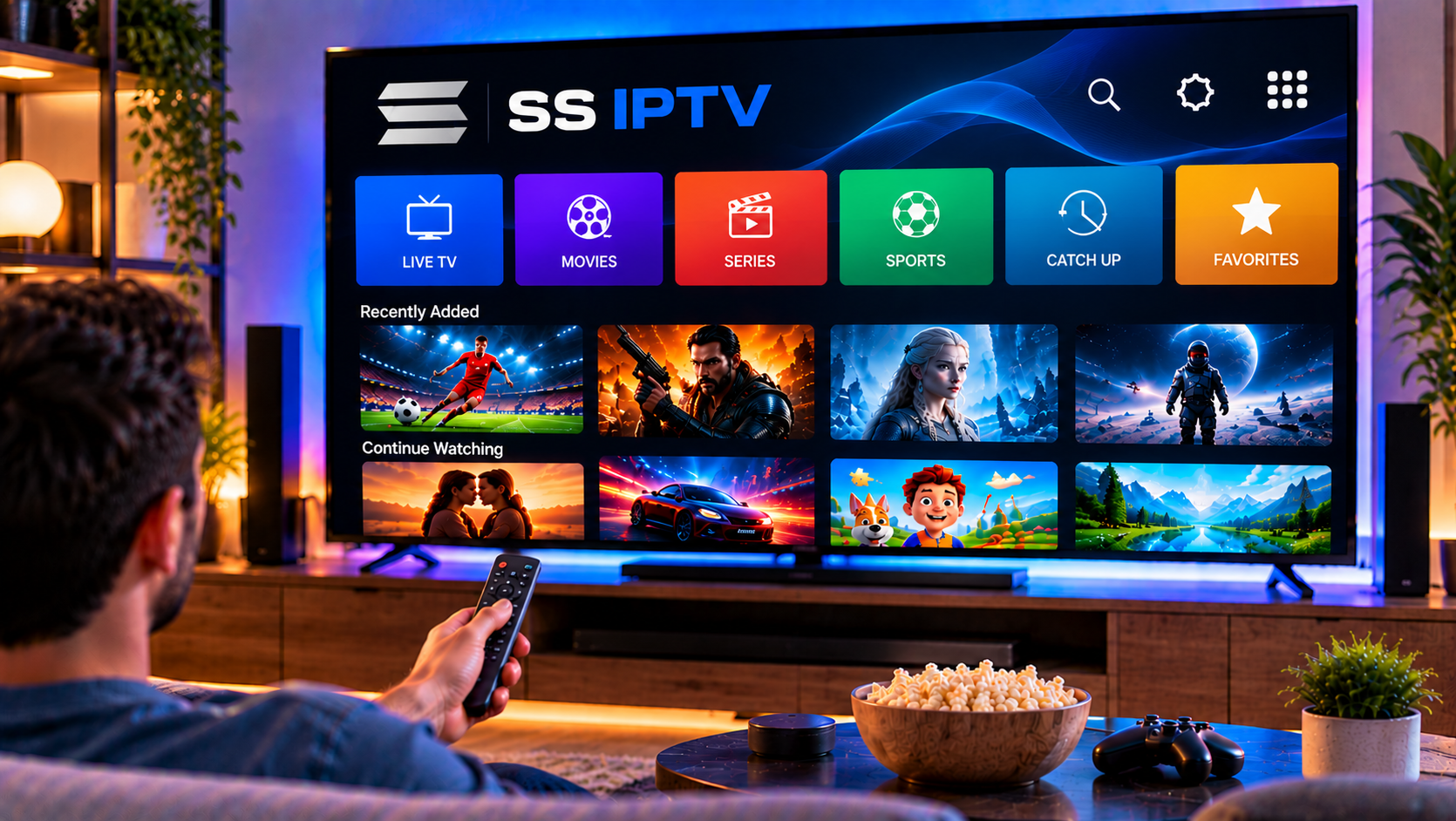
SS IPTV is useful for viewers who want to load their own IPTV playlist into a simple player and watch it on a compatible television or mobile device. The app itself does not supply channels, movies, sports, or subscriptions. Instead, it reads content from an M3U playlist or another supported source provided by the user.
One point matters in 2026: several apps use very similar SS IPTV names. The Android and iOS store listings are associated with Souza Apps, while the Smart TV documentation at ss-iptv.com describes its own playlist and installation workflow. Always check the developer and platform before following a tutorial.
What Is SS IPTV?
SS IPTV is a media player built around user-supplied playlists. Depending on the version, it can organize live channels, movies, series, favorites, recent items, and other compatible media.
The Android store version supports M3U lists, Chromecast, favorites, recent items, HLS, and MP4. The iPhone and iPad version also supports M3U lists, multiple saved lists, favorites, and Chromecast. The established Smart TV documentation adds external playlist URLs, internal playlist uploads, Extended M3U features, TV guide integration, and platform-specific installation.
Feature availability is not identical across every app using the SS IPTV name, so verify the version installed on your device.
How to Install SS IPTV on a Smart TV
Smart TV installation depends on the television brand and model year.
LG Smart TV
The official Smart TV documentation states that SS IPTV can be installed from LG Smart World on supported LG televisions. Search the LG content store first. After installation, open Settings to add an external playlist or generate a connection code for an internal playlist.
For broader television instructions, the Smart TV IPTV setup guide explains the general setup process for compatible televisions.
Samsung Smart TV
The SS IPTV documentation says the app is not available in Samsung Smart Hub and provides USB installation methods for specific older Orsay and Tizen models.
Do not assume those instructions work on every current Samsung TV. Verify your model year and operating system before following an older USB tutorial.
Philips, Sony and Android TV
Official documentation describes Philips and older non-Android Sony support as beta or model-specific. If your television runs Android TV or Google TV, check its app store and verify the developer carefully because similarly named apps can use different setup methods.
How to Add an M3U Playlist to SS IPTV
The classic Smart TV workflow offers two main methods: an external playlist URL and an internal playlist uploaded with a connection code.
Method 1: Add an External Playlist
Open SS IPTV and go to Settings. Enter Content, choose External Playlists, and select Add.
Give the list a recognizable name, paste the complete playlist URL, and save it. A successfully added playlist should appear as a separate tile on the main screen.
External playlists are convenient because the app can request the current version from a remote URL. On some Smart TVs, that URL needs to be reachable from the wider internet.
Method 2: Upload With a Connection Code
Open the General section in Settings and choose Get Code. Enter the temporary code into the SS IPTV playlist editor from a computer or browser.
After connecting the device, upload the compatible playlist file and save it. The internal playlist should then appear on the television.
This method is useful when you have a local M3U file rather than a remote URL.

How EPG Works in SS IPTV
EPG stands for Electronic Program Guide. It adds programme names and schedules to compatible channels.
SS IPTV can use guide information referenced in an Extended M3U playlist and supports external guide data such as XMLTV and JTV. Smart TVs have limited memory compared with computers, and the official documentation warns that very large guide files can cause slow loading, freezing, or crashes.
If channels work but the guide is empty, refresh the playlist and confirm that the source actually contains compatible EPG information.
IPTV Player vs IPTV Service
SS IPTV is only the player. The playlist or service determines which authorized streams are available, while the app controls how those streams are organized and displayed.
The same distinction applies when comparing a player with a service brand such as Monster IPTV. Changing the player may improve navigation or compatibility, but it cannot restore a missing channel or expired account at the source.
How to Keep a Large Playlist Manageable
Use favorites for channels you watch regularly, keep groups clearly named, and avoid duplicate playlists. A cleaner list makes navigation faster and helps you spot whether a channel, category, or guide entry is actually missing.
Common SS IPTV Problems and Fixes
Playlist Does Not Load
Check the full M3U URL and confirm that it is still active. For external playlists, the link may need to be reachable outside your home network. If you uploaded a file, confirm that it uses a supported format and proper encoding.
Channels Appear but Do Not Play
Test several channels. If one fails but others work, the problem may be limited to that stream. If everything fails, refresh the playlist and confirm that the source or account is active.
EPG Is Empty
Confirm that the playlist includes compatible guide information or points to a working guide source. A working channel list does not automatically include EPG data.
App Freezes With a Large Playlist
Reduce unnecessary channels or EPG data. Large playlists and guide files can put extra pressure on older television hardware.
Playlist Works on One Device but Not Another
Different televisions support different codecs, app versions, and network behavior. Test the same source in another compatible player before assuming the playlist itself is broken.
Is SS IPTV Still Worth Using in 2026?
SS IPTV can still be practical for users who prefer M3U-based playlist management and want a television-focused interface.
Its strengths are flexible playlist loading, external URL support, code-based uploads, favorites, and Smart TV-oriented controls. Its main challenge is platform fragmentation. Instructions that work on an older LG or Samsung TV may not apply to a current Android TV, Google TV, or newer proprietary platform.
The safest approach is to identify your exact TV operating system, verify the specific SS IPTV app, and then follow instructions written for that version.
FAQ
Does SS IPTV Include Channels?
No. SS IPTV is a player. You need your own compatible and authorized playlist or content source.
Does SS IPTV Support M3U Playlists?
Yes. M3U is central to SS IPTV setup, including external URL-based playlists and internal playlist uploads.
Can I Use SS IPTV on Samsung Smart TV?
Support depends on the model and year. Official documentation provides USB methods for specific older Samsung models, so owners of newer TVs should verify compatibility first.
Why Is My SS IPTV EPG Not Loading?
The guide source may be missing, incompatible, too large, or incorrectly linked to channels. Confirm the EPG source and reduce unnecessary guide data if the television becomes slow.
SS IPTV works best when you match the correct app version with your television, use a clean playlist, and keep guide data manageable. If you want a Swedish IPTV service with flexible packages and setup support across compatible devices, visit Sverige IPTV and choose the option that best suits your viewing setup.