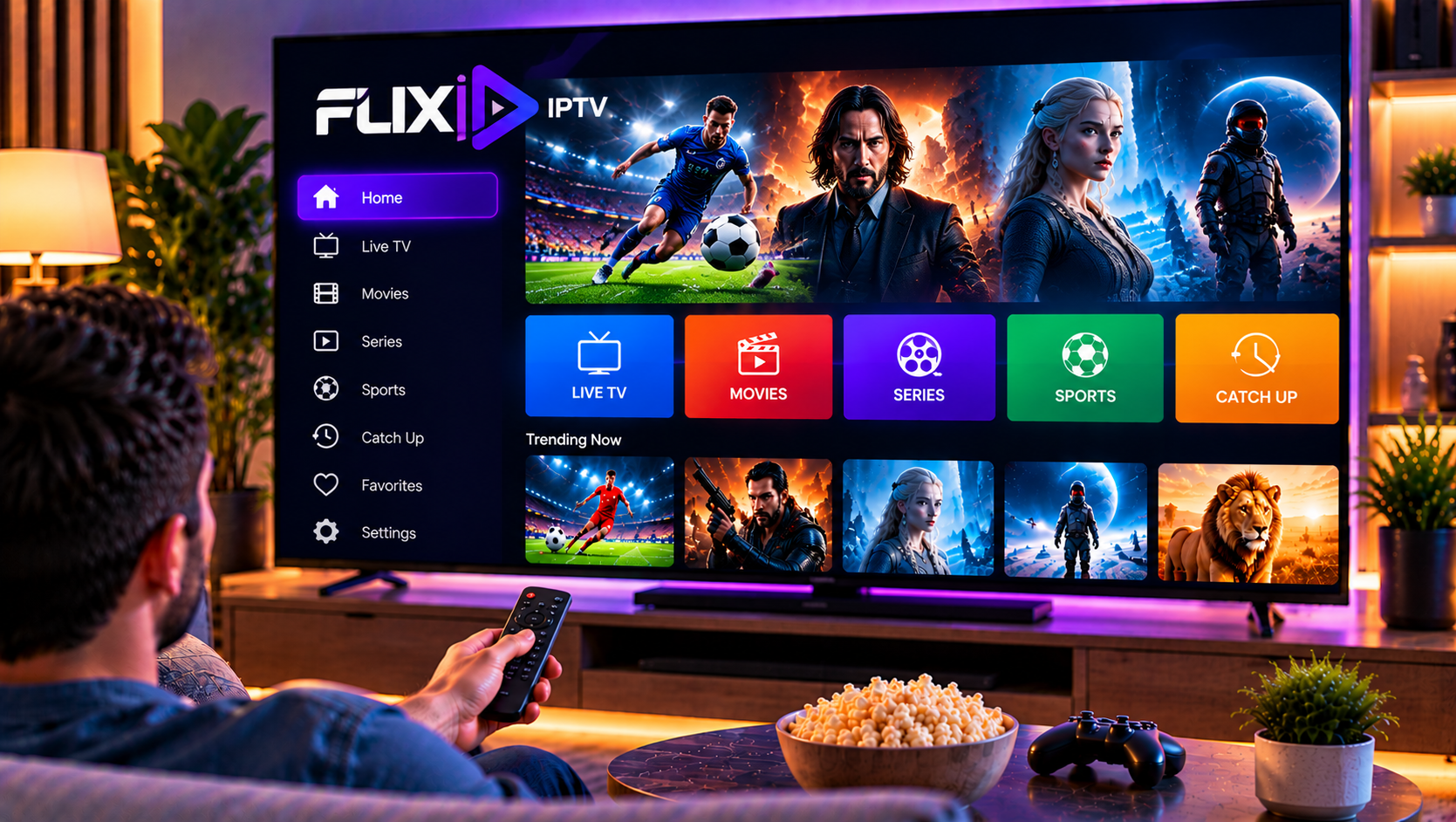
Flix IPTV is designed for viewers who want to organize and play their own IPTV source through a simple interface on compatible televisions and streaming devices. Instead of supplying channels itself, the player connects to an existing playlist or IPTV account and displays the available live TV, movies, series, and guide information.
The important part in 2026 is knowing which Flix app you are using. Several applications use similar “Flix IPTV” names, but their installation and login methods are not identical. Some Flix-branded Apple apps use Xtream API credentials directly, while Flix Pro Player supports M3U and XC playlists and uses a device activation workflow.
This guide focuses on the Smart TV-style installation, playlist setup, activation process, useful features, and troubleshooting steps users commonly need.
What Is Flix IPTV?
Flix IPTV is a media player rather than a content provider. It does not automatically include television channels, movies, sports, or series.
You connect the player to your own compatible and authorized IPTV source. Depending on the version of the application, this may involve an M3U playlist or XC/Xtream-style login information.
The player then organizes that source into sections that are easier to browse from a television.
This distinction is important because activation of the player and activation of an IPTV subscription are two separate things. Paying for or activating the player does not automatically give you a channel package.
Flix IPTV Features at a Glance
A compatible Flix player can offer several features that make viewing on a large screen easier.
| Feature | What It Does |
|---|---|
| M3U playlist support | Loads compatible playlist URLs |
| XC playlist support | Connects through compatible account credentials |
| Smart TV interface | Makes navigation easier with a TV remote |
| Device activation | Unlocks the player on a specific device |
| Live TV support | Organizes compatible live streams |
| Movies and series | Displays VOD content supplied by the source |
| Multiple platforms | Availability can include TVs, Android, Fire TV, and Windows |
| Playlist management | Lets users update or manage connected sources |
Exact functions can vary between Flix-branded applications, so always confirm the developer and platform before following setup instructions.
How to Install Flix IPTV on a Smart TV
Installation depends on the operating system used by your television.
Step 1: Search Your TV App Store
Open the application store built into your Smart TV and search for the exact Flix player you want to use.
Do not install an app simply because its name contains “Flix.” Check the icon, developer information, and description first.
Availability may differ by TV manufacturer, operating system, country, and model year.
Step 2: Install and Open the App
Once you find the correct application, install it and launch it.
A device-based player may display identifying information such as a MAC address and Device Key. Keep this screen open because you may need both values during activation or playlist management.
If you need additional device-specific guidance before setting up the player, the Smart TV IPTV setup guide explains the general installation process for compatible television platforms.
How Flix IPTV Activation Works
Flix Pro Player uses a device activation system. The application can display device information that allows the user to access the player’s management or activation area.
Step 1: Find Your Device Information
Open the application and locate the MAC Address and Device Key shown on the player.
Enter these details only on the official management page associated with the application you installed.
Step 2: Access Playlist Management
Use the device information to open the playlist-management interface.
From there, you can add the compatible source supplied for your account.
Step 3: Activate the Player
Flix Pro Player describes device activation as an in-app purchase process. Activation unlocks use of the player but does not purchase an IPTV subscription.
Avoid websites that claim the activation automatically includes premium channels unless that offer is clearly coming from a separate IPTV provider.
How to Add an M3U Playlist
M3U is one of the most common ways of connecting an IPTV source to a media player.
Get the Complete Playlist URL
Your IPTV account may provide a long URL containing account information and additional parameters.
Copy the complete address. Removing characters from the end of an M3U URL can stop the playlist from loading.
Add the Playlist
Open the playlist-management section and choose the M3U option when available.
Enter a recognizable playlist name and paste the complete M3U address into the required field.
Save the changes and reopen or refresh the application on your television.
The player should then retrieve the categories and content available through that source.
M3U vs XC Login
M3U and XC are simply different methods of connecting compatible account information to the player.
An M3U setup normally uses one complete URL. XC or Xtream-style login usually separates the connection information into fields such as server address, username, and password.
XC login can sometimes make live TV, movies, series, and guide information easier for a player to organize because the information is separated through the API.
Use whichever method your authorized account officially supports rather than converting credentials unnecessarily.
Setting Up Flix IPTV on Android and Fire TV
Flix Pro Player currently offers an Android APK and also provides a Fire TV installation option.
For Android devices, downloading software from the official developer source is safer than using unknown APK websites.
Fire TV installation can vary depending on the model and operating system. Some Fire TV devices support Android-based applications, while newer platforms may have different compatibility requirements.
Always confirm your exact device before following sideloading instructions from an older tutorial.
Using Flix IPTV With an IPTV Service
The player and the subscription should be treated as two separate components.
A player handles the interface, playlist organization, and playback. The IPTV source determines what authorized channels or on-demand content are available.
The same principle applies when looking at another IPTV brand such as Viking IPTV. A compatible subscription provides the source, while the media player provides the interface used to access it.
How to Organize a Large Playlist
A large IPTV playlist can become difficult to navigate if hundreds or thousands of entries appear at once.
Start by identifying the categories you use most frequently. If the player provides favorites, category management, or playlist controls, use them to reduce unnecessary scrolling.
Also avoid adding several duplicate playlists. Multiple copies of the same source can increase loading time and make categories appear repeatedly.
If your source has separate live TV, movie, and series sections, keep those categories organized instead of relying only on search.
Common Flix IPTV Problems and Fixes
Playlist Does Not Load
Check the playlist URL or XC login information carefully.
Common mistakes include missing characters, extra spaces, an incorrect server address, expired credentials, or copying only part of an M3U URL.
Re-enter the original details before changing other settings.
App Loads but Channels Do Not Play
Test several channels instead of relying on a single stream.
If one channel fails but others work, the issue may relate to that specific stream. If everything fails, refresh the playlist and confirm that the account is active.
Categories Are Missing
Refresh the playlist and restart the player.
If the same categories are still missing, check whether they are actually included in the connected source. A media player cannot create categories that are not supplied by the account.
Smart TV Playback Buffers
Buffering can come from Wi-Fi congestion, the source, television hardware, or the stream itself.
Restart the television and router, close unnecessary apps, and compare several channels.
If Ethernet is available, a wired connection can sometimes provide more consistent performance than crowded Wi-Fi.
Activation Is Not Recognized
Confirm that the MAC Address and Device Key match the information displayed inside the application.
Activation is often associated with a specific device, so replacing the television or reinstalling a different version of the player may produce different device information.
App Store Search Shows Several Flix Apps
Check the developer before installing.
This is especially important because Flix-branded applications are not necessarily produced by the same company. A setup guide written for one version may not work with another.
Flix IPTV on Apple Devices
The Flix – IPTV Media Player currently listed on Apple platforms is a separate product from Flix Pro Player.
That Apple application connects through the Xtream API protocol and includes features such as live TV with EPG, movies, series, catch-up where supported, multiple accounts, and account synchronization through Apple services.
Because the applications are different, do not use a MAC-address activation tutorial for an Apple app unless that exact app specifically requests it.
Is Flix IPTV Worth Using in 2026?
Flix IPTV can be useful for viewers who want a television-focused interface instead of opening individual stream URLs manually.
Flix Pro Player supports M3U and XC playlists, multiple platforms, and device activation. This makes it suitable for users who prefer to manage their IPTV source through a player designed for larger screens.
The biggest consideration is choosing the correct application. Similar names across different developers can make setup confusing, particularly when one guide discusses Xtream login while another explains MAC-address activation.
Verify the app first, then follow instructions written for that exact version.
FAQ
Does Flix IPTV Include Channels?
No. Flix IPTV players are media players. You need your own compatible and authorized content source.
Does Flix IPTV Support M3U?
Flix Pro Player supports M3U playlist management as well as XC playlists.
Do I Need to Activate Flix IPTV?
The Flix Pro Player workflow includes device activation. Other Flix-branded applications may use different purchase or login systems.
Why Do I See a MAC Address and Device Key?
These details identify the device for playlist management and activation in applications using a device-based setup.
Can I Use Flix IPTV on a Smart TV?
Flix Pro Player advertises support across multiple device types, including Smart TVs. Availability can vary by TV platform, model, and region.
Is the Apple Flix IPTV App the Same as Flix Pro Player?
No. The current Apple App Store listing and Flix Pro Player are associated with different developers and use different setup methods.
Flix IPTV can provide a convenient Smart TV interface when you pair the correct player version with compatible login details and a stable connection. If you want to explore a Swedish-focused IPTV service with flexible plans and setup support for multiple devices, visit Sverige IPTV and choose the option that matches your viewing setup.