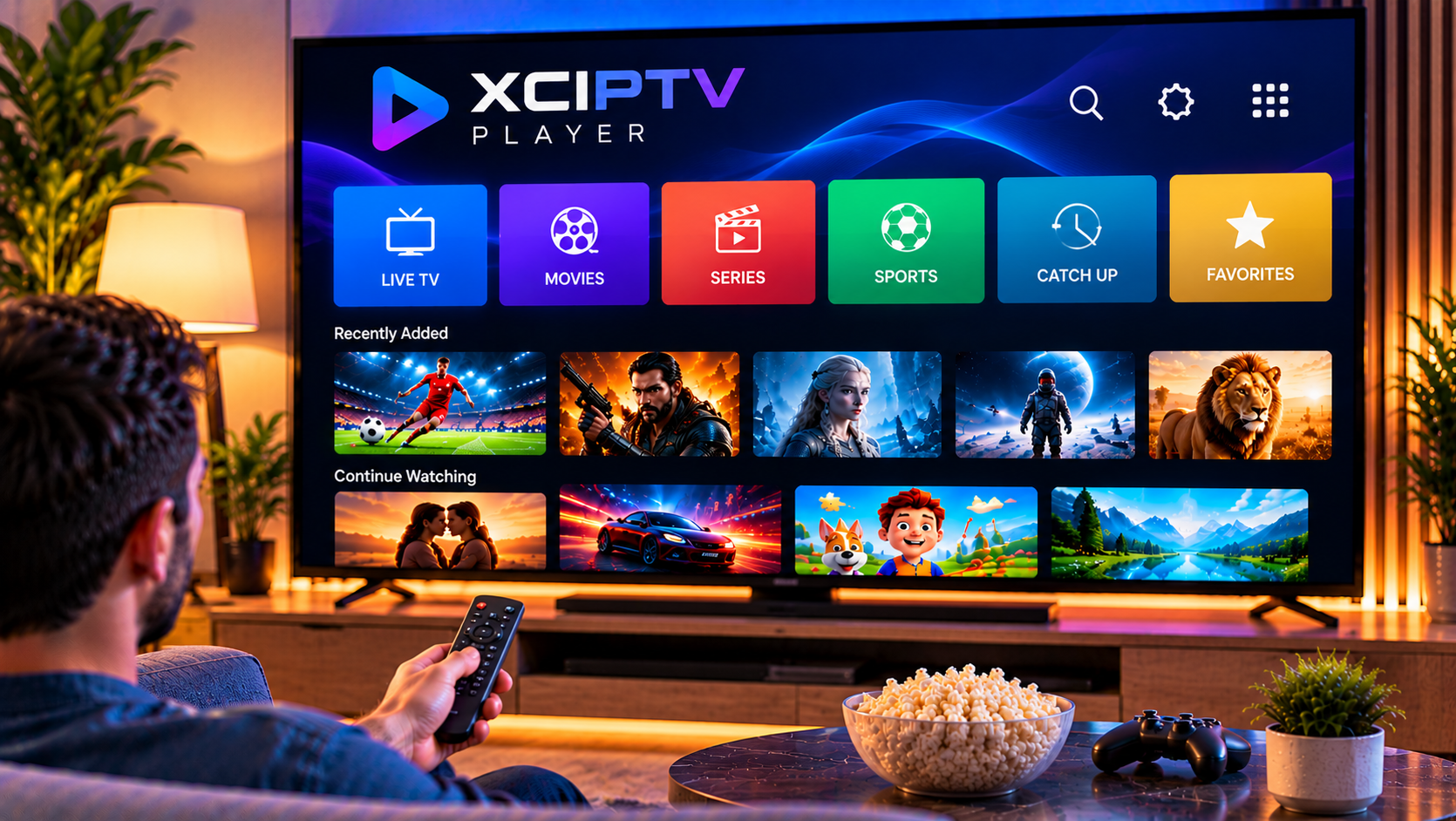
XCIPTV Player is an Android-based media player for users who want a TV-friendly way to load their own IPTV credentials, organize live channels, browse an electronic program guide, and access compatible movies or series. It is designed for Android phones, tablets, and TVs, with remote and D-pad navigation that suits large screens.
In 2026, setup is straightforward on Android TV, while Firestick users need to check which operating system their device uses before installing anything. This guide covers both routes, login methods, EPG setup, useful features, and common fixes.
What Is XCIPTV Player?
XCIPTV Player is a media player, not an IPTV service. It does not provide channels, subscriptions, movies, or series. You connect your own authorized content source.
The app includes ExoPlayer and VLC Player, so a separate video player is usually unnecessary. It also supports adaptive HLS streaming, EPG information, catch-up where available, VOD, series, favorites, backup and restore, reminders, and scheduled recording.
How to Install XCIPTV Player on Android TV
Android TV is the simplest platform because the official app is available through Google Play.
Step 1: Find the Official App
Open Google Play on your Android TV and search for “XCIPTV PLAYER.” Check that the developer is OTTRUN before installing.
Step 2: Install and Open XCIPTV
Select Install, wait for the download to finish, and open the app. The first setup screen may ask you to select a login or playlist method.
Step 3: Prepare Your Login Details
Depending on your authorized source, you may receive an M3U URL or compatible API login details. Copy them exactly because an incorrect server address, username, password, or playlist URL can prevent the app from loading.
For broader device guidance, the IPTV installation guide explains the basic information normally required when connecting a compatible IPTV player.
How to Install XCIPTV Player on Firestick in 2026
Firestick installation now depends on the exact model and operating system.
Many existing Fire TV devices run Fire OS, which is Android-based. These models can run compatible Android apps, and sideloading may be possible when an app is not listed in the Amazon Appstore.
Newer Fire TV Stick models using Vega OS are different. Vega OS is not Android and does not support the normal Android APK sideloading workflow. An XCIPTV Android APK therefore cannot simply be installed through Downloader on a Vega OS model.
Check Your Firestick First
Open Settings and identify your Fire TV model and operating system. If it runs Fire OS, check the Amazon Appstore first. If the official app is unavailable, use only a trusted source that matches the official developer and package.
If it runs Vega OS, do not follow older tutorials based on enabling unknown apps and sideloading Android APKs. Those instructions apply to Fire OS devices.
How to Set Up XCIPTV Player
After installation, connect your authorized source using the login method you were given.
Xtream Codes Compatible Login
If you received a server URL, username, and password, choose the compatible API or Xtream-style login option.
Enter a profile name, server URL, username, and password. Review each field before continuing. XCIPTV can then load the categories and guide data made available by the source.
M3U URL Setup
If you received an M3U playlist, choose the M3U option and enter the complete playlist URL. Do not remove parameters from the end of the link.
After import, allow the app time to organize available content. Large playlists can take longer to populate categories and guide information.

How the EPG Works in XCIPTV
An Electronic Program Guide shows scheduling information for compatible live channels. XCIPTV supports guide data with compatible APIs, EZServer sources, and M3U configurations.
When EPG data is available, you can browse current and upcoming programs, set reminders, and, where supported, schedule recordings from the guide.
If channels load but the EPG is blank, refresh the playlist and guide first. A working playlist does not automatically mean guide data is included or correctly matched.
ExoPlayer vs VLC Player
XCIPTV includes both ExoPlayer and VLC Player. This is useful because a stream may behave better with one playback engine than the other.
If a channel has audio problems, stutters, or refuses to open while other channels work, switch the built-in player before changing several settings at once.
The app and the IPTV service are separate parts of the setup. A service such as JA IPTV provides its own offering, while XCIPTV is the player used to organize and play a compatible source.
Useful XCIPTV Features
Favorites and Catch-Up
Favorites reduce the time spent browsing large channel lists. Catch-up can make previously aired programs accessible when the connected source supports that feature.
Backup, DVR, and Reminders
Backup and restore can help preserve settings after a reinstall. XCIPTV also supports scheduled recording to compatible storage and reminders from the EPG, although behavior can depend on the device, permissions, storage, and source.
Common XCIPTV Problems and Fixes
Login Details Are Rejected
Re-enter the server URL, username, and password exactly as supplied. Check for accidental spaces and confirm that the account details are active.
Channels Load but Do Not Play
Test several channels. If only one fails, the issue may be limited to that stream. If several fail, refresh the playlist, restart the app, and try the alternative built-in player.
XCIPTV Keeps Buffering
Restart the router and streaming device, close unnecessary background apps, and compare multiple channels. Ethernet may provide more consistent performance than congested Wi-Fi when supported.
Buffering can come from the network, source, device resources, or individual stream, so it is not always a player problem.
EPG Is Missing
Refresh the EPG and playlist. If only some channels lack guide data, the source may not have matching EPG identifiers. If the entire guide is blank, confirm that guide data is available.
App Freezes or Crashes
Update XCIPTV and your device software, restart the device, and clear app cache if that option is available. Change one setting at a time so you can identify what helps.
Is XCIPTV Player Good in 2026?
XCIPTV remains a capable Android TV option because it combines remote navigation, two built-in players, EPG, favorites, catch-up, backup tools, recording, and reminders in one interface.
For Firestick users, compatibility is more device-specific in 2026. Android-based Fire OS models remain the practical fit for the Android app, while Vega OS Firesticks require apps built or distributed for Vega rather than standard Android APKs.
FAQ
Does XCIPTV Player Include Channels?
No. XCIPTV is a media player. Users must connect their own authorized source.
Can XCIPTV Use an M3U URL?
Yes. XCIPTV supports M3U-based configurations as well as compatible API login methods.
Can I Install XCIPTV on Every Firestick?
No. Fire OS models may support Android apps, but Vega OS Fire TV Sticks do not use the standard Android APK sideloading workflow.
What Should I Try if a Channel Will Not Play?
Try another channel, refresh the playlist, and switch between ExoPlayer and VLC Player. This helps identify whether the issue is limited to one stream or one playback engine.
XCIPTV Player is a practical choice if you want a remote-friendly Android TV interface with guide data, favorites, built-in playback options, and recording tools. If you are planning a Swedish IPTV setup and want compatible subscription options with straightforward device guidance, visit Sverige IPTV and choose the setup that best fits your screen and viewing needs.