If you have an IPTV subscription but no good way to watch it, a solid player makes all the difference. SmartOne IPTV is one of the more popular options, and it works on Samsung Smart TVs, Android devices and more. Many first-time users get stuck on one question, though: how do you actually install, activate and set up the app?
This guide walks you through each stage in plain English. You will also learn what the app does, what it does not do, and how to fix the problems people run into most often.
What Is SmartOne IPTV?
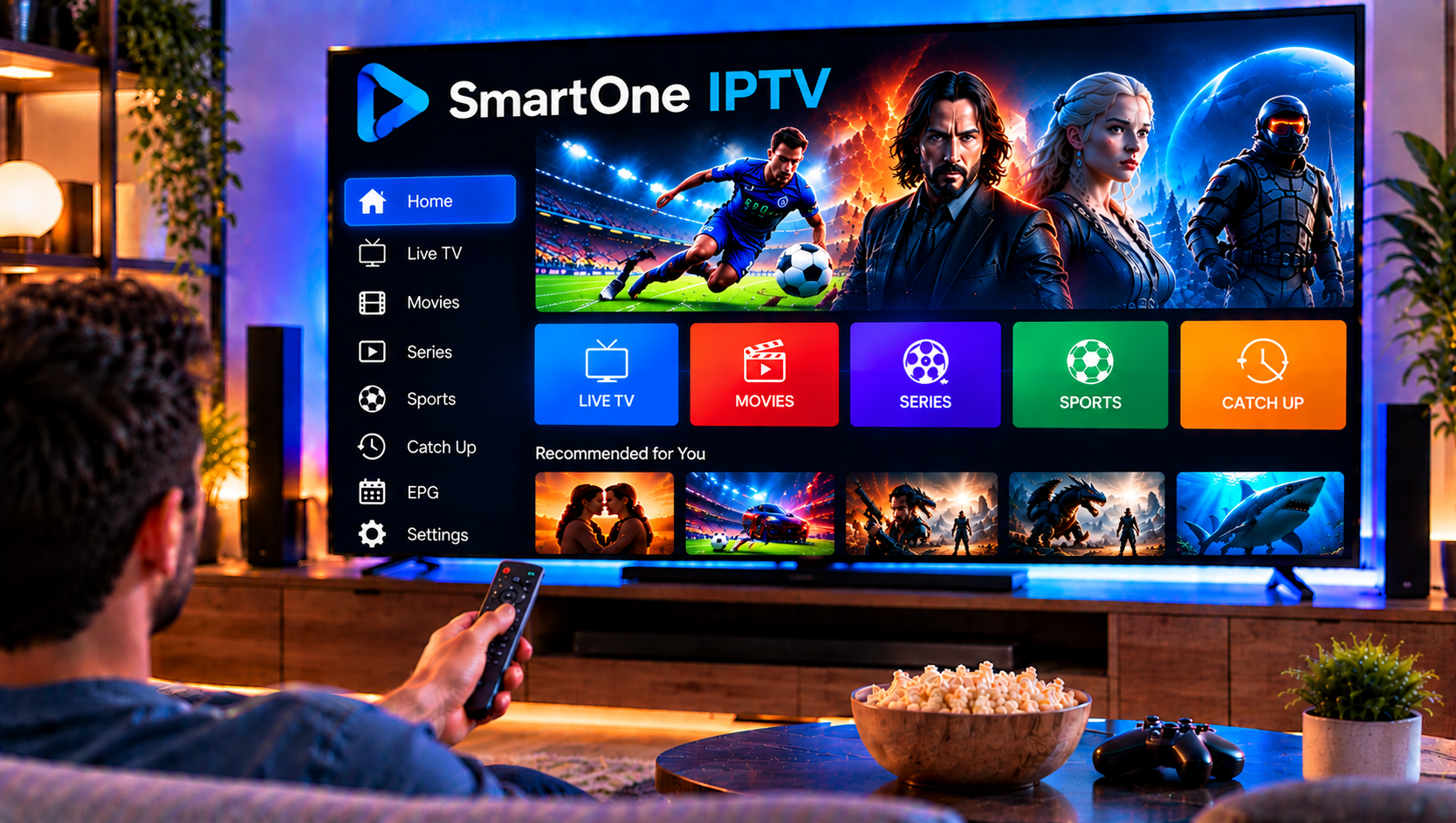
SmartOne IPTV is a media player app. It does not provide channels, playlists or subscriptions, and its developers say so clearly on their official pages. Think of it as an empty TV screen: you bring the content from your IPTV provider, and the player displays it.
The app supports Xtream Codes (XC) API logins and M3U playlists, the two formats most providers use. Once your details are added, live TV, movies and series appear in one organized interface.
Key Features of the SmartOne IPTV Player
According to the official site and its Google Play listing, the app offers:
- Live TV, movies and series in one app
- EPG (TV guide) support, so you can see what is on now and next
- Catch-up / TV archive for previously aired programs, if your provider supports it
- Favorites lists for quick access to the channels you watch most
- Parental controls with PIN protection
- Multiple accounts that you can add or delete at any time
- Multi-language interface, including English, French, Spanish and Arabic
- Fast channel zapping and standard player controls (play, pause, seek)
- Up to 4K playback, depending on your stream and connection
Catch-up and 4K are the two features people most often assume are built in. In reality they depend on your provider and your internet speed.
Which Devices Support SmartOne IPTV?
The app is built mainly for Samsung Smart TVs (both Tizen and older Orsay models) and Android devices, including phones, tablets and Android TV boxes. If you are setting up a television, our guide to IPTV on Smart TV explains which TV brands and models work best with IPTV apps in general.
Before you start, check that your device is connected to a stable network. A wired connection or strong 5 GHz Wi-Fi will give you a noticeably smoother picture than a weak signal.
How to Install SmartOne IPTV
Install on a Samsung Smart TV
- Turn on your TV and open the Smart Hub or Apps section.
- Use the search icon and type “SmartOne IPTV”.
- Select the app and press Install.
- Open the app once the download finishes.
Availability can vary by TV model and region. If you cannot find the app, make sure your TV firmware is up to date and check the official SmartOne website for compatibility notes.
Install on Android
- Open the Google Play Store.
- Search for “SmartOne IPTV Player”.
- Confirm the developer is listed as Smart Cast, then tap Install.
The listing was last updated in August 2026, which suggests the app is still actively maintained.
How to Activate SmartOne IPTV
When you first open the app, it shows a MAC address and a device key. Those two details identify your device and are what you use to activate it.
- Write down the MAC address and device key shown on your screen.
- Visit the official SmartOne website and open the Activation page.
- Enter your device details exactly as shown.
- Follow the on-screen instructions and complete any required steps.
- Restart the app to confirm activation.
Always use the official website for this step. Some platforms may include a free trial period or a one-time activation fee, and terms can change, so read the current conditions before you pay anything.
How to Add Your IPTV Playlist or Login
Activation unlocks the player, but you still need to add your content. You have two options.
Option 1: Xtream Codes login. Enter the server URL, username and password from your provider. This is usually the best choice because it loads the EPG, categories and VOD library automatically.
Option 2: M3U playlist. Upload your M3U link through the official SmartOne Upload Playlist page, or add it directly in the app, depending on your device. Pasting a long URL with a TV remote is slow, so the web upload is usually easier.
Once the content loads, set up your favorites and your parental PIN. If you want to see what a typical lineup looks like, you can browse the IPTV channel categories to get a feel for the structure before you set up your own lists.
Tips for Smoother Streaming
A good player cannot fix a weak connection. These habits make a real difference:
- Use Ethernet where you can, especially for FHD and 4K channels.
- Aim for at least 15–25 Mbps per stream for HD, and more for 4K.
- Restart your router every few weeks to clear network congestion.
- Avoid peak-time congestion by closing other streaming apps on your network.
- Keep the app updated so you get the latest bug fixes.
Google Play’s own listing notes that performance depends on your internet speed and your provider’s server stability, which is worth remembering whenever something buffers.
Common SmartOne IPTV Problems and Fixes
The app shows a blank screen or no channels. Check that your playlist or XC details are correct, with no extra spaces or typing errors. Then re-upload the playlist.
Activation does not work. Confirm the MAC address and device key match exactly. Even one wrong character will cause a failure.
Channels buffer or freeze. Test your speed first. If your connection is fine, the problem is likely on the provider’s server side, not in the app.
The EPG is empty. The guide data comes from your provider. Ask them whether EPG is included, and try refreshing the playlist.
The app crashes after an update. Clear the app cache or reinstall it. If that fails, restart the device completely.
Choosing the Right IPTV Provider for SmartOne
Because SmartOne is only a player, the quality of your experience depends heavily on your provider. Look for stable servers, a wide channel range, HD and 4K options, M3U or XC support, and responsive customer help. Some viewers compare several services before committing, and names such as Viking IPTV often come up in those comparisons. Whichever provider you pick, test it with a short plan first.
Also keep the legal side in mind. Only stream content from services that hold the proper rights, and avoid any provider that makes unrealistic promises.
Frequently Asked Questions
Is SmartOne IPTV free?
The player itself can be downloaded for free from app stores. Activation terms and any fees can vary, so check the official SmartOne website for the latest details.
Does SmartOne IPTV include channels?
No. It is a media player only, and you must add your own M3U playlist or Xtream Codes login from an IPTV provider.
Can I use SmartOne IPTV on more than one TV?
Yes. The official site offers multi-device management, and the app supports multiple accounts. Each device needs its own activation.
Why are there no channels after activation?
Activation only enables the player. You still need to add a valid playlist or login before any content appears.
Does SmartOne IPTV support 4K?
The app supports up to 4K playback, but the stream must be 4K and your connection must be fast enough.
Final Thoughts
SmartOne IPTV is a clean, flexible player once you understand the three steps: install the app, activate your device, and add your playlist. The rest is mostly about a good connection and a reliable source of content. If you are ready to pair the player with a dependable service, visit Sverige IPTV to explore flexible subscription options, a wide channel selection and friendly installation support for your devices.