Skip to main content
IPTV Sverige | Billigaste & Största IPTV

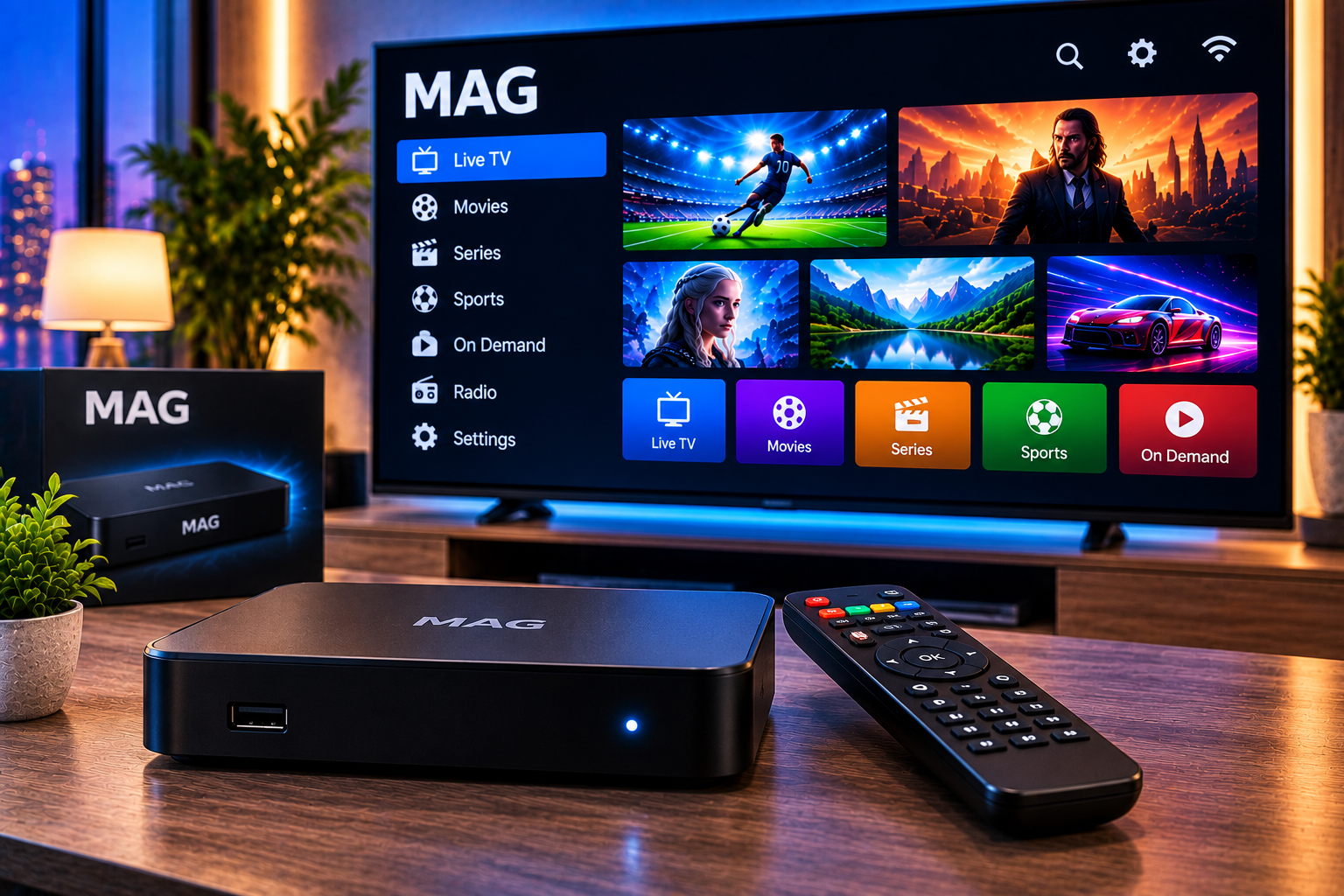
An IPTV MAG box is a dedicated set-top box designed to receive television and video streams through an internet connection. Instead of installing several applications on a Smart TV, a MAG device can connect directly to a compatible IPTV or OTT platform through a portal configured by the service provider.
The setup itself is usually straightforward, but small mistakes in the portal address, network settings, DNS configuration, or device registration can prevent channels from loading. This guide explains the complete process, from connecting the box to configuring the portal and solving common connection problems.
Current MAG hardware varies considerably by model. Infomir lists Linux based models such as MAG540 and MAG544 alongside newer Google TV devices such as MAG555. Several current models support 4K and HEVC playback, while wireless connectivity depends on the exact version of the box.
What Is a MAG Box?
A MAG box is a media receiver that connects a television to IPTV and OTT services. It sits between your internet connection and TV, receives a digital stream, decodes it, and displays the content through HDMI.
MAG devices are especially associated with portal based IPTV systems. Instead of manually browsing a large M3U playlist, the user may receive a portal interface containing live channels, electronic program information, movies, series, and other features supported by the provider.
The hardware generation matters. Older devices such as MAG250 used much more limited processors and memory, while newer MAG models are designed for modern codecs and higher resolution video. Infomir, the manufacturer of MAG devices, currently promotes models capable of 4K and HEVC playback.
What You Need Before Setting Up IPTV on a MAG Box
Before opening the settings menu, prepare the information required for the installation. You normally need a compatible MAG box, television with an HDMI input, internet connection, remote control, and the portal information supplied by your IPTV provider.
Some portal based systems also identify the receiver through its MAC address. If your provider requires device registration, make sure the correct address has been registered before troubleshooting anything else.
Your subscription provider should tell you whether the service uses a portal URL, another login method, or a different application. Never assume that a random portal address found online will work.

Connect Your MAG Box to the Television
Start with the physical installation. Connect the MAG device to your television using HDMI. Connect its power supply and select the correct HDMI input on the TV.
The next decision is how the box should reach your router.
Ethernet Connection
For a stationary IPTV installation, Ethernet is generally the simplest network option. Connect a network cable directly from the router or network switch to the MAG box.
A wired connection removes WiFi signal strength from the troubleshooting equation. This can be particularly useful when streaming high bitrate HD or 4K content for long periods.
WiFi Connection
Some MAG versions include wireless connectivity while others do not. For example, Infomir specifies WiFi support on particular current variants such as MAG540w3 and MAG544w3 rather than every equivalent model.
If your model supports wireless networking, select your home WiFi network and enter the password carefully. Where both bands are supported, the best choice depends on distance, interference, and your router.
For more general device configuration instructions, the IPTV installation guide can help you understand the wider setup process before configuring the portal.
How to Configure the IPTV Portal
Portal configuration is the part that causes the most confusion for first time users. Menu names can differ slightly according to the MAG model and firmware, so use the following process as a general workflow rather than assuming every screen will look identical.
Step 1: Open System Settings
Turn on the receiver and enter its system or settings menu using the remote control. Locate the section responsible for servers or portals.
Do not change unrelated advanced settings unless necessary. A working network connection and correct portal information are the priorities.
Step 2: Find the Portal Settings
Open the portal or server configuration area. Depending on the software version, you may see fields for a portal name and portal URL.
The name is primarily there to help identify the service. The URL is the important value because it tells the device which compatible platform to contact.
Step 3: Enter the Portal URL Exactly
Enter the address supplied by your IPTV provider. Check every character before saving it.
A missing character, unnecessary space, incorrect protocol, or typing error can prevent the portal from loading. Copying the provider supplied value exactly is safer than trying to reconstruct the address from memory.
Step 4: Save and Restart
Save the settings and restart the portal or receiver when required. The box should then attempt to connect to the configured server.
If the service uses device registration, the server may check your box before granting access. A correct URL alone therefore does not guarantee that an unregistered receiver will open the service.
Configure the Network Correctly
A valid portal cannot compensate for a broken internet connection. If the portal remains unavailable, confirm that the MAG box has actually joined your network.
In most homes, automatic network configuration is the easiest option. The router assigns the receiver an IP address, gateway, and other required network information.
Manual network settings should generally be used only when your network requires them or when you know the correct values. An incorrect IP address, gateway, or DNS entry can leave the device connected to the local network while still unable to reach the internet.
If you want to compare channel categories before configuring a device, the available IPTV channels page provides a more relevant starting point than changing technical settings without a clear goal.
Portal URL and M3U Are Not the Same Thing
One useful distinction often missing from basic setup instructions is the difference between a portal and an M3U playlist.
An M3U file or URL is essentially playlist information interpreted by a compatible player. A portal is an interactive environment delivered through a platform designed to communicate with the receiver.
That difference matters because credentials or links intended for one connection method should not automatically be entered into fields designed for another.
When comparing services or device compatibility, users may also encounter providers such as Viking IPTV. Regardless of provider, verify the supported login method before configuring a MAG receiver.
How to Improve Streaming Stability
A powerful receiver cannot fix every streaming problem. Performance depends on the entire path between the video source and your screen.
Start by checking your local network. If Ethernet works smoothly but WiFi does not, the wireless connection is probably the first area to investigate. Move the router closer, reduce interference, or use Ethernet where practical.
Also avoid judging a connection only by its advertised maximum speed. IPTV needs consistent throughput. A connection that repeatedly drops or suffers from high network congestion can create buffering even when a speed test occasionally produces an impressive result.
Modern codecs can also make video delivery more efficient. Infomir notes that its MAG540 series supports HEVC and AV1, as well as 4K HDR playback at up to 60 fps.
Common IPTV MAG Box Problems
Portal Does Not Load
First confirm that the internet works on the receiver. Then check the portal URL character by character. If both are correct, confirm with the provider that the device is registered and the subscription is active.
Black Screen After Loading
A black screen can have several causes, including a stream issue, temporary service problem, unsupported media format, or network interruption. Test several channels rather than assuming the entire configuration has failed because one stream does not play.
Box Keeps Buffering
Restart the router and receiver, then test with Ethernet if you are currently using WiFi. Stop large downloads or other bandwidth-intensive activity temporarily and check whether performance changes.
WiFi Network Is Missing
Confirm that your exact MAG model has integrated WiFi. Model names that look almost identical can have different wireless capabilities. Infomir distinguishes, for example, between MAG540 and MAG540w3 in its specifications.
Portal Worked Before but Suddenly Stopped
Avoid immediately performing a factory reset. First, restart the box, router, and portal. Check the network and subscription status. A factory reset can erase settings and create additional work without addressing a temporary server or network problem.
Should You Update MAG Box Firmware?
Firmware updates may provide compatibility, stability, or security improvements, but updates should come from the appropriate official or provider supported source for your device.
Do not install unknown firmware simply because a download claims to unlock additional IPTV features. Confirm the exact model and follow supported update procedures. Infomir maintains support resources for its devices and separates current products from discontinued models.
MAG Box Compared With IPTV Apps
A MAG receiver makes sense when you want a dedicated television device with remote control navigation and a portal based interface. An IPTV app may be more convenient when you already own a compatible Smart TV, phone, tablet, or computer.
Neither approach is automatically better for every household. The practical choice depends on your existing hardware, the connection method supported by your service, desired video quality, and how much device configuration you want to manage.
This is also an important gap in simple product listings. Digitalboxen’s IPTV category mainly presents hardware for sale, including Formuler models and references to MAG products, whereas Infomir focuses heavily on MAG hardware specifications and operator capabilities. Neither competitor page functions as a complete consumer walkthrough covering portal entry, network configuration, troubleshooting, and the difference between portals and playlists in one place.
FAQ About IPTV MAG Box Setup
Do I Need a Portal URL for a MAG Box?
A portal URL is required when your IPTV service uses portal based access. Use only the address supplied for your subscription and device.
Is Ethernet Better Than WiFi for IPTV?
Ethernet can provide a more predictable local connection because it avoids wireless interference. Good WiFi can also work well when the receiver, router, and signal conditions support it.
Can a MAG Box Play 4K IPTV?
Compatible modern MAG models can play 4K content. Infomir lists 4K and HEVC support for several current models, including the MAG540 and MAG544 families. Your stream, television, internet connection, and service must also support the required quality.
Why Does My MAG Box Say the Portal Is Unavailable?
Common causes include an incorrect portal address, internet connectivity problems, expired access, device registration issues, or temporary server unavailability. Check these areas before resetting the receiver.
A correctly configured iptv mag box can provide a simple dedicated setup for live television and on demand streaming without relying on your television’s built in apps. If you want to explore compatible IPTV options, setup support, channel access, and subscription choices for Swedish users, visit Sverige IPTV to get started.