Skip to main content
IPTV Sverige | Billigaste & Största IPTV

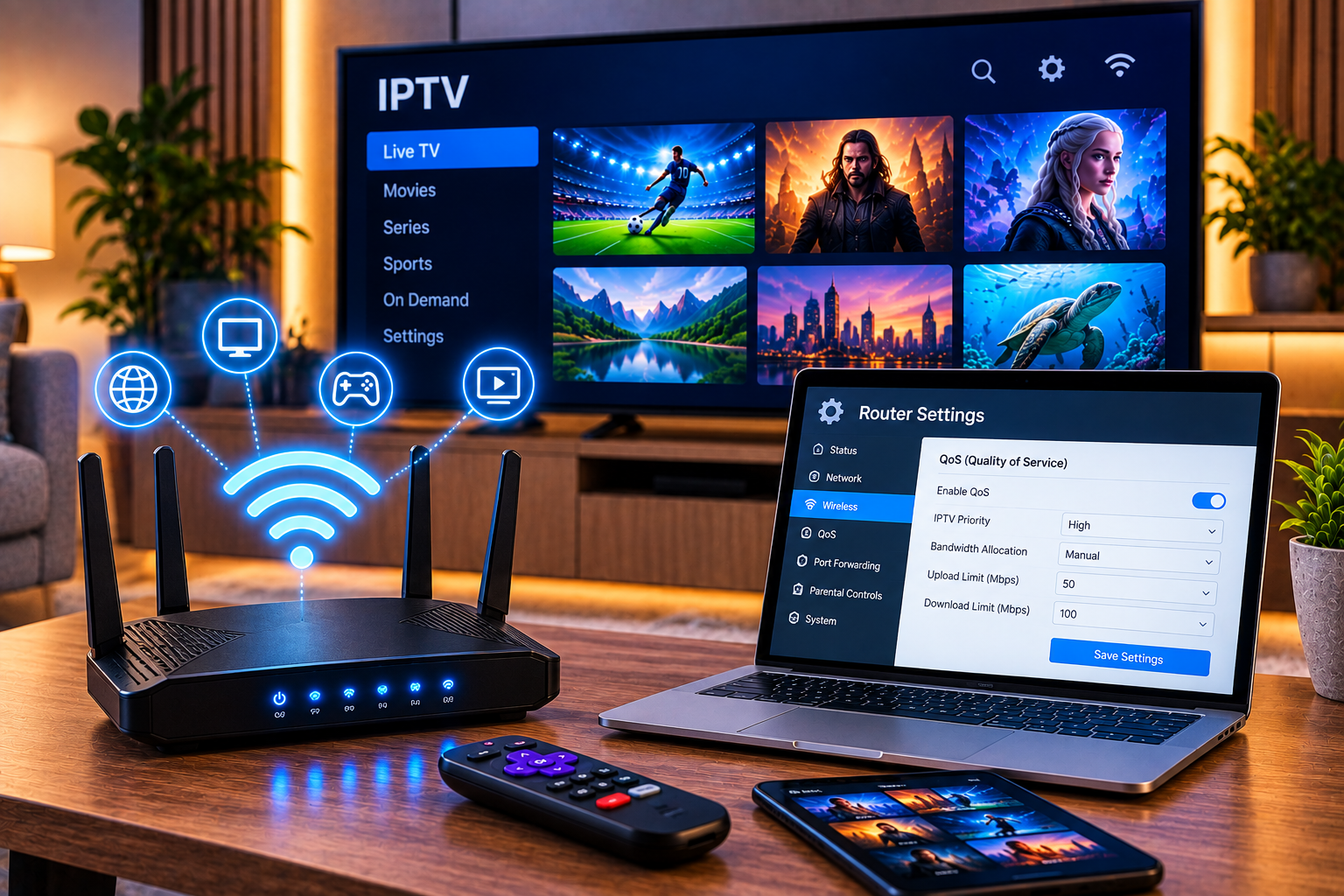
Good iptv router settings can make a noticeable difference when live television, sports, movies, and series keep buffering even though your internet connection appears fast. IPTV depends on a continuous flow of data. A speed test can therefore show excellent results while poor WiFi coverage, network congestion, router placement, or incorrect traffic settings still interrupt playback.
For homes in Sweden, the aim is not simply to maximize download speed. The router needs to deliver a consistent connection to the Smart TV, IPTV box, Android device, computer, or other player. Settings such as QoS, WiFi frequency, channel selection, multicast support, DNS, and device priority can all influence the experience.
This guide explains which settings matter, which ones should normally be left alone, and how to troubleshoot your home network without making unnecessary changes.
Why Router Settings Matter for IPTV
IPTV streaming is different from downloading a file. A download can temporarily slow down and continue later without you noticing. Live television has to receive video data continuously. When packets arrive too late or the connection briefly drops, the player may pause while its buffer catches up.
Your router sits between the internet connection and your streaming device. It handles smartphones, laptops, televisions, game consoles, cameras, and other connected equipment at the same time. Heavy downloads or weak wireless coverage can consequently affect television playback even when your broadband package has plenty of theoretical bandwidth.
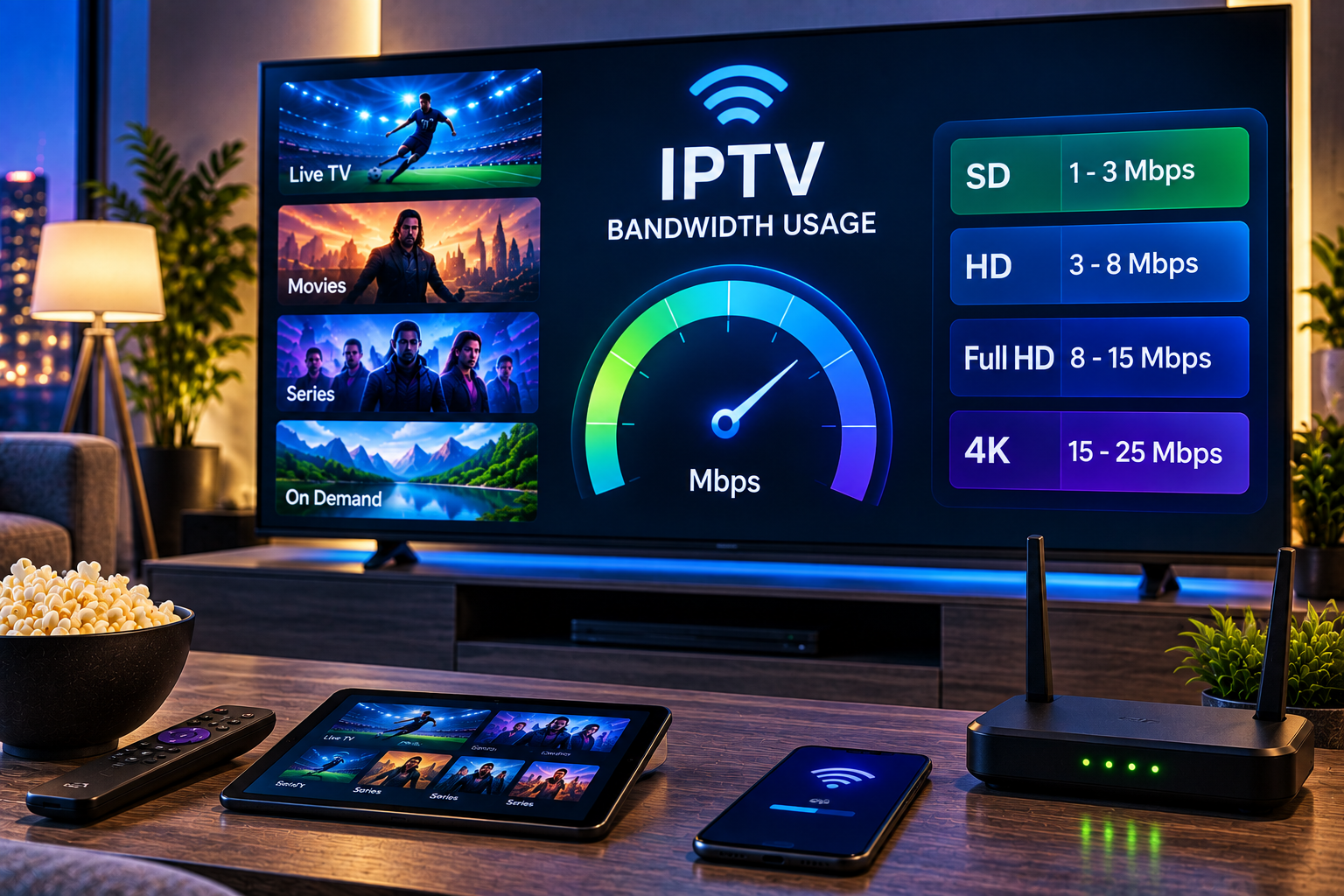
Router performance becomes particularly important when watching HD, FHD, or 4K video while several people are using the same network.
Best IPTV Router Settings to Check First
You do not need to change every advanced option in your router. Start with the settings that can have the greatest practical effect.
Use Ethernet Whenever Possible
A wired Ethernet connection is generally the simplest option for a television or IPTV box that remains in one location.
Ethernet avoids many of the interference and signal strength problems associated with wireless networks. Connect the streaming device directly to a Gigabit Ethernet port on the router where possible.
If the stream becomes stable over Ethernet but buffers over WiFi, you have immediately narrowed the problem down to the wireless network rather than the IPTV connection itself.
For users setting up IPTV on a television, the Smart TV installation guide can also help with the device side of the configuration.

Choose the Right WiFi Band
When Ethernet is impractical, selecting the correct wireless frequency matters.
The 2.4 GHz band normally provides better range and can travel through walls more effectively, but it is often crowded. The 5 GHz band offers greater capacity and usually experiences less interference, although its effective range is shorter.
For an IPTV device located reasonably close to the router, 5 GHz is normally the more suitable starting point. Devices farther away may perform better on 2.4 GHz if the 5 GHz signal is weak.
Modern routers with WiFi 6 or newer standards can also manage busy networks more efficiently when compatible devices are connected.
Configure QoS for IPTV Streaming
Quality of Service, usually shown as QoS in the router interface, allows the router to prioritize certain devices or categories of network traffic.
Imagine someone starts downloading a large game while another person is watching live football. Without effective traffic management, that download may compete aggressively for available bandwidth. QoS can give the television or IPTV box greater priority.
How to Set QoS Correctly
Open your router administration page and locate QoS, Traffic Prioritization, Adaptive QoS, or a similarly named option.
If the router supports device priority, select your main streaming device and give it high priority. Some routers instead offer categories such as streaming, gaming, browsing, and downloads. In that case, prioritize video streaming.
Avoid entering arbitrary bandwidth figures. If the router requires your connection speed, measure your real internet performance and enter realistic values.
QoS is especially useful in households where several people regularly use the connection simultaneously.
Understand IGMP and Multicast Settings
Some IPTV systems supplied directly by internet providers use multicast technology. Multicast allows network infrastructure to distribute a stream efficiently rather than treating every television stream as completely separate traffic.
Features such as IGMP Proxy and IGMP Snooping are associated with managing multicast traffic. The competitor discussion on Reddit specifically focuses on this distinction, including ISP IPTV delivered through multicast and VLAN configurations.
However, these settings are not universal fixes for buffering. Many internet based IPTV applications use ordinary unicast connections and do not require special multicast configuration.
If your broadband provider has supplied a TV box and specific VLAN or IGMP instructions, follow those values exactly. Do not copy VLAN IDs or multicast settings from another provider because these parameters can be specific to the network.
Do You Need a Special IPTV Mode?
Many ASUS, TP Link, Netgear, and other routers contain options labelled IPTV, VLAN, Bridge, or Multicast.
The name can be misleading. Enabling an IPTV mode does not automatically make every internet television application faster.
Dedicated IPTV router settings can exist primarily for television services supplied by an ISP. These services may require a particular LAN port, VLAN identifier, or multicast configuration.
If you simply use an IPTV application over a normal internet connection, activating an ISP specific IPTV profile without instructions can create problems rather than solve them.
The safest principle is simple: change VLAN and ISP profile settings only when your broadband or television provider gives you the required configuration.
Optimize WiFi Channel Settings
WiFi interference is a common reason a stream works well at one time of day and becomes unstable later.
Nearby routers can compete for the same wireless spectrum. Apartment buildings are particularly likely to have many overlapping networks.
Most modern routers automatically select a channel. Automatic selection is often perfectly adequate, but testing another channel can help when your wireless environment is congested.
On 2.4 GHz networks, interference can be particularly noticeable because fewer practical non overlapping channels are available. On 5 GHz there is generally more room, making it attractive for high quality streaming when signal strength is sufficient.
Avoid repeatedly changing advanced radio parameters without measuring whether performance actually improves.
Router Placement Can Be More Important Than Settings
Software settings cannot compensate for extremely poor router placement.
Do not hide the router inside a cabinet, behind a television, on the floor, or next to large metal objects. Place it in an open position, preferably somewhere reasonably central to the devices that depend on WiFi.
Walls, floors, furniture, appliances, and distance can all weaken a wireless signal.
If your Smart TV receives a weak signal in another part of the house, consider Ethernet, a properly positioned access point, or a mesh network rather than endlessly changing router settings.
Test Your Network Before Changing More Settings
Troubleshooting works best when you change one variable at a time.
First, restart the router and streaming device. Then test another channel or stream. If everything buffers, the issue is more likely to involve the connection, network, application, or service rather than one particular channel.
Next, test the same IPTV connection using Ethernet. If Ethernet works properly, investigate WiFi.
You can also temporarily stop large downloads, cloud backups, game updates, and other bandwidth intensive activity. If playback immediately improves, network congestion is a likely contributor.
For help configuring the IPTV software itself, use the IPTV installation instructions rather than changing unrelated router options.
Should You Change DNS Settings?
DNS translates domain names into the network addresses devices need to establish connections. Changing DNS can sometimes resolve problems involving slow or unreliable name resolution.
It does not, however, magically increase the bandwidth available for a video stream.
If your current DNS service is working properly, changing it may produce no visible streaming improvement. DNS should therefore be treated as a troubleshooting option rather than the first solution for IPTV buffering.
When an IPTV Stream Still Buffers
If the recommended settings do not solve the problem, determine where the interruption originates.
Try the service on another device connected to the same network. Then try the original device with another connection if practical. Comparing results helps separate router problems from application or service problems.
If only one device struggles, inspect that device, its IPTV player, available storage, software updates, and network connection.
If every device has problems at the same time, investigate the router and internet connection.
If ordinary streaming platforms work perfectly while one IPTV source repeatedly buffers, changing WiFi settings may not address the underlying issue.
When comparing IPTV platforms or troubleshooting methods elsewhere, services such as Viking IPTV can provide another point of reference for how IPTV services are presented, but router performance still depends heavily on the user’s own network environment.
Avoid These Common Router Configuration Mistakes
One frequent mistake is changing several advanced settings simultaneously. If performance improves or becomes worse, you will not know which change caused it.
Another is assuming that the highest WiFi signal automatically means the best connection. Signal strength is important, but interference, congestion, latency, and packet loss also affect streaming stability.
Avoid enabling VLANs, IGMP options, VPN routing, custom firewall rules, or port forwarding simply because an online tutorial recommends them. Advanced settings should solve a defined problem.
Also keep your router firmware updated. Updates can address security issues, compatibility problems, and software bugs. Use firmware supplied through the router manufacturer’s official update mechanism.
A Practical IPTV Router Configuration
For a typical household using IPTV through a normal internet connection, a sensible configuration is straightforward.
Use Ethernet for the main television whenever possible. If you need WiFi, use 5 GHz when the device has a strong signal. Position the router openly and centrally. Enable QoS if other household devices frequently consume substantial bandwidth and prioritize the television or IPTV box.
Keep automatic channel selection initially and test alternatives only when interference appears likely. Leave VLAN and specialist multicast settings untouched unless your ISP requires them.
Finally, restart the router after significant configuration changes and test the same stream under similar conditions. This provides a much clearer indication of whether a change actually helped.
FAQ About IPTV Router Settings
What router settings are best for IPTV?
For most home IPTV setups, prioritize a stable Ethernet connection or strong 5 GHz WiFi, sensible QoS configuration, good router placement, and current firmware. ISP supplied IPTV may additionally require specific IGMP or VLAN settings.
Should I enable IGMP Snooping for IPTV?
IGMP Snooping is relevant primarily to multicast traffic. If your ISP uses multicast IPTV, it can be important. For ordinary internet based streaming, enabling it is not automatically necessary.
Is Ethernet better than WiFi for IPTV?
Ethernet is usually more predictable because it avoids wireless interference and signal strength variations. WiFi can still work very well when coverage is strong and the network is not congested.
Will QoS stop IPTV buffering?
QoS can help when buffering is caused by other devices consuming network capacity. It cannot repair a weak internet connection, overloaded external service, or faulty IPTV application.
Is 2.4 GHz or 5 GHz better for IPTV?
5 GHz is generally preferable when the IPTV device is relatively close to the router because it provides greater capacity and often less interference. At longer distances, 2.4 GHz may provide a stronger connection.
Get a More Stable IPTV Setup
The most effective iptv router settings are the ones that address the actual bottleneck rather than adding unnecessary complexity. Start with Ethernet or strong WiFi, optimize device priority and router placement, then investigate advanced settings only when needed. If you want to combine a properly configured home network with flexible IPTV options for Swedish viewers, explore Sverige IPTV and choose the setup that fits your devices and viewing habits.