Skip to main content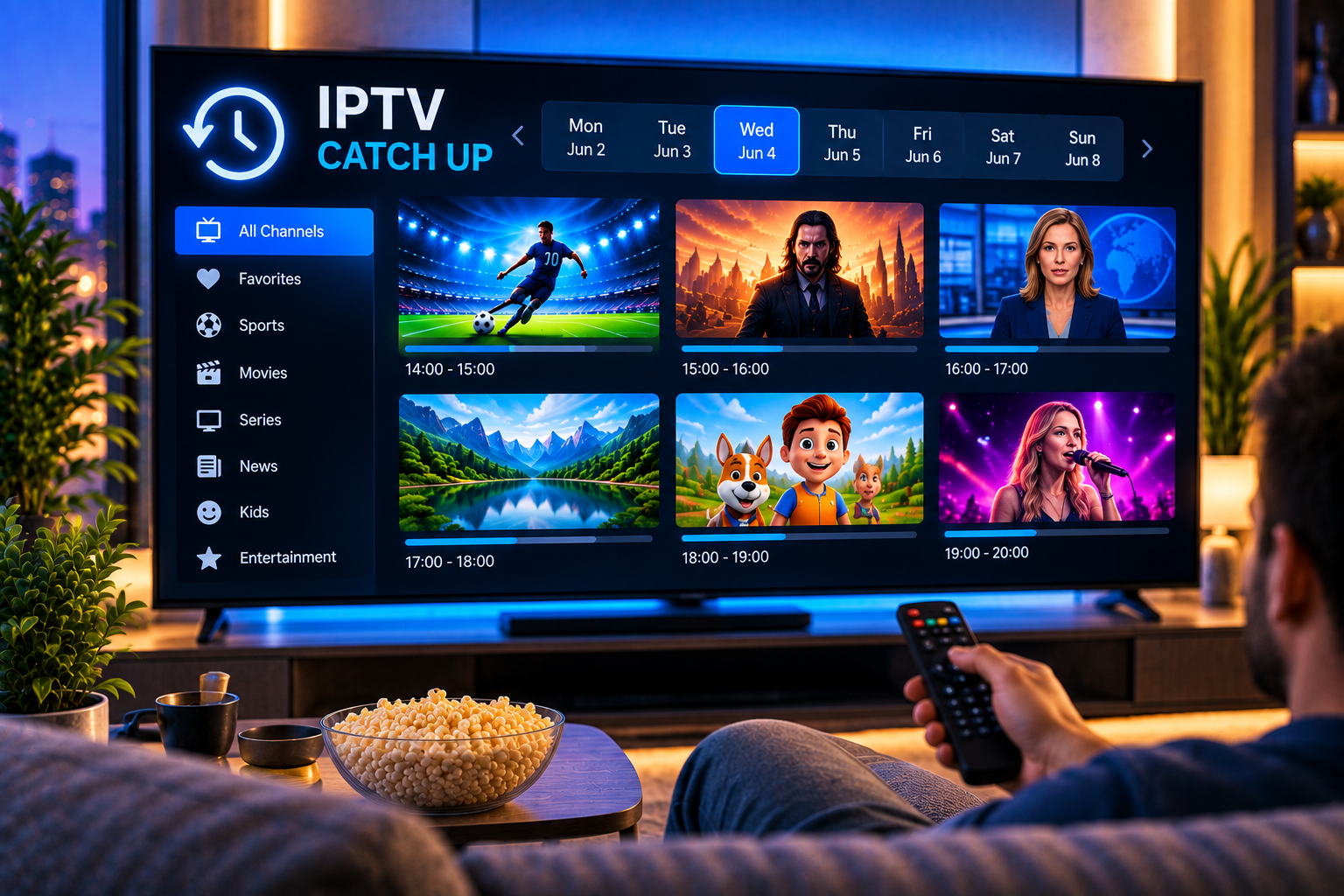
IPTV Sverige | Billigaste & Största IPTV

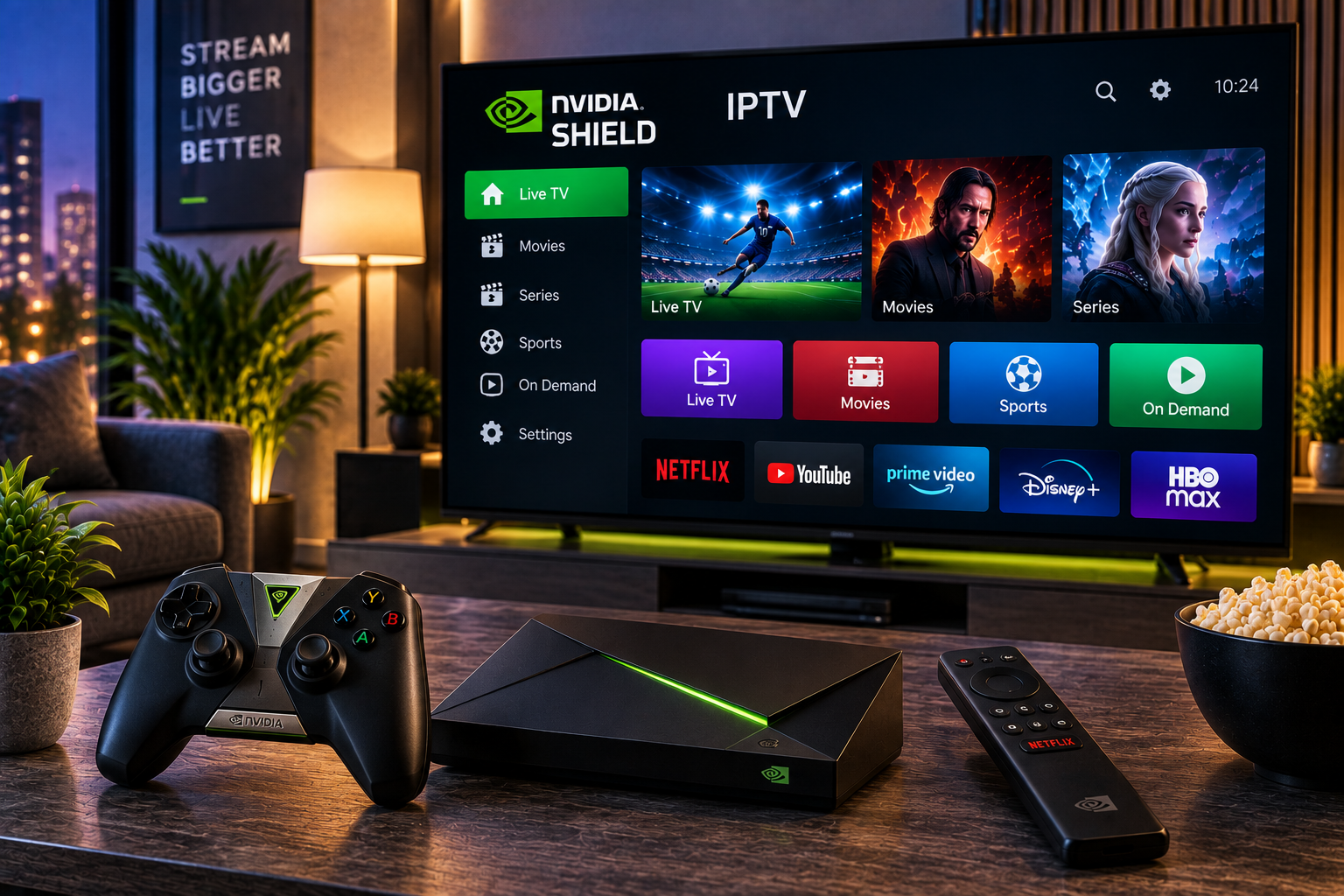
Setting up nvidia shield iptv is a practical way to watch live television, sports, movies, and series through one streaming device. Nvidia Shield runs on the Android TV platform, which means you can install compatible IPTV players, connect your subscription, organize channels, and watch content directly on your television.
The basic process is straightforward. Connect the Shield to your television and internet, install an IPTV player, enter the M3U URL or Xtream Codes details supplied with your subscription, allow the playlist to load, and adjust the player settings for your television. Nvidia itself recommends connecting Shield TV through HDMI and using either Wi Fi or Ethernet for internet access.
What makes Shield useful is flexibility. Community discussions around the device also frequently mention IPTV applications, Ethernet connectivity, performance, and the ability to use the box for more than basic streaming. At the same time, users point out that the current hardware is no longer new, so correct setup matters more than simply assuming every stream will automatically perform perfectly.
What You Need Before Setting Up IPTV
You do not need complicated equipment to begin. Your Nvidia Shield should already be connected to the television through HDMI and have access to the internet. NVIDIA lists an HDMI compatible television or monitor, an HDMI cable, internet access, and a Google account among the basic requirements for Shield TV setup.
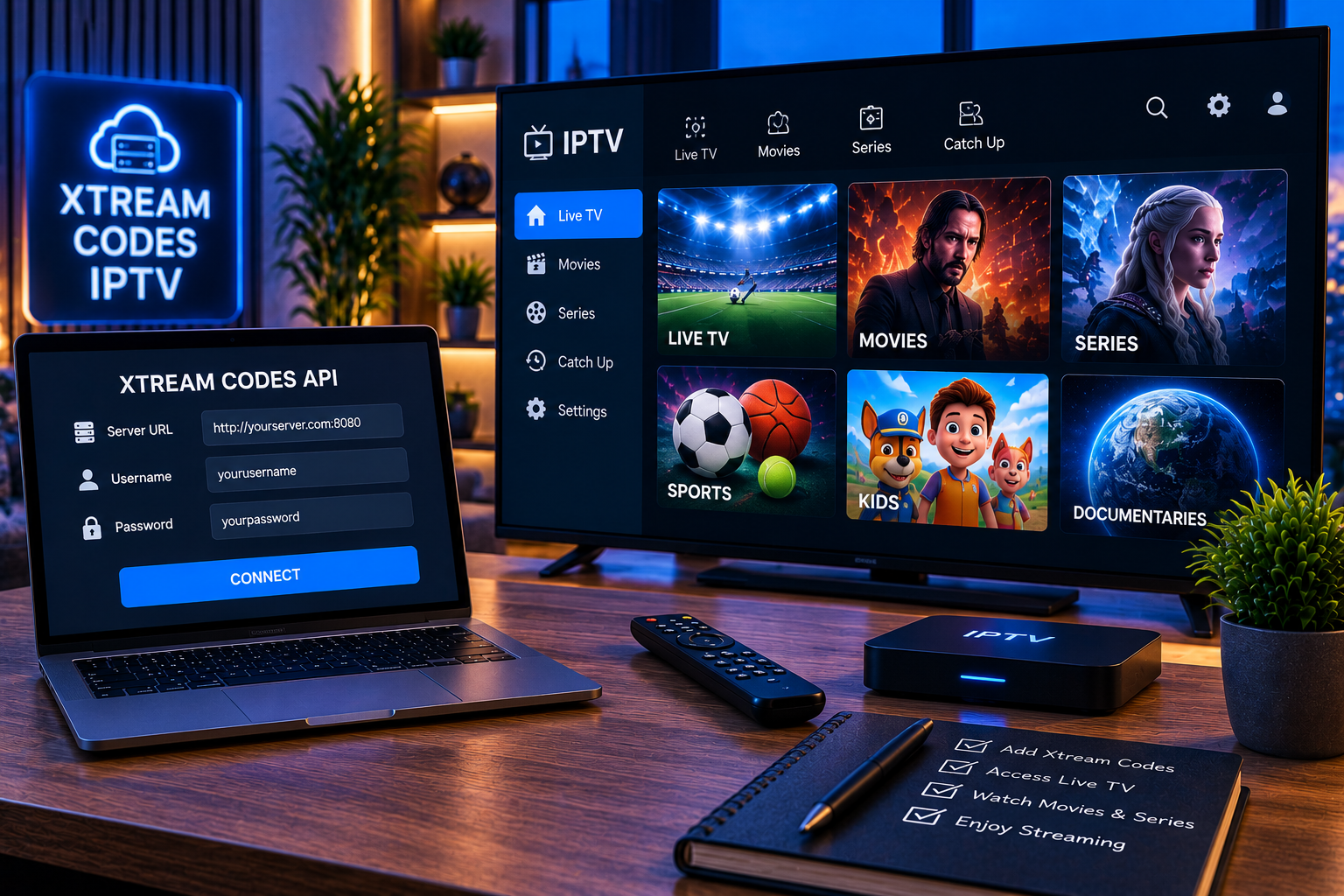
For IPTV specifically, you will also need an IPTV player and valid subscription credentials from your service provider. Depending on the player and service, those credentials may arrive as an M3U playlist URL or as Xtream Codes details containing a server address, username, and password.
Keep these credentials private. They provide access to your subscription and should not be posted publicly or entered into unknown websites.
How to Install IPTV on Nvidia Shield
The easiest method is to use an IPTV player available for Android TV. A player does not normally provide television channels itself. Think of it as the interface that reads the information supplied by your IPTV service and displays the available channels, movies, series, and program guide.
Step 1: Connect Your Nvidia Shield
Connect the Shield to an available HDMI input on your television and attach the power cable. Select the corresponding HDMI source on your television.
Next, connect the device to the internet. During the normal Shield setup process you can select a Wi Fi network, while Ethernet can be connected directly when available.
For a permanent IPTV installation, Ethernet is often the more predictable option because it removes wireless signal strength and interference from the connection between the Shield and router.
Step 2: Install an IPTV Player
Open Google Play on Nvidia Shield and search for a compatible IPTV player. Competitor guides commonly focus heavily on listing applications, with options such as IPTV Smarters, TiviMate, IPTV Extreme and other Android compatible players.
Rather than choosing an application only because it is popular, check whether it supports the login method supplied by your IPTV provider. Useful features can include M3U support, Xtream Codes login, EPG integration, favorites, search, subtitles, multiple playlists, catch up functions, and external player support.
If you need broader help configuring a subscription across supported devices, the IPTV installation guide provides a useful starting point.
Step 3: Add Your IPTV Subscription
Once your chosen player is installed, open it and select the appropriate method for adding a playlist. The names of the menu options differ between applications, but the process normally follows the same pattern.
- Choose M3U playlist or Xtream Codes, depending on the credentials you received. Enter the required URL, username and password carefully. Give the playlist a recognizable name if the application requests one. Save the profile and wait for the application to download the channel information. Open the live TV section and test several channels. Finally, load the EPG if it is supported by both the subscription and player.
A large playlist can take some time to process on its first load. Avoid repeatedly closing the application while channels, logos, categories, and EPG information are still being downloaded.
M3U or Xtream Codes: Which Should You Use?
Both methods can provide access to the same subscription, but they organize the connection differently.
An M3U URL points the player toward a playlist containing stream information. It is widely supported and can be useful when you want compatibility with different media players.
Xtream Codes style login usually asks for a server URL, username, and password separately. Many dedicated IPTV applications use this information to arrange live channels, movies, series, and EPG data in a television friendly interface.
Use the format provided by your subscription rather than converting credentials unnecessarily. If both options are supplied, you can test each method and keep whichever works more smoothly with your preferred player.

How to Improve Nvidia Shield IPTV Performance
A powerful streaming box cannot compensate for every network or source problem. Smooth playback depends on the complete route between the streaming source, internet connection, router, Nvidia Shield, IPTV application, and television.
Use Ethernet When Possible
Wi Fi can work well when the router is nearby and the signal is strong. However, interference, distance, walls, and other connected devices can affect wireless performance. Nvidia supports both Wi Fi and Ethernet connectivity on Shield TV.
For live sports or high quality streams, a wired connection can remove one common source of instability. If Ethernet is impossible, use a strong Wi Fi connection and avoid placing the Shield or router behind large obstacles.
Keep the Shield and IPTV App Updated
Check for system updates and keep the IPTV application current. Updates can contain compatibility improvements and fixes that affect playback or interface behavior.
It is also worth removing applications you no longer use. An uncluttered device is easier to maintain, especially when several streaming applications store temporary files and cached data.
Match Stream Quality to Your Connection
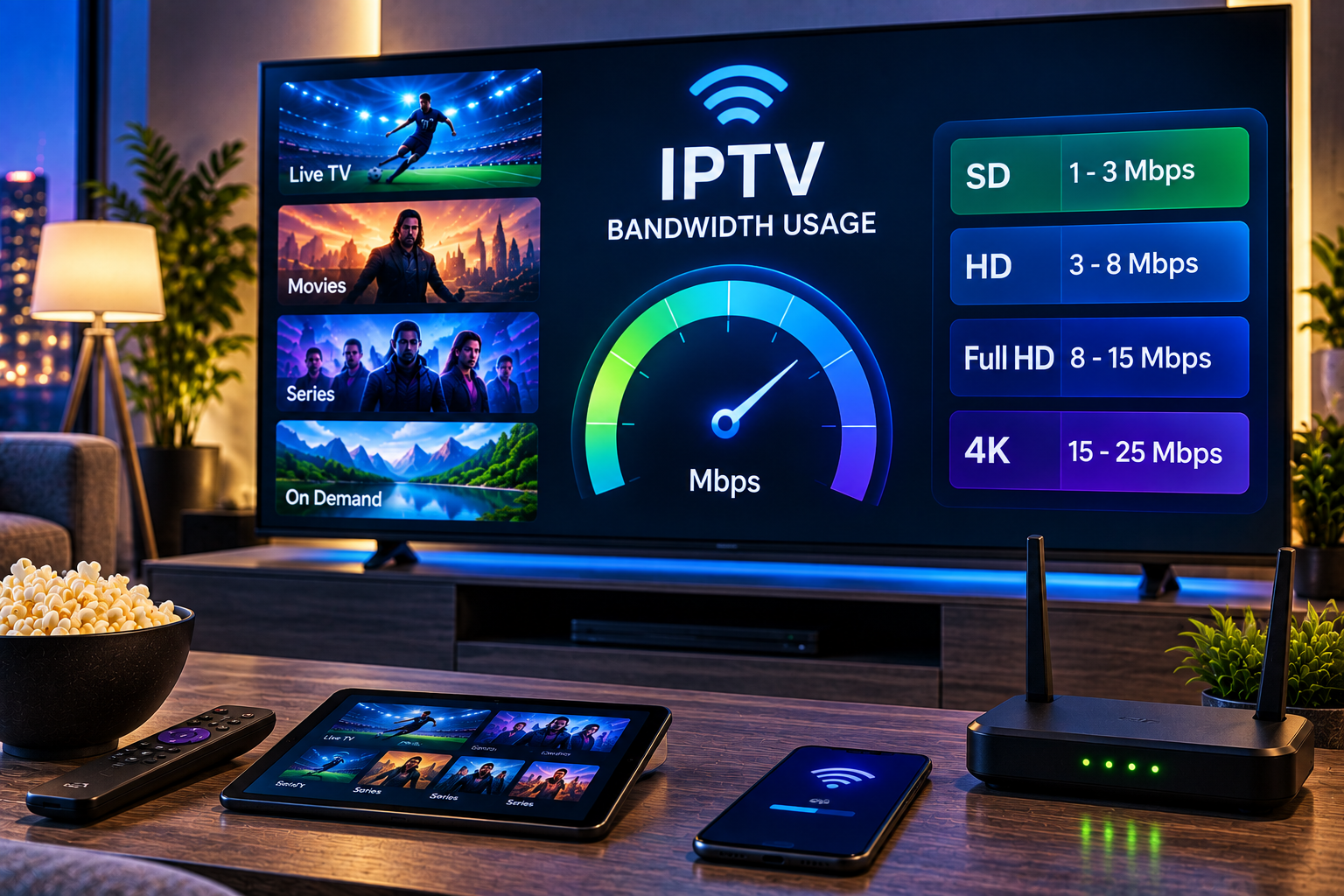
Choosing 4K simply because it is available is not always the best option. A stable HD or FHD stream can provide a better viewing experience than a higher resolution stream that repeatedly buffers.
If problems appear only on 4K content, compare the same channel at a lower resolution where available. If HD works normally, the issue may involve bandwidth, stream bitrate, player decoding, or the source rather than the entire IPTV setup.
How to Organize Channels and EPG
A good Nvidia Shield IPTV setup should make finding content quick. Large channel libraries become difficult to navigate when every category remains visible.
Use favorites for the channels you watch regularly. Hide categories you never use when your player allows it. Search and filtering can also reduce the time spent scrolling through large playlists.
EPG, or Electronic Program Guide, adds scheduling information to compatible channels. When correctly configured, it can show the current program, upcoming broadcasts, and program times directly inside the IPTV interface.
Another IPTV service can also be used as a comparison point when examining features and device compatibility. For example, Viking IPTV represents another option within the broader Nordic IPTV market. Always compare supported devices, connection limits, available content, support, and subscription terms rather than choosing solely from a headline channel count.
Nvidia Shield IPTV Buffering: What Should You Check?
Buffering does not automatically mean the Shield is faulty. Start by identifying whether the problem affects every channel or only a particular stream.
If all channels buffer, restart the Shield and router, test the internet connection, close unnecessary background applications, and try Ethernet. If only one channel has trouble while others play normally, the individual stream may be the issue.
You can also test the subscription on another supported device. If the same channel behaves identically elsewhere, changing settings on Nvidia Shield is unlikely to solve a source side problem.
Do not constantly change several settings at once. Change one variable, test again, and note whether performance improves. This makes troubleshooting much faster.
Nvidia Shield IPTV Picture Quality
Nvidia Shield is often chosen for television setups where picture quality matters. The device can handle high resolution playback, but the final result still depends heavily on the original stream.
A 4K television cannot create missing detail from a poor-quality source. Resolution, compression, bitrate, frame rate, and source quality all influence what you actually see.
Community discussion about Shield also highlights AI upscaling as one reason some owners continue using the device, although opinions vary on whether Shield remains the ideal choice when IPTV is the only intended use.
For the best results, set the Shield output to a resolution supported by your television and compare player decoder settings if you experience unusual stuttering, black screens, or audio problems.
Common Nvidia Shield IPTV Problems
Channels Do Not Load
First confirm that the internet connection works in another application. Then check the IPTV credentials. Even a small typing error in a server URL, username, password, or M3U address can prevent a playlist from loading.
EPG Is Empty
Refresh the EPG from inside the IPTV application. If that does not work, reload the playlist and verify that guide information is actually included with your subscription.
Picture Freezes During Sports
Live sports can expose network problems quickly because streams often use relatively high bitrates. Test Ethernet, restart the router, compare another channel, and temporarily select a lower resolution stream.
Audio and Video Are Out of Sync
Restart the stream first. If the problem remains across multiple channels, try another decoder option inside the IPTV player if available. Testing a second player can also help determine whether the issue comes from the application or stream.
Is Nvidia Shield Still Good for IPTV in 2026?
Nvidia Shield remains capable of running Android TV IPTV applications, and user discussions continue to describe successful IPTV setups on Shield devices. Those same discussions also highlight its aging hardware and missing newer technologies such as AV1 decoding on existing models, which means buyers should consider their broader requirements rather than assuming it is automatically the right streaming box for everyone.
For an existing Shield owner, there is little reason to replace a properly functioning device solely to start IPTV. Its Android environment, Ethernet support, app selection, and television focused interface provide the core tools needed for an IPTV setup.
For a new buyer, consider how much you value Ethernet, local media playback, application flexibility, storage options, picture processing, and other Android TV features. IPTV itself does not require the most expensive streaming hardware.
FAQ About Nvidia Shield IPTV
Can I Install IPTV Directly on Nvidia Shield?
Yes. Nvidia Shield uses Android TV, so compatible IPTV player applications can be installed and then connected to a valid IPTV subscription.
Do I Need an M3U Link?
Not necessarily. Some services provide an M3U URL, while others provide Xtream Codes style credentials. Your IPTV player must support the login format you receive.
Is Ethernet Better Than Wi Fi for IPTV?
Both are supported by Nvidia Shield. Ethernet can provide a more consistent connection because it avoids common wireless issues such as interference and weak signal strength.
Can Nvidia Shield Play 4K IPTV?
The Shield platform supports high resolution video, but actual IPTV picture quality depends on the stream, player, connection, television, and subscription source. A label saying 4K does not by itself guarantee high bitrate or genuine 4K source quality.
Why Does IPTV Buffer Even With Fast Internet?
Internet speed is only one factor. Wi Fi quality, router load, application settings, stream bitrate, source performance, and network congestion can all influence playback. Testing another channel, another player, and Ethernet can help isolate the cause.
A well configured nvidia shield iptv setup should be simple to use once the player, connection, and subscription are working together correctly. If you want to explore channel options, device support, installation help, and available subscription choices for viewers in Sweden, visit Sverige IPTV and choose the setup that suits your television and viewing habits.