Skip to main content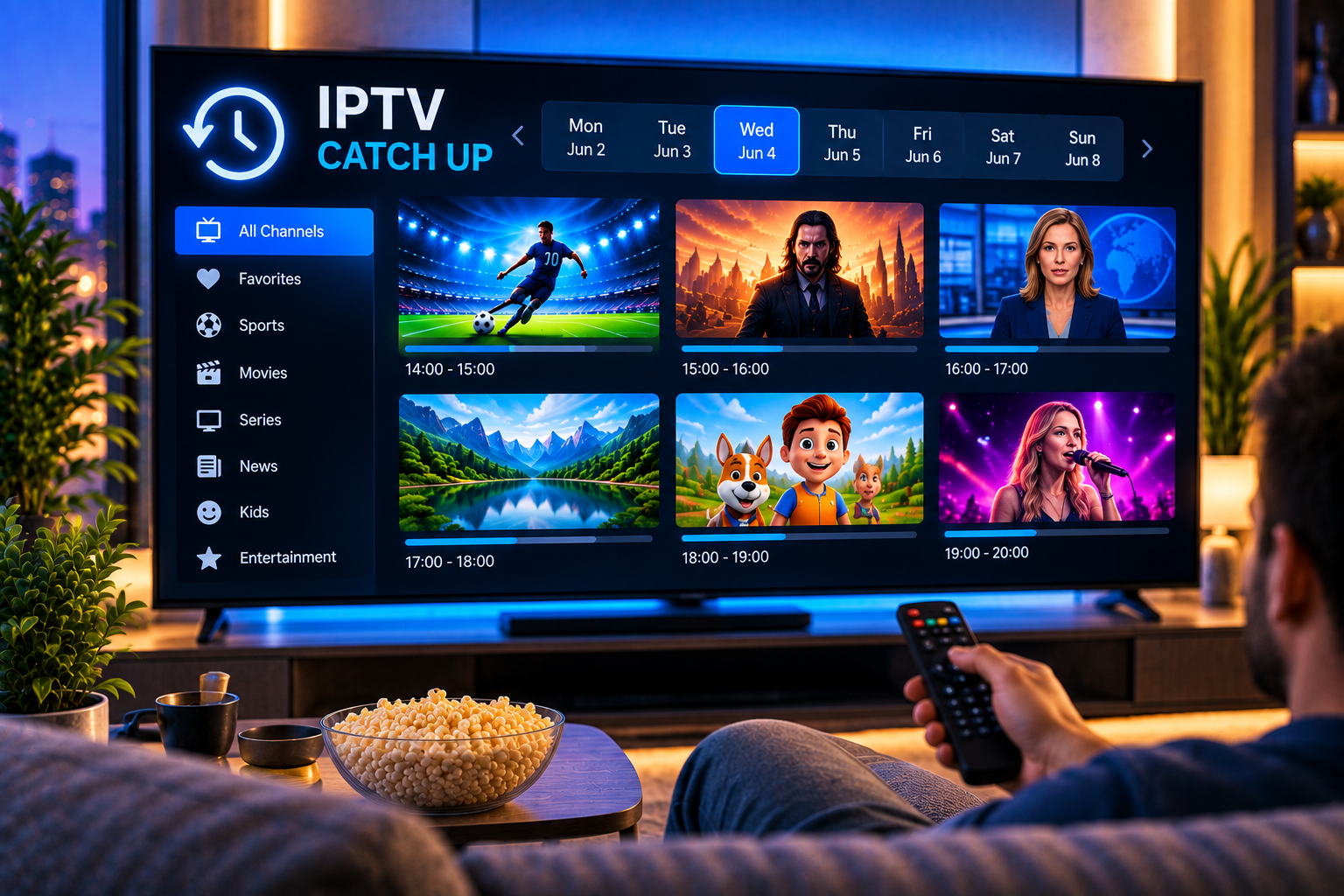
IPTV Sverige | Billigaste & Största IPTV

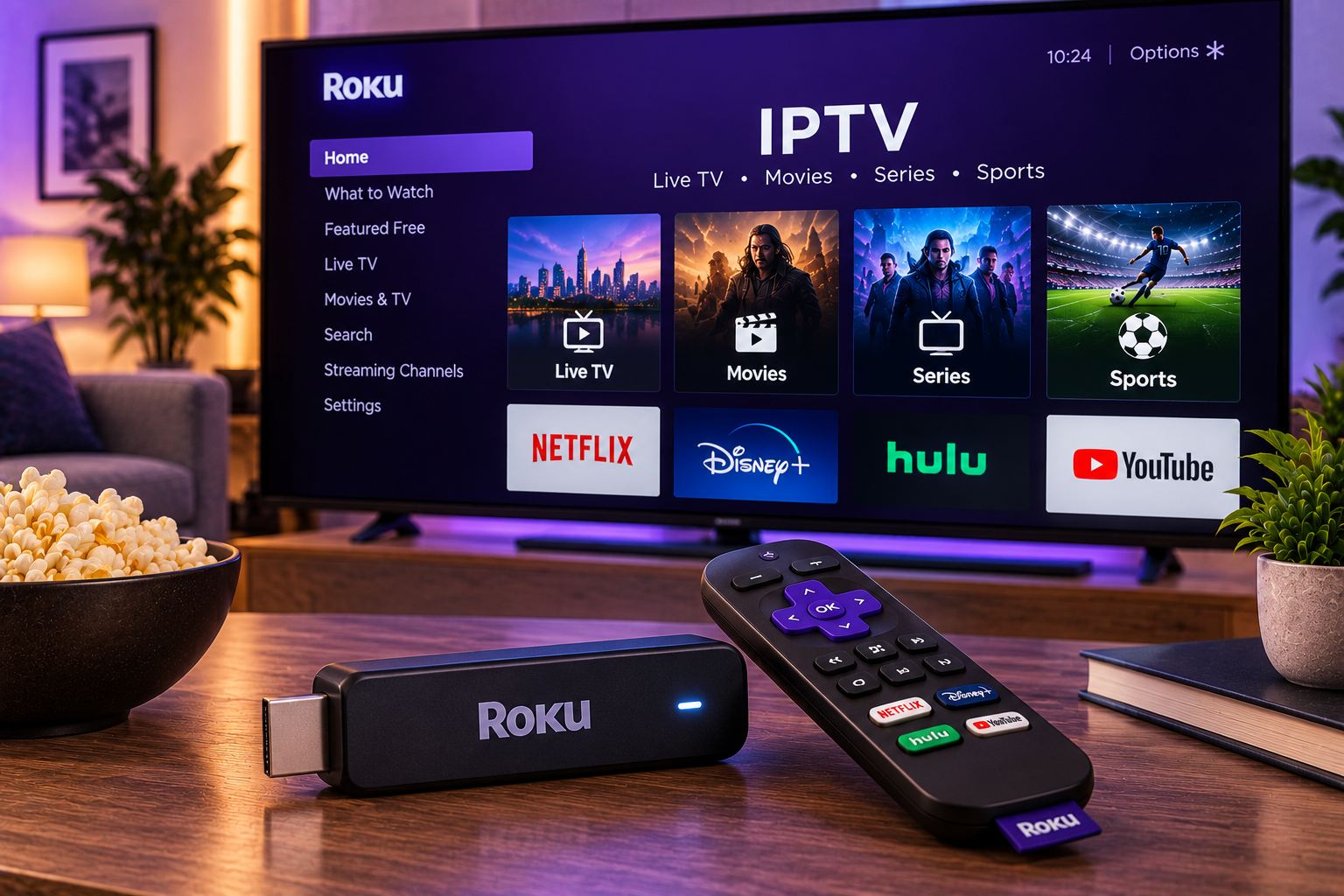
Using iptv roku together can be slightly different from watching IPTV on Android TV, Fire TV, or a traditional IPTV box. Roku has its own operating system and Streaming Store, so you cannot assume that an IPTV app available on Android will also work directly on a Roku device.
The good news is that there are several practical ways to watch IPTV on Roku in 2026. Depending on your Roku model, region, IPTV service, and preferred player, you may be able to use a compatible Roku app or cast content from another device. The right approach also depends on whether your provider supplies an M3U playlist, login credentials, or another connection method.
This guide explains how IPTV works with Roku, what you need before starting, how to choose a setup method, and how to solve the most common playback problems.
Can You Watch IPTV on Roku?
Yes, IPTV can be watched on Roku when you have a compatible playback method and legitimate access to the content you want to stream.
Roku applications are distributed primarily through the Roku Streaming Store. Roku says public apps available through its store are reviewed and certified for quality and functionality. App availability can also differ between countries because Roku operates different regional stores.
This regional difference matters for Swedish users. An IPTV player that someone recommends in another country might not appear when you search from your own Roku account.
It is also useful to understand the distinction between an IPTV service and an IPTV player. Your subscription supplies access to streams or channels, while the player is the software that displays them. Installing a player alone does not automatically provide television channels.
What You Need Before Setting Up IPTV Roku
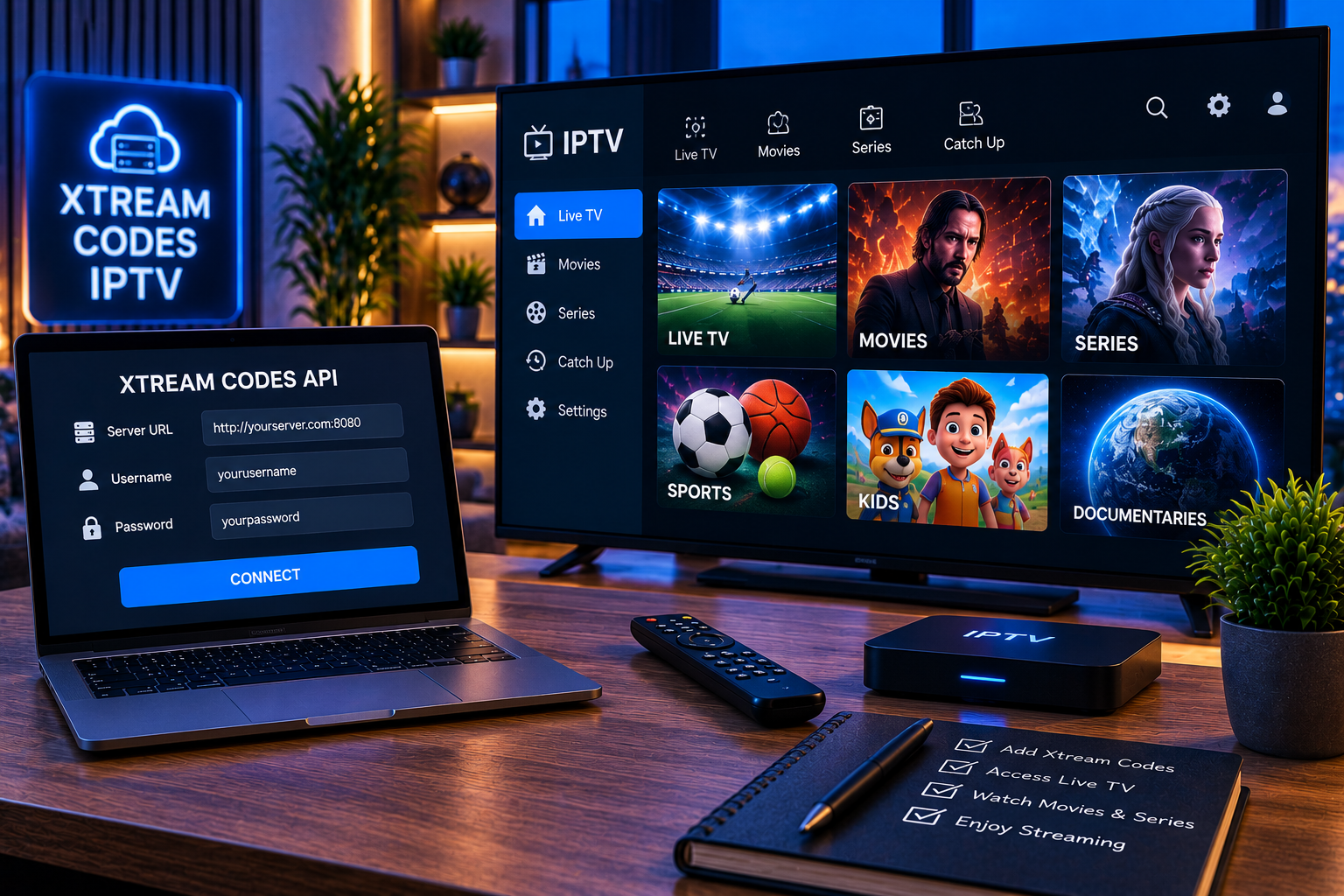
Before configuring anything, have your IPTV subscription details ready. Depending on the service and player, this might include an M3U playlist URL, username and password, or another provider-supplied login method.
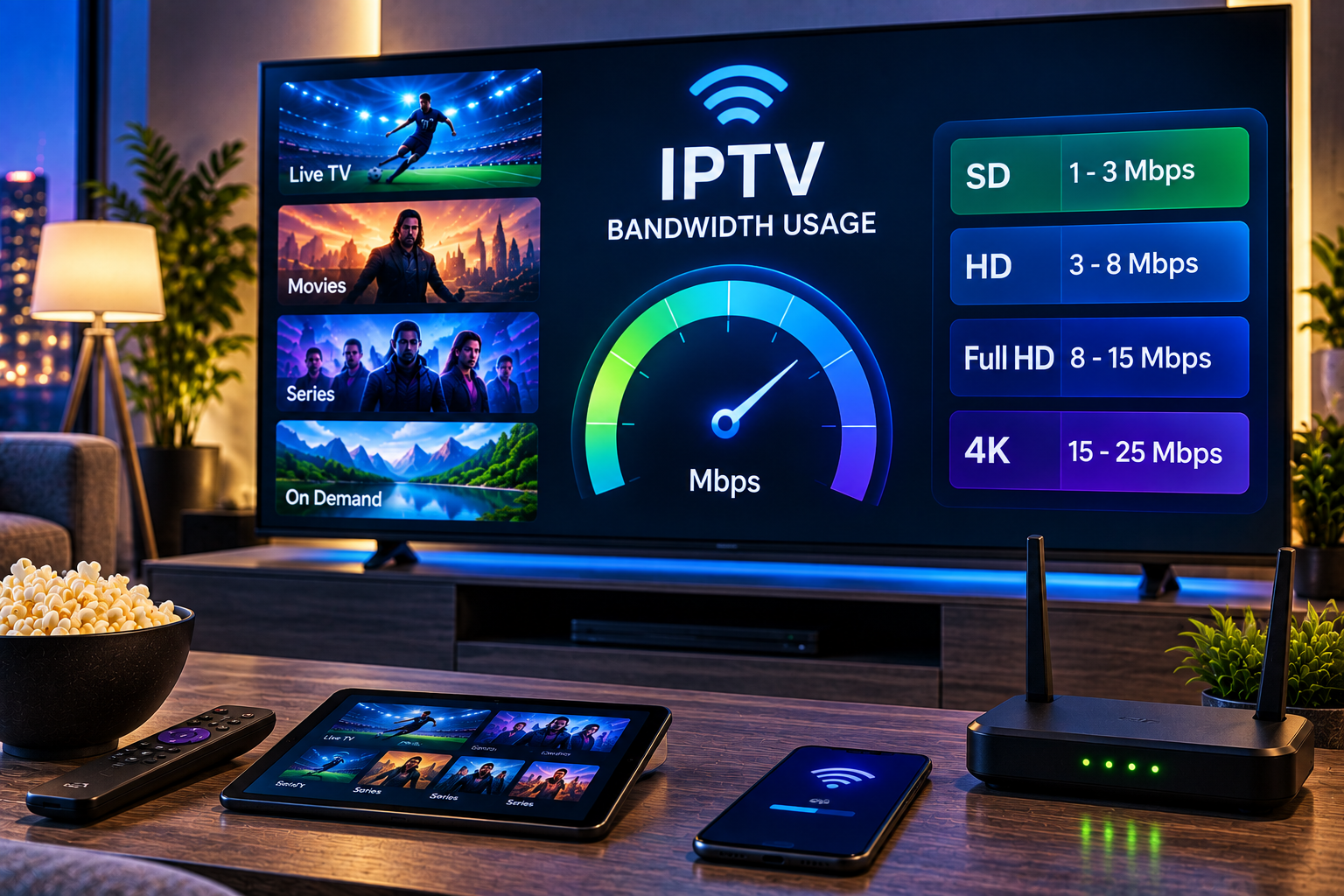
You will also need a stable internet connection and a Roku device connected to your television. For wireless streaming, good WiFi reception near the Roku is particularly important. High-resolution video requires more consistent bandwidth than standard-definition content.
Check your subscription before choosing an app. A service offering live television, films, series, sports and different picture qualities may have specific player recommendations. You can review the available IPTV packages before deciding how you want to use the service across your devices.
Method 1: Use an IPTV Player Available for Roku
The simplest option is usually a compatible application that is legitimately available for your Roku device.
Search the Roku Streaming Store
Open the Streaming Store from your Roku home screen and search for IPTV or the exact name of the player you want to use. Roku describes the Streaming Store as the main location for discovering and installing public Roku applications.
Once you find a suitable player, check its description and supported playlist formats before installing it. Do not assume every player supports every IPTV service.
After installation, open the application and follow its setup process. If it accepts M3U playlists, enter the playlist address supplied by your service. If another authentication format is required, use the credentials supplied with your subscription.
Never post your playlist URL or IPTV credentials publicly. A playlist address may contain information linked to your subscription.

Organize the Channel List
A large playlist can become difficult to navigate. Where the player permits it, organize channels into categories such as Swedish TV, sports, films, children’s programming and international channels.
An electronic program guide, commonly called EPG, is also valuable for live television because it can show what is currently playing and what is scheduled next.
Method 2: Mirror or Cast IPTV to Roku
If a suitable IPTV player is unavailable on your particular Roku, another approach is to play the content on a compatible phone or computer and send or mirror it to your television.
This can be particularly useful if you already have an IPTV player that works well on another device.
For example, you can configure the IPTV service on a supported mobile device first. Sverige IPTV provides separate information for iOS and Android installation, which can help when your phone or tablet is the primary playback device.
The exact casting or mirroring process depends on the Roku model, source device, operating system and application. Check the settings on both devices rather than assuming every combination supports the same feature.
When Mirroring Makes Sense
Mirroring is useful when you want a straightforward workaround without changing your main IPTV setup. It can also help when the IPTV player you prefer is available on your phone or computer but not through your regional Roku store.
The disadvantage is convenience. Your source device normally needs to remain connected while you watch, and playback can be affected by WiFi quality.
Some IPTV users also compare alternative services such as Viking IPTV when checking device support and available playback options. Whichever service you use, confirm Roku compatibility before committing to a particular setup.
Should You Sideload an IPTV App on Roku?
This area deserves caution because many older IPTV Roku tutorials make sideloading sound like a normal consumer installation method.
Roku does provide a developer mode and a Development Application Installer. However, Roku’s current documentation describes sideloading specifically in the context of developing, testing and debugging Roku applications. Roku also states that only one application can be sideloaded at a time.
That makes developer sideloading very different from simply installing an Android APK.
For an ordinary viewer, a supported Streaming Store application or a compatible casting method is generally easier to maintain. Avoid downloading unknown packages merely because a website claims they unlock IPTV functionality. Use software from sources you trust and keep your Roku software updated.
Best Settings for Smooth IPTV on Roku
A successful installation does not guarantee smooth streaming. Your home network, stream quality, source server and playback device all influence the result.
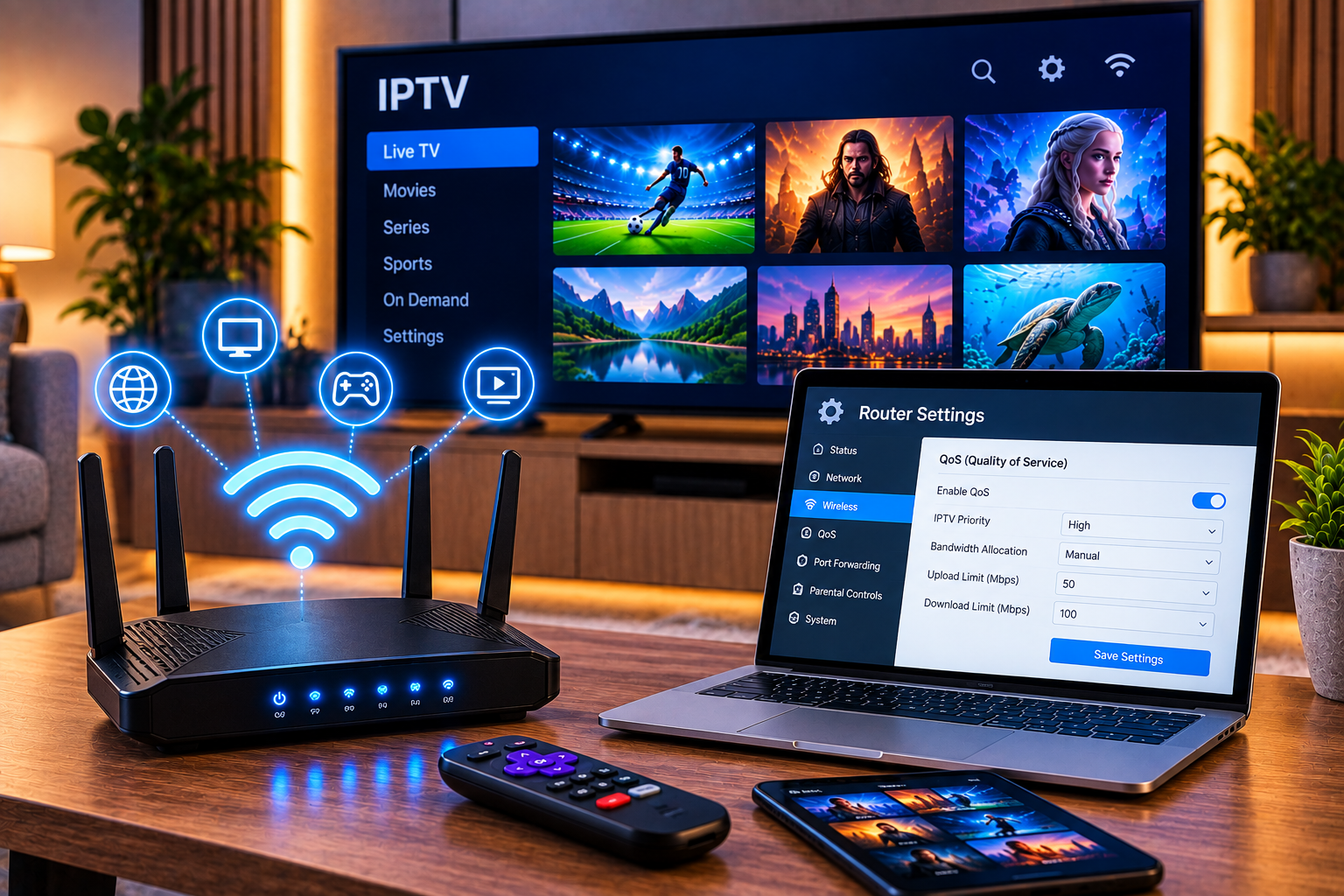
Improve Your Network Connection
Place your router where it can provide a strong signal to the Roku. Walls, floors and interference from nearby networks can reduce wireless performance.
If several people are simultaneously gaming, downloading large files, making video calls and streaming 4K video, available bandwidth can become constrained. Try pausing heavy network activity when diagnosing IPTV buffering.
Restarting the router and Roku can also clear temporary connection problems.
Match Quality to Your Connection
Choosing the highest available resolution is not always the best option. A stable HD or FHD stream can provide a better viewing experience than 4K playback that repeatedly buffers.
If your IPTV player allows quality selection, test a lower resolution. If buffering disappears immediately, your network connection or available bandwidth may be contributing to the problem.
Common IPTV Roku Problems and Solutions
IPTV Channels Do Not Load
First check whether your internet connection works in another Roku application. If other services work normally, verify the playlist or login information.
A single incorrect character in a playlist address can prevent it from loading. If your subscription has expired, authentication may also fail.
IPTV Buffers Frequently
Run an internet speed test from another device on the same network and compare performance at different times of day. Also check whether the problem affects every channel or only one stream.
If every stream buffers, investigate your network first. If only one channel has problems while everything else works normally, the source stream may be the issue.
The IPTV App Is Missing
Roku notes that app availability differs among regional Streaming Stores because distribution arrangements vary by market.
Therefore, an application mentioned in a US tutorial may not necessarily be available to a Roku user elsewhere. Search your own device’s Streaming Store instead of relying solely on screenshots from another country.
Playlist Loads but Shows No Channels
Confirm that the playlist is active and correctly entered. Restart the player after adding or updating it. If the same playlist works on another supported device but not Roku, compatibility with the chosen Roku player may be the problem.
IPTV Roku Security Tips
Treat IPTV login information like other private account credentials. Do not publish screenshots containing playlist URLs, usernames, passwords or activation information.
Install reputable applications and keep Roku OS current. Be particularly cautious with instructions asking you to download unknown files, disable security features or enter credentials into unrelated websites.
It is equally important to use IPTV services only for content you are authorized to access. IPTV is a delivery technology, while rights to individual channels, sports events, films and series depend on the relevant licenses and service.
Roku Versus Android TV for IPTV
Roku can be a convenient streaming platform, but Android based devices generally approach application installation differently. That difference matters if IPTV is your primary use case.
Roku is attractive when you prefer its interface and already use its streaming ecosystem. Android TV may offer a broader selection of IPTV specific applications in some markets. Neither platform automatically guarantees better picture quality. Stream quality depends on the source, network, player and device capabilities.
Choose your hardware based on the applications and services you actually plan to use rather than the number of applications advertised.
Frequently Asked Questions About IPTV Roku
Does Roku support M3U IPTV playlists?
Some compatible players may accept M3U playlists, but support depends on the individual Roku application. Check the current player description before installing it.
Can I install an Android IPTV APK on Roku?
Not directly. Roku uses its own platform rather than Android, so Android APK files are not normal Roku applications. Roku’s developer sideloading tools are intended for developing and testing Roku apps.
Why can’t I find the same IPTV app as another Roku user?
Regional availability can differ. Roku maintains different Streaming Stores, and the applications offered can vary according to country and distribution arrangements.
Is IPTV quality worse on Roku?
Not inherently. Picture quality depends on factors such as the original stream, resolution, bitrate, internet connection, WiFi stability and playback software. A properly configured Roku can deliver smooth video when the source and network are suitable.
What is the easiest IPTV Roku setup?
For most users, the easiest approach is to first check for a compatible player in the Roku Streaming Store. If the required player is unavailable, using a compatible phone or computer as the playback source and mirroring to Roku may be an alternative.
Getting IPTV working on Roku is mainly about choosing a playback method that matches your device, region and subscription rather than following outdated installation tricks. If you want access to live television, sports, films and series with setup support for different devices, explore Sverige IPTV and choose the option that fits how you watch TV.