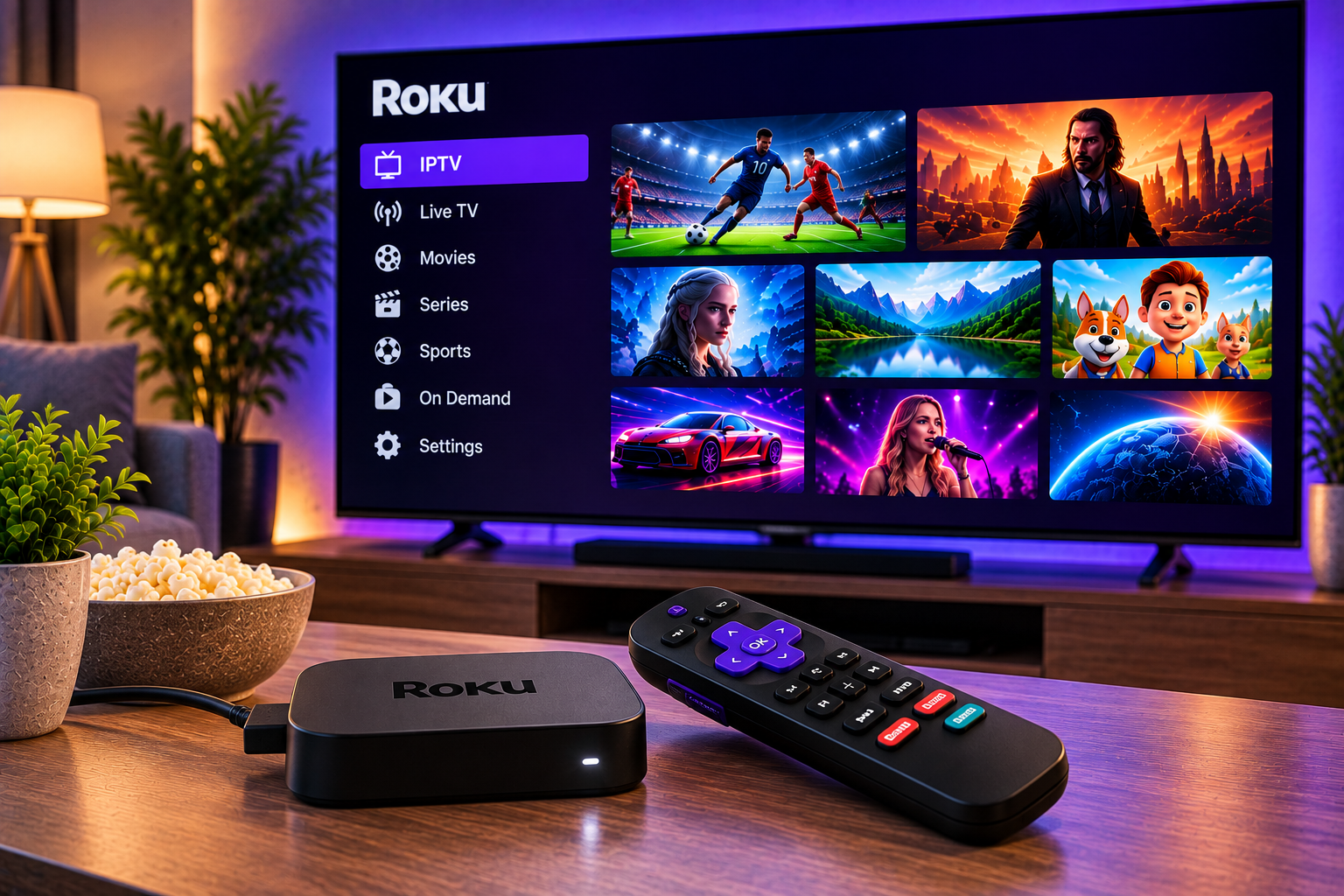
You can watch IPTV on Roku in 2026, but the setup differs from using an Android TV box, Fire TV device, or Smart TV with a dedicated IPTV app. Roku does not work with every IPTV player you may find on Android or other streaming platforms, so choosing the right method matters.
For most Roku users, the simplest solution is to play IPTV on a phone, tablet, or computer and display it on the Roku through screen mirroring or Apple AirPlay. Some IPTV-related Roku applications may also appear in the Roku Streaming Store, although availability and features can change. This guide explains the practical options for Android, iPhone, Windows, and Mac users and shows how to improve streaming quality once everything is connected.
Can You Watch IPTV on Roku in 2026?
Yes. Roku supports several ways to display media from another device. Compatible Android and Windows devices can use screen mirroring, while compatible iPhone, iPad, and Mac devices can use Apple AirPlay. Roku also supports casting from applications specifically designed to work with a matching Roku application.
The important distinction is that IPTV consists of two separate parts.
Your IPTV subscription provides the channels, movies, series, sports, or other authorized streams you can access.
An IPTV player reads the playlist or account details supplied by your service and displays that content.
This distinction matters because many applications advertised as IPTV players do not include a subscription or television content. For example, one current Android application aimed at TCL Roku TV users supports M3U and M3U8 playlists but states that users must provide their own authorized IPTV sources.
Best Ways to Use IPTV on Roku
There are three practical approaches worth considering in 2026.
Screen Mirror IPTV From Android
For many Android users, screen mirroring is the easiest method.
First, connect your Android phone and Roku to the same Wi Fi network. On the Roku device, open the settings for screen mirroring and make sure connection requests are allowed.
Next, open your IPTV player on Android and load the subscription details supplied by your IPTV provider.
On compatible Samsung phones, for example, you can open the quick settings panel and select Smart View. Choose the Roku device from the available display list and approve the connection on your television.
Once connected, whatever appears on your Android screen also appears on your Roku-connected television. Roku confirms that most current-generation Roku players and Roku TV models support screen mirroring, although support can vary by model.
For users who need help entering playlist information or configuring a player before mirroring, the Sverige IPTV installation guide explains the general setup process for supported devices.
Watch IPTV on Roku From iPhone or iPad
Apple users normally have a better option than traditional screen mirroring: AirPlay.
Connect the iPhone or iPad and Roku to the same wireless network. On Roku, go to Settings, then Apple AirPlay and HomeKit, and make sure AirPlay is enabled.
Open the IPTV player on your Apple device and begin playing your selected stream. If the player supports AirPlay directly, tap the AirPlay symbol and choose your Roku. If direct streaming is unavailable, compatible Apple devices can also mirror their screen to Roku.
Roku states that AirPlay allows users to stream or mirror movies, television, music, photos, and other supported media from compatible Apple devices to supported Roku hardware.
AirPlay is often more convenient than keeping an IPTV player directly on the television because playlist management, searches, and account entry can be handled from the phone or tablet.
Stream IPTV From Windows to Roku
A Windows computer gives you another useful option, especially if you already watch IPTV through a desktop player or browser.
Connect the Roku and computer to the same network. Enable screen mirroring on your Roku and then open the wireless display controls on Windows.
Select your Roku from the available devices and approve the connection on the television.
Once the Windows desktop appears on the Roku screen, open the IPTV application or authorized web player you normally use and switch the video to full screen.
This method is useful when your preferred IPTV player is not available for Roku but works reliably on Windows.
Can You Install an IPTV App Directly on Roku?
This is where Roku differs from Android-based streaming devices.
Applications normally reach consumers through Roku’s own platform. Roku does have developer mode and technically supports sideloading applications, but Roku documents this feature as a development and testing system. Developer mode uses the Development Application Installer, and only one application can be sideloaded at a time.
For a normal household setup, screen mirroring or AirPlay is usually simpler than experimenting with developer tools.
Availability of IPTV players in the Roku Streaming Store can also change. A recent Roku community discussion shows users comparing several player options, with comments noting differences in free trials, advertisements, playlist support, and whether multiple playlists can be added.
That is why it is better to understand the underlying connection methods rather than rely completely on one particular Roku player.
What Do You Need Before Setting Up IPTV?
A reliable IPTV setup does not require much equipment.
You need a compatible Roku player or Roku TV, a stable internet connection, an IPTV subscription you are authorized to use, and a phone, tablet, or computer running a suitable IPTV player.
Your provider may supply an M3U playlist, M3U8 playlist, portal information, login credentials, or another supported account format. The exact information depends on the service and player.
Some viewers compare different Nordic-focused services such as Viking IPTV when researching channel availability and device compatibility. Whatever service you use, confirm that it supports your chosen IPTV player and provides clear setup information before configuring Roku.
How to Reduce Buffering on Roku IPTV
A successful connection does not automatically guarantee smooth playback. Streaming quality depends heavily on the network, source quality, player performance, and the device doing the mirroring.
Use a Strong Wi Fi Connection
Keep the Roku and source device close to the router where possible. Weak wireless reception can cause buffering, reduced image quality, or repeated disconnects.
If your router supports both 2.4 GHz and 5 GHz connections, a strong 5 GHz connection can work well for high quality streaming because it normally provides more bandwidth over shorter distances.
Avoid Heavy Network Traffic
Large downloads, cloud backups, gaming updates, and multiple simultaneous 4K streams can compete for bandwidth.
If IPTV becomes unstable during busy periods, temporarily pause other high bandwidth activities and test the stream again.
Test a Lower Video Quality
4K requires more bandwidth and processing power than HD or Full HD. If a 4K stream buffers but the HD version works smoothly, the issue may be network capacity rather than the IPTV service itself.
A stable HD stream generally provides a better viewing experience than a 4K stream that stops every few minutes.
Restart the Entire Connection
When mirroring fails unexpectedly, restart the IPTV player, source device, Roku, and router. Then reconnect both devices to the same Wi Fi network.
Simple network sessions can occasionally become stuck, particularly after either device has switched between wireless networks.
Screen Mirroring Versus Casting on Roku
Screen mirroring and casting sound similar, but Roku treats them differently.
With screen mirroring, Roku displays the complete interface from your phone or computer. Your source device must remain active, and you normally control playback from that device.
Casting works differently. A compatible application sends the selected content to a corresponding Roku application. Once playback starts, the phone can often be used for other tasks or switched off. Roku notes that casting only works when the relevant application supports it, whereas screen mirroring can display content from compatible Android and Windows devices more broadly.
For IPTV, screen mirroring is often more practical because many IPTV players do not have a matching Roku application.
Is IPTV on Roku Legal?
IPTV technology itself is simply a way of delivering television or video over internet protocol. Legality depends on whether the service has permission to distribute the content it provides.
Use subscriptions, playlists, and streaming sources that you are legally authorized to access. A media player or screen mirroring feature does not give permission to view copyrighted television, films, or sports from unauthorized sources.
Frequently Asked Questions
Does Roku Have an IPTV Player?
IPTV related applications may be available through the Roku platform, but availability can change. Screen mirroring from Android or Windows and AirPlay from Apple devices provide useful alternatives when your preferred IPTV application is unavailable.
Can I Use IPTV Smarters on Roku?
If the exact IPTV player you want is not available as a supported Roku application, you can run your IPTV player on a compatible phone, tablet, or computer and mirror the display to Roku.
Can I Use M3U IPTV on Roku?
Yes, provided your IPTV player can load the M3U playlist. You can play the playlist on a compatible source device and display it on Roku through a supported mirroring method. Some third party player applications also advertise M3U and M3U8 playlist support.
Why Is Roku Not Showing Up for Screen Mirroring?
Check that both devices are connected to the same network, screen mirroring is enabled, and your Roku model supports the feature. Restarting both devices and the router can also resolve discovery problems.
Can I Watch 4K IPTV on Roku?
You can display 4K-capable IPTV content when your Roku model, television, IPTV source, network, and playback device all support the required quality. Actual results depend on the complete streaming chain rather than Roku alone.
Roku can be a practical way to enjoy IPTV when you use the connection method that matches your devices. Android and Windows users can start with screen mirroring, while Apple users can use AirPlay on compatible Roku models. If you want a straightforward IPTV service for Swedish channels, sports, movies, series, and multiple devices, explore Sverige IPTV and choose the setup that works best with your home entertainment system.