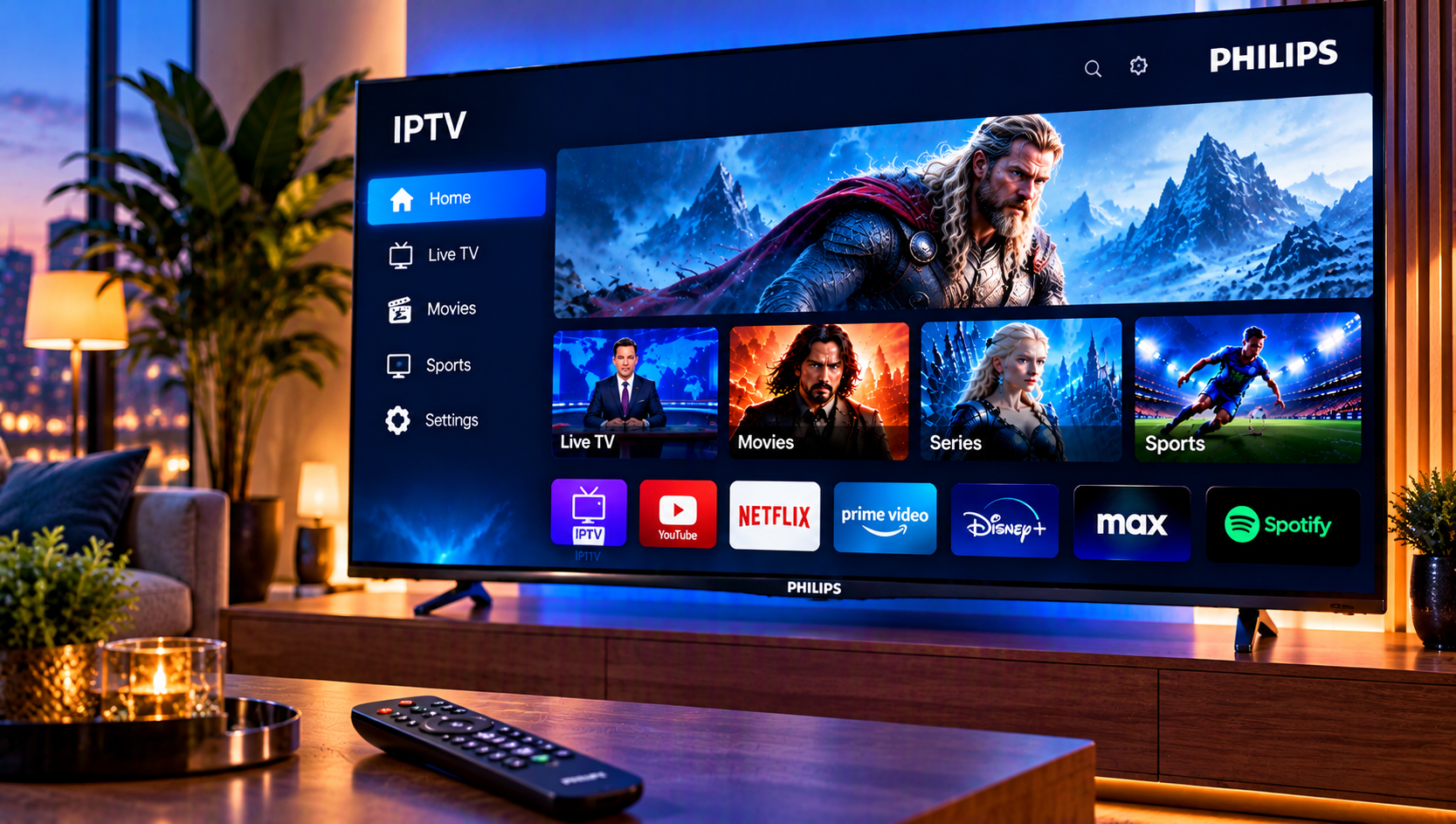
Setting up IPTV on a Philips TV should be simple, but it often is not. The reason is that “Philips Smart TV” does not describe one system. Depending on the year and model, your TV may run Google TV, Android TV, Titan OS or Saphi, and each one handles apps very differently.
This guide helps you work out which platform you have, choose the right setup method, add your playlist, and fix the most common problems. If you follow the steps in order, you avoid the usual trap of hunting for an app that your TV can never run.
Step 1: Find Out Which System Your Philips TV Uses
Before you install anything, identify your platform. The quickest ways are:
- Look at the home screen. A Google-style interface with a Google Play or Apps row suggests Google TV or Android TV.
- Open the settings menu and check the software or system information.
- Search your TV’s model number on the manufacturer’s support page.
Here is what each platform means for IPTV:
| Platform | App options | Difficulty |
|---|---|---|
| Google TV | Full Google Play store | Easy |
| Android TV | Full Google Play store | Easy |
| Titan OS | Limited, platform-specific app store | Moderate |
| Saphi | Very limited app selection | Hard, external device often better |
Treat this as your decision point. Everything else in this guide depends on it.
IPTV on Philips Google TV and Android TV
These are the easiest Philips TVs to work with. They have access to Google Play, so you can install the same IPTV players used on Android boxes.
How to Install a Player
- Connect the TV to your network, ideally with an Ethernet cable.
- Open the Apps section or Google Play Store.
- Search for an IPTV player that supports M3U or Xtream Codes.
- Install and open the app.
- Add your playlist URL or Xtream login details.
- Wait for channels and the TV guide to load.
- Test several channels before changing any settings.
Typing Without Frustration
Entering long URLs with a TV remote is slow. A few workarounds help:
- Use the Google TV mobile app or a connected keyboard for text entry.
- Choose a player that supports web or QR-code pairing.
- Copy your login details somewhere you can read them easily, so you can type them in once and correctly.
IPTV on Philips Titan OS
Titan OS is a newer platform found on many recent Philips models. It is not Android, which is the key point. Android apps and APK files will not simply install on it.
What to do:
- Open the TV’s app store and search for IPTV players that are available for Titan OS.
- Check that the player supports your format (M3U or Xtream) and shows a programme guide.
- If nothing suitable is available, use an external device (see below).
Do not rely on old forum tips about sideloading. They were written for Android-based TVs, and they often do not apply here.
IPTV on Philips Saphi
Saphi appears on older or entry-level Philips models and has the smallest app catalogue of the four. Some players may have been available in the past and later disappeared from the store, so what worked for someone a few years ago may no longer be an option.
Check the app list on your own TV first. If you cannot find a compatible player, the most practical solution is an external streaming device, not trying to force the TV to do something it was not built for.
When an External Device Is the Better Choice
An external box is often the best answer for Titan OS and Saphi, and it can also help with a slow or older Android TV.
Good options include:
- A Fire TV stick or Fire TV box
- A Google TV streaming device
- A standard Android TV box
- An Apple TV, if you already use Apple devices
Connect it by HDMI, set the TV to that input, and install your player there. The benefit is that you are no longer limited by the TV maker’s app store, and you can change players freely. Our smart TV setup page explains how IPTV works on different TV platforms if you are comparing options.
M3U or Xtream Codes: Which Should You Use?
Most players accept both formats, so you can choose whichever your provider supplies.
- M3U: A playlist link. It works in many apps and is easy to paste, though the guide may need a separate EPG address.
- Xtream Codes: A server address, username and password. It usually organises live TV, movies and series more neatly and often loads the guide automatically.
If you have both, start with Xtream Codes for a smoother setup on a TV, because there is less to type and fewer separate settings.
Getting the TV Guide Right
An empty or wrong guide is the most common complaint after setup. Check these in order:
- Provider guide data. Confirm your service actually supplies an EPG source.
- Format. With M3U, add the EPG address separately in the app. With Xtream, it often loads on its own.
- Time zone. Make sure both the TV and the app use Swedish time. An hour’s difference is usually a time zone or offset issue.
- Refresh. Reload the playlist and guide after changing anything, and give a large guide a few minutes to load.
Getting Stable Streaming
Buffering has many possible causes, and the TV is only one of them.
- Use Ethernet. A cable is more reliable than Wi-Fi, especially for sport and 4K.
- Check your speed. HD needs far less bandwidth than 4K, but a steady connection matters more than a high peak number.
- Restart everything. Power-cycle the router and the TV or box.
- Test another player. If the same channel struggles everywhere, the source is the issue.
- Keep software updated. Update the TV firmware and the player app.
If only one channel fails, suspect the stream. If everything fails, look at your network first. Some providers, such as Monster IPTV, also publish general device and network tips that can help you narrow down where a problem starts.
Do You Need a VPN?
No, a VPN is not a technical requirement for IPTV on a Philips TV. It can add privacy for some users, but it can also slow your connection and add delay. It also does not change whether a service has the right to distribute its content.
Is IPTV Legal on a Philips TV?
Installing an IPTV player on a Philips TV is normal and legal in itself. The legal question is about the source of the content. A good provider is clear about who it is, what its terms are and how it handles rights for channels, sport and films. If a provider is vague about these things, think twice.
If you want to see what a clear Swedish setup process looks like before you start, our IPTV installation guide walks you through preparing your subscription details and adding them to a player.
Troubleshooting Quick Reference
App not in the store. Check your platform. An Android app will not appear on Titan OS or Saphi.
Playlist will not load. Re-enter the link or login. Remove trailing spaces and check your username and password.
Channels buffer. Test your network and try another channel or player.
Guide shows wrong times. Review the time zone and EPG offset.
TV feels slow. Close other apps, clear cache where the system allows it, or switch to an external device.
FAQ
Can I use IPTV on any Philips TV?
Most Philips smart TVs can be used with IPTV, either through a built-in app or an external device. The method depends on whether your TV runs Google TV, Android TV, Titan OS or Saphi.
How do I find my Philips TV’s operating system?
Check the home screen style, the settings menu and your model number on the support page.
What is the easiest Philips TV for IPTV?
Models running Google TV or Android TV are usually the simplest, because you can install players from the Google Play Store.
What if there is no IPTV app for my TV?
Use an external streaming device connected through HDMI.
Final Thoughts
The best way to use IPTV on a Philips TV starts with knowing your platform. Google TV and Android TV give you the most freedom, while Titan OS and Saphi are often easier to handle with a separate streaming device. If you want a Swedish IPTV subscription that is easy to set up on Philips and other TVs, with live channels, sports, movies and series in HD, FHD and 4K, plus installation support, visit Sverige IPTV and choose the plan that suits you.