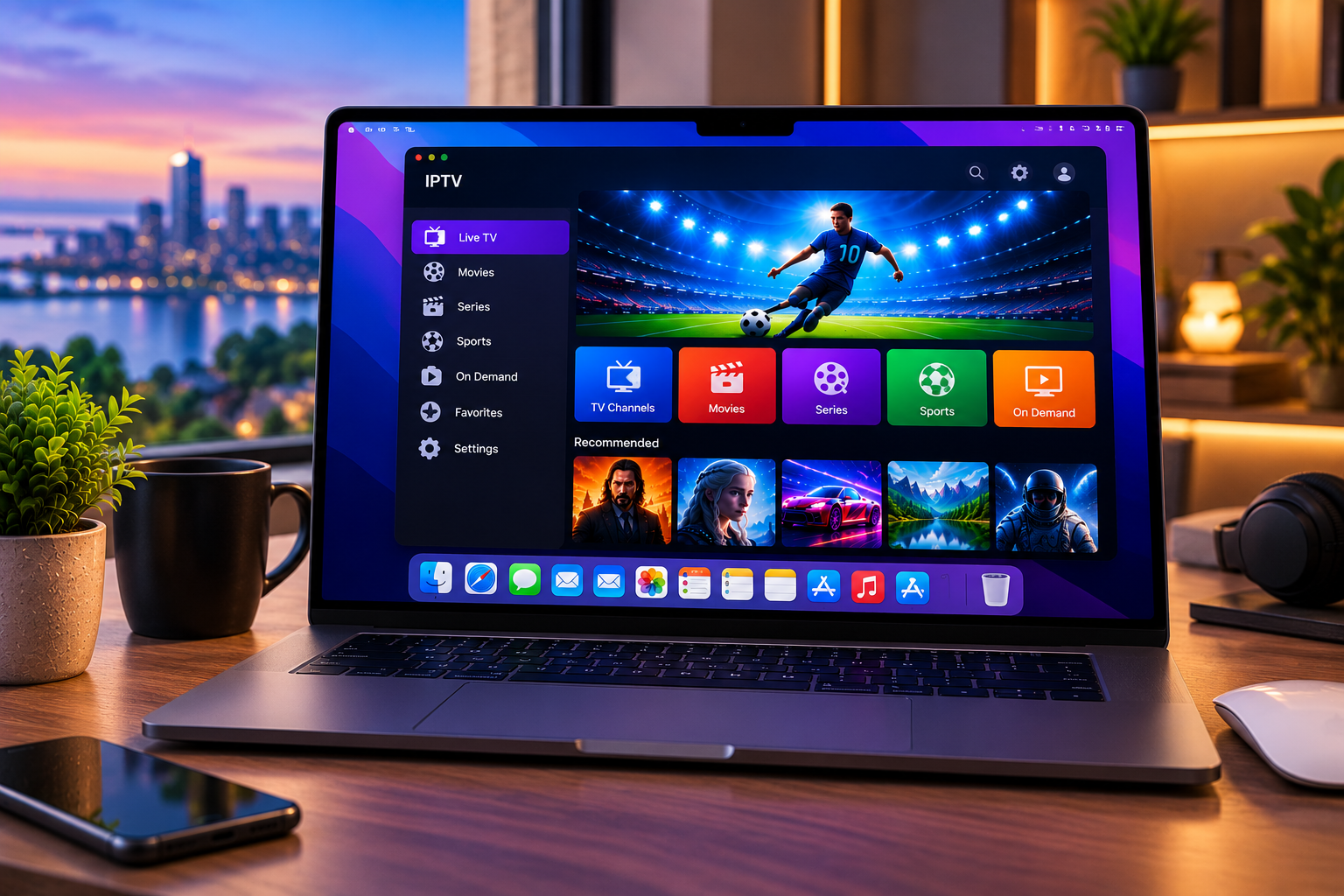
Watching iptv on mac in 2026 is easier than ever because modern Mac computers can run dedicated IPTV players, web-based streaming interfaces, and common playlist formats without additional streaming hardware. Whether you use a MacBook Air, MacBook Pro, iMac, or Mac mini, the basic setup usually takes only a few minutes when you already have your IPTV account details.
The key is understanding that an IPTV subscription and an IPTV player are different things. Your subscription gives you access to authorized channels and content, while the player provides the interface used to organize and watch those streams. This guide explains the main setup methods, what information you need, how to choose a suitable player, and what to do when IPTV playback on macOS is not working properly.
What Do You Need to Watch IPTV on Mac?
You do not need complicated equipment to get started. A typical setup requires a Mac running a current version of macOS, a stable internet connection, an IPTV subscription, and a compatible media player.
Your IPTV provider may give you login information in one of several forms.
Common options include an M3U playlist URL, an M3U8 stream, Xtream Codes credentials, or access through a web based player. The exact setup depends on both your subscription and the player you choose.
Before installing anything, keep your provider details ready. This saves time because most IPTV players ask for the playlist URL or account information during the first setup.
How to Set Up IPTV on Mac
The most convenient method is normally to install a compatible IPTV player directly on macOS.
Step 1: Choose a Mac IPTV Player
Open the Mac App Store and search for an IPTV player that supports the login method supplied by your provider.
When comparing apps, look beyond the screenshots. Check whether the player supports M3U, M3U8, Xtream Codes, electronic program information, favorites, search, channel groups, subtitles, and full screen playback.
Some users also want synchronization across Apple devices. If you plan to watch the same playlists on a Mac, iPhone, iPad, and Apple TV, check whether your chosen application includes account or iCloud synchronization.
The best player is not necessarily the one with the most features. A clean interface, quick playlist loading, reliable video decoding, and simple channel navigation often matter more in daily use.
Step 2: Install the Player
Download the chosen player from a trusted source such as the Mac App Store or the developer’s official website.
Open the application after installation. Most players will immediately ask whether you want to add a playlist, account, portal, or streaming source.
Avoid downloading modified versions from unknown websites. Besides security concerns, unofficial applications may stop receiving compatibility updates when macOS changes.
Step 3: Add Your IPTV Details
How you continue depends on the information supplied with your subscription.
For an M3U setup, select the option to add a playlist or playlist URL. Paste the M3U address into the required field, give the playlist a recognizable name, and save it.
For Xtream Codes, enter the server address, username, and password supplied by your service. The player should then retrieve the associated channels and categories.
If you need more detailed device instructions, the Sverige IPTV Mac installation guide covers the setup process for desktop users.
Step 4: Let the Channel List Load
Large IPTV playlists may contain many live channels, movies, series, and categories, so the first synchronization can take a little time.
Do not repeatedly close and reopen the application while it is importing the playlist. Allow it to finish processing the information first.
Once loaded, you should see categories such as live television, sports, movies, entertainment, news, children’s programming, or international channels depending on your subscription.
Step 5: Test a Live Channel
Start with a regular HD channel before testing higher quality streams.
If the channel loads quickly and plays without interruptions, the basic installation is complete. You can then test Full HD and 4K streams if they are included in your subscription and supported by your Mac.
Using an M3U Playlist on Mac
M3U is one of the most common methods for loading IPTV channels into a media player.
An M3U file or URL does not normally contain the television video itself. It acts as a playlist containing references to streams. Your media player reads those references and presents them as channels or individual entries.
Copy the complete M3U URL exactly as supplied. Missing characters, spaces, or expired account information can prevent the playlist from loading.
If your player accepts local playlist files, you may also be able to import an M3U file saved directly on the Mac.
Using Xtream Codes on Mac
Xtream Codes login is often easier to manage because you normally enter three pieces of information: the server address, username, and password.
A compatible application can use these credentials to organize live television, films, series, and program information into separate sections.
This can provide a cleaner experience than navigating a large unorganized playlist, particularly when you have thousands of available channels.
Never share your IPTV account credentials publicly. Depending on the provider, excessive simultaneous connections can also cause streams to stop working if the subscription has a device or connection limit.
How to Choose the Right IPTV Player for macOS
Mac users have several IPTV player options, but features can differ significantly.
Playlist Support
Make sure the application supports the format used by your provider. M3U and Xtream Codes are common, but not every application handles every format.
Channel Organization
A good player should make it easy to search channels, create favorites, switch categories, and return to recently viewed content.
This becomes especially important with large playlists. Scrolling manually through hundreds or thousands of channels is inconvenient.
Apple Device Support
If you own several Apple devices, look for a player that works across macOS, iOS, iPadOS, or tvOS. Synchronization can make it easier to maintain the same favorites and playlists on several screens.
Some viewers also compare Nordic streaming services such as Nordic IPTV King when researching device compatibility, available subscription formats, and channel access before choosing a setup.
Video Format Compatibility
IPTV streams can use different codecs, resolutions, and audio formats. A capable player should handle common live streaming formats without forcing you to constantly switch applications.
Electronic Program Guide
An electronic program guide, often called EPG, can show current and upcoming programs beside the channel list.
If your provider includes EPG information, choosing a player that displays it properly makes live television significantly easier to navigate.
How to Watch IPTV in Full Screen on Mac
Once a stream is playing, most IPTV applications let you enter full-screen mode from the player controls.
On a MacBook, full screen viewing removes the application interface and gives the video more space. If you connect the Mac to an external monitor or television, you can also move the IPTV player onto that display before activating full screen mode.
This makes a Mac mini or MacBook useful as part of a larger home entertainment setup.
Can You Watch 4K IPTV on Mac?
Yes, provided every part of the setup can handle the stream.
A 4K capable Mac does not automatically guarantee smooth 4K IPTV. Your subscription must provide a 4K source, your IPTV player must support the stream format, and your internet connection must maintain enough consistent bandwidth.
The display also matters. Watching a 4K source on a lower resolution screen will not give you the full visual benefit of the original stream.
For everyday viewing, a stable Full HD stream can provide a better experience than a 4K stream that frequently buffers.
How to Fix IPTV Buffering on Mac
Buffering is one of the most common streaming complaints, but the IPTV player is not always responsible.
Check Your Internet Connection
Run a speed test and make sure the connection remains stable rather than looking only at its maximum speed.
Live television is sensitive to short connection drops. A connection that appears fast but regularly fluctuates can produce more buffering than a slightly slower but stable connection.
Use Ethernet When Possible
Wi Fi is convenient, but Ethernet can provide a more consistent connection for desktop Macs.
MacBook users without an Ethernet port can use a compatible adapter or dock.
Close Heavy Downloads
Cloud backups, software updates, large file transfers, gaming downloads, and other streaming devices can consume available bandwidth.
Pause these activities and test IPTV again.
Try Another Stream Quality
If a 4K stream repeatedly buffers, test the Full HD or HD version of the same channel when available.
If lower quality streams work normally, bandwidth or device processing is a more likely issue than account authentication.
Restart the Player
Close the IPTV application fully and reopen it. If the problem continues, restart the Mac and router.
This can clear temporary network sessions and application problems that affect playback.
Why Is My IPTV Playlist Not Loading on Mac?
Start by checking the playlist URL or login credentials.
A single incorrect character can stop authentication. Copy the details directly rather than typing long URLs manually.
Next, verify that your subscription is still active. If the credentials worked previously but suddenly fail on every device, the problem may be related to the account rather than the Mac.
You can also test another compatible player. If the same playlist works elsewhere, the original application may have a compatibility or configuration issue.
IPTV on MacBook Air, MacBook Pro, iMac, and Mac Mini
The general installation process is similar across modern Mac computers.
MacBook Air works well for portable viewing, while MacBook Pro models offer larger or higher-quality display options depending on the generation. An iMac provides a convenient large integrated screen, and a Mac mini can work well when connected to a television or dedicated monitor.
The important factor is software compatibility. Always check the macOS requirements of your chosen IPTV application before installing it, particularly on older Mac hardware.
Is IPTV on Mac Legal?
IPTV is a delivery technology and is not automatically legal or illegal.
The important question is whether the provider has permission to distribute the channels, movies, series, sports, and other content it offers. Users should watch streams and playlists they are legally authorized to access.
An IPTV player itself normally acts only as a media player. Installing an application does not give permission to view copyrighted content from an unauthorized source.
Frequently Asked Questions About IPTV on Mac
Can I Watch IPTV on Mac Without Installing an App?
Yes. Some providers offer a browser based web player. If your service supports one, you can sign in through a compatible browser without installing a separate IPTV application.
Can I Use an M3U URL on Mac?
Yes. Many macOS IPTV and media players support M3U playlists. Copy the playlist URL provided by your service and add it through the player’s playlist menu.
Does IPTV Work on MacBook Air?
Yes. A compatible MacBook Air can play IPTV through a supported macOS application or web player. Actual stream quality depends on the application, source quality, internet connection, and Mac model.
Can I Watch IPTV in 4K on Mac?
Yes, when your subscription provides a 4K stream and your Mac, player, display, and internet connection support the required quality.
Why Does IPTV Keep Buffering on My Mac?
Common causes include unstable Wi Fi, network congestion, demanding 4K streams, temporary player issues, or problems with the source stream. Testing a lower-resolution channel and another player can help identify the cause.
Setting up IPTV on a Mac in 2026 can be straightforward once you have compatible account details and the right media player. If you want access to Swedish live TV, sports, movies, series, HD, Full HD, and 4K options across supported devices, visit Sverige IPTV to explore the available service and start with a setup suited to your Mac.