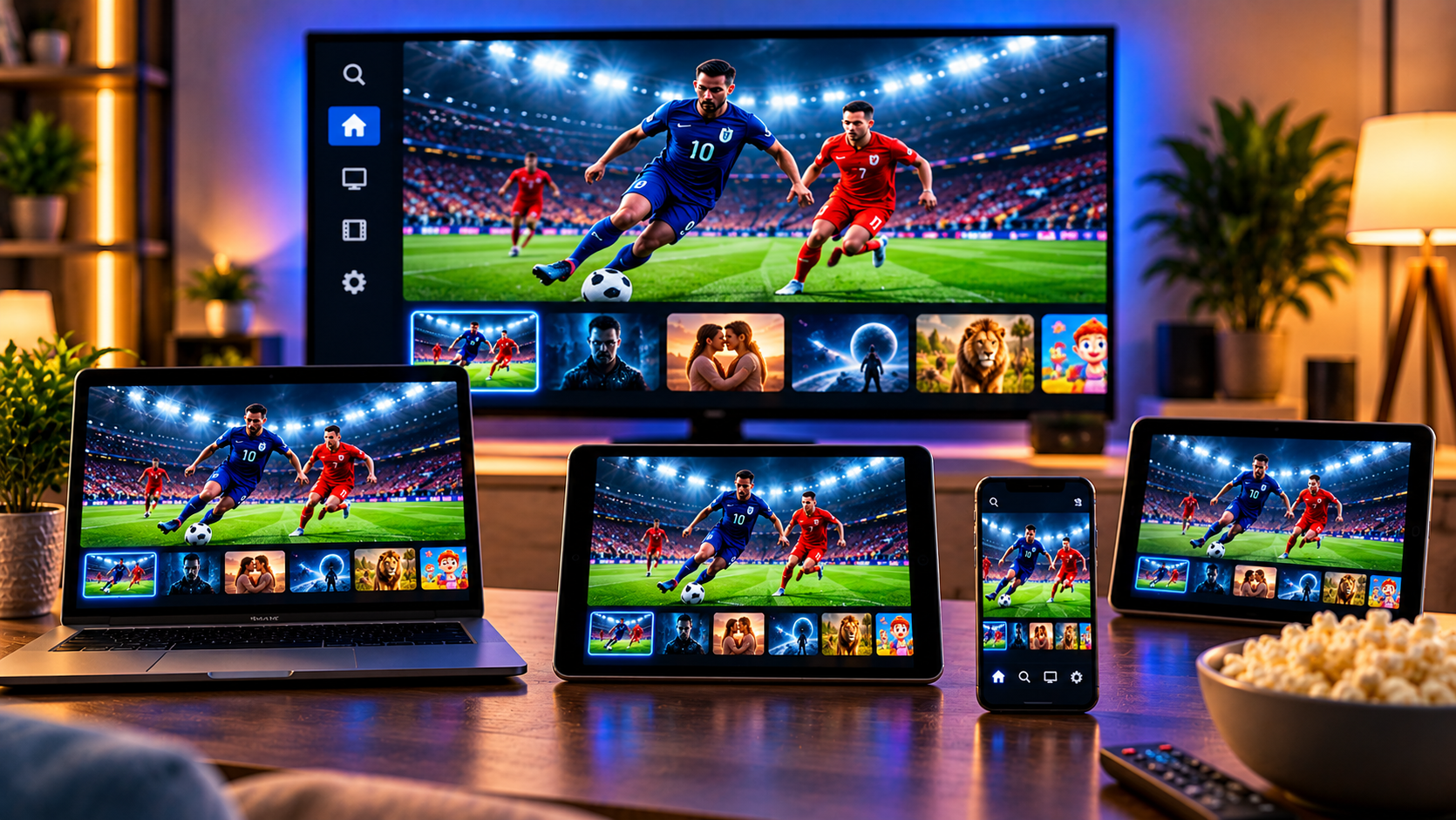
Watching two football matches, following several live events, or keeping news on screen while another channel plays no longer requires several televisions. IPTV multi-screen viewing lets compatible IPTV players display multiple live channels on one screen at the same time.
The feature is often called Multi View, Multi Screen, Split Screen, or Picture in Picture depending on the player. A typical setup can show two, three, or four channels in separate windows, but successful playback depends on more than the app. Your IPTV subscription must allow enough simultaneous connections, your device needs enough processing power, and your internet connection must handle several streams at once.
This guide explains how multi screen IPTV works, how to set it up, what connection limits mean, how much bandwidth you may need, and how to solve common problems.
What Is IPTV Multi Screen?
IPTV multi screen is a playback feature that displays more than one IPTV stream at the same time.
Instead of switching back and forth between channels, the player divides the television or monitor into several viewing areas. Each area can load a different live stream.
Common layouts include two channels side by side, one large channel with a smaller window, three channel layouts, and a four channel grid.
Some IPTV players also let you choose which window provides the audio. This is useful because playing sound from several channels simultaneously would quickly become confusing.
Multi screen viewing is especially useful for sports. Someone following several football matches, motorsport events, tennis courts, or breaking news feeds can monitor multiple broadcasts without constantly changing channels.
What You Need Before Using Multi Screen IPTV
Three things determine whether the feature will work properly.
A Compatible IPTV Player
Your IPTV application must support more than one active stream.
Not every player has this feature. Look in the playback menu for terms such as Multi Screen, Multi View, Split Screen, or Picture in Picture.
Some applications offer two windows, while others support three or four. The maximum depends on the player and device.
Enough Simultaneous IPTV Connections
This is one of the most important requirements.
Opening four channels usually means the IPTV player is requesting four separate streams at the same time. If your subscription allows only one connection, the first stream may continue while the second fails, freezes, or disconnects the first channel.
Before troubleshooting your television, confirm how many simultaneous streams your account permits.
A player capable of displaying four channels cannot override the connection limit set by an IPTV account.
A Capable Streaming Device
Decoding one Full HD stream is much easier than decoding four at once.
Smart TVs, Android TV boxes, Fire TV devices, computers, and other streaming hardware have different processor and memory limits.
An older television may play a single channel perfectly but struggle as soon as three or four windows are opened.
How to Set Up IPTV Multi Screen
The exact menu names differ between IPTV players, but the general process is similar.
Step 1: Open Your IPTV Player
Launch the player and make sure your playlist or account has loaded correctly.
Test one live channel first. There is little value in troubleshooting multi screen mode when normal single channel playback is already unstable.
If you are configuring a new device, the Sverige IPTV installation guide can help you complete the standard IPTV setup before moving to multiple streams.
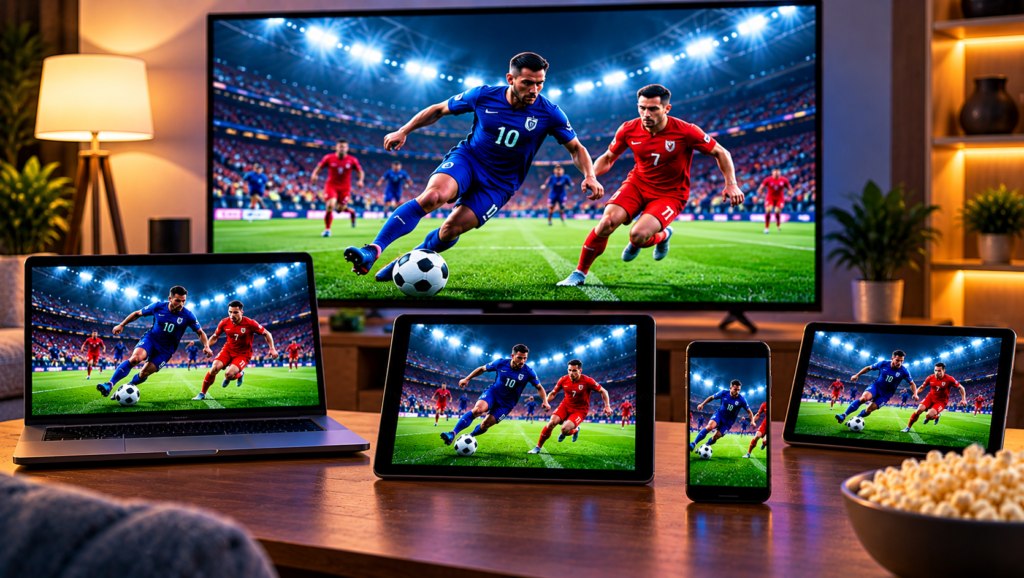
Step 2: Find Multi Screen or Multi View
Open the live television section and look in the player menu.
Depending on the application, you may see Multi Screen, Multi View, Split Screen, Create View, or a grid shaped icon.
Select the feature and choose your preferred layout.
Start with two screens rather than four. This makes it easier to confirm that your account and device can handle simultaneous playback.
Step 3: Add the First Channel
Choose the first window and select a live channel.
Allow it to begin playing normally before adding another stream.
Step 4: Add More Channels
Select another empty window and choose your second channel.
Continue until you reach the number of screens you want or the maximum supported by the player.
If the second channel fails immediately, check your subscription connection limit before changing network or video settings.
Step 5: Select the Active Audio
Most good multi view players allow only one stream to provide the main audio at a time.
Highlight the channel you want to hear and select it as the active audio source.
You can then switch audio between screens without closing the other streams.
How Many Channels Can You Watch at Once?
There is no universal limit.
Some IPTV players support two streams, while others can display four or more. One current multiview player on Android supports up to four streams and layouts such as side by side, Picture in Picture, three screen views, and a two by two grid.
The real limit, however, is usually the lowest limit in your complete setup.
If the player supports four streams but your subscription permits two connections, you effectively have a two stream limit.
If the subscription allows four but your streaming device can decode only two smoothly, device performance becomes the limit.
The best setup is therefore not simply the one advertising the largest number of screens. It is the one where your account, device, network, and application can all sustain the same number of streams.
Does Multi Screen Use More Internet Data?
Yes.
Every channel is a separate video stream. Opening additional channels increases bandwidth usage because the device downloads several streams simultaneously.
For example, if one HD stream requires approximately 5 Mbps at a particular moment, four similar streams could require around 20 Mbps before allowing extra capacity for network fluctuations and other household devices.
Actual bandwidth varies significantly according to resolution, codec, frame rate, compression, and the source stream.
Full HD generally requires more data than HD, while 4K can require considerably more.
For multi screen viewing, connection stability is just as important as headline speed. A fast connection with frequent Wi Fi drops can perform worse than a stable wired connection.
Best Layouts for Different Viewing Situations
Choosing the right layout makes multi screen viewing much easier.
Two Channels Side by Side
This is ideal when both programs matter equally.
It works well for two football matches, two news channels, or two live sporting events running at the same time.
One Large Screen With a Smaller Window
This layout is useful when you have one main event but want to monitor another.
You might watch your preferred football match in the large window while keeping another game visible in a smaller area.
Three Screen View
A three-channel arrangement suits busy sports schedules where one stream remains the main focus and two secondary events need monitoring.
Four Channel Grid
A four-screen grid gives every stream equal space.
It is useful for sports nights, tournament coverage, election coverage, or several live events, but it also places the greatest demand on your device and internet connection.
When researching different streaming setups and supported devices, viewers may also come across services such as Monster IPTV while comparing IPTV options and connection requirements.
Best Devices for Multi Screen IPTV
Multi screen playback places more demand on hardware than ordinary IPTV.
Modern Android TV devices, Google TV hardware, capable Fire TV models, computers, and higher performance streaming boxes are generally better suited to processing several simultaneous video streams.
A Smart TV may also support the feature if a compatible IPTV application is available and the television has sufficient processing power.
If you plan to watch from a television, review the Sverige IPTV Smart TV setup information to understand the normal installation process before configuring advanced viewing features.
Computers can also work well because modern processors often have enough resources to decode several video streams while maintaining a flexible screen layout.
Why Multi-Screen IPTV Keeps Buffering
Buffering becomes more likely as you add streams because each additional channel increases network and hardware demand.
Your Internet Connection Is Overloaded
Close other high bandwidth activities temporarily.
Large downloads, cloud backups, video calls, gaming updates, and other household streams can compete with your IPTV player for bandwidth.
Your Device Cannot Decode Several Streams
Reduce the number of active windows.
If four channels buffer but two run smoothly, your device may simply have reached its practical processing limit.
Wi Fi Is Unstable
Move closer to the router or test Ethernet if your device supports it.
Multi screen IPTV exposes Wi Fi weaknesses more quickly than single stream viewing because several streams must remain stable simultaneously.
Your Subscription Has a Connection Limit
If additional channels refuse to open rather than simply buffering, check how many connections your account allows.
Connection limits are separate from internet speed.
A 1 Gbps internet connection will not make four channels work when an IPTV account permits only one active stream.
Why One Multi Screen Window Is Black
A black window usually means that particular stream did not start correctly.
First, open the same channel in normal full screen mode. If it also fails there, the channel itself may be unavailable.
If it works alone but fails when added to multi screen mode, check your simultaneous connection allowance.
You should also replace that channel with another stream. If the replacement works, the problem may be specific to the original channel rather than the layout.
Why Multi Screen Works With Two Channels but Not Four
This is a useful diagnostic clue.
When two channels work smoothly but the third or fourth causes freezing, one of three limits is usually being reached.
Your IPTV account may not permit enough simultaneous connections.
Your streaming device may not have enough processing power.
Your network may not have enough stable bandwidth for all active streams.
Test each possibility separately rather than changing several settings at once.
Can You Watch Multi Screen IPTV in 4K?
Technically, a compatible player and device may be able to display high resolution streams together, but multiple 4K channels require substantially more resources than several HD streams.
For most televisions, displaying four 4K streams inside small windows also provides little visual benefit because each video occupies only part of the screen.
Using HD or Full HD streams for secondary windows can reduce bandwidth and processor demand while keeping the main channel at a higher resolution.
Frequently Asked Questions
What Is Multi Screen on IPTV?
Multi-screen lets an IPTV player display two or more live streams on one television or monitor at the same time.
Can I Watch Four IPTV Channels at Once?
Yes, if your IPTV player supports four streams, your subscription allows at least four simultaneous connections, and your device and network can handle them.
Does Multi Screen Require Multiple IPTV Connections?
Usually yes. Each active channel generally counts as a separate stream, so you should check the simultaneous connection allowance for your subscription.
Why Does the Second IPTV Channel Stop the First?
Your account may allow only one active connection. When another stream starts, the service may stop or reject one of the connections.
Can I Choose Which Multi Screen Channel Has Sound?
Many multi screen players allow you to select one active window for audio and switch the sound between channels while all video streams continue playing.
IPTV multi screen viewing is most useful when the player, connection allowance, device, and internet connection are properly matched. Start with two streams, confirm stable playback, and expand the layout only when your setup can handle the additional load. If you want Swedish live television, sports, movies, series, HD, Full HD, and 4K streaming across supported devices, visit Sverige IPTV to explore a viewing setup that fits your household.