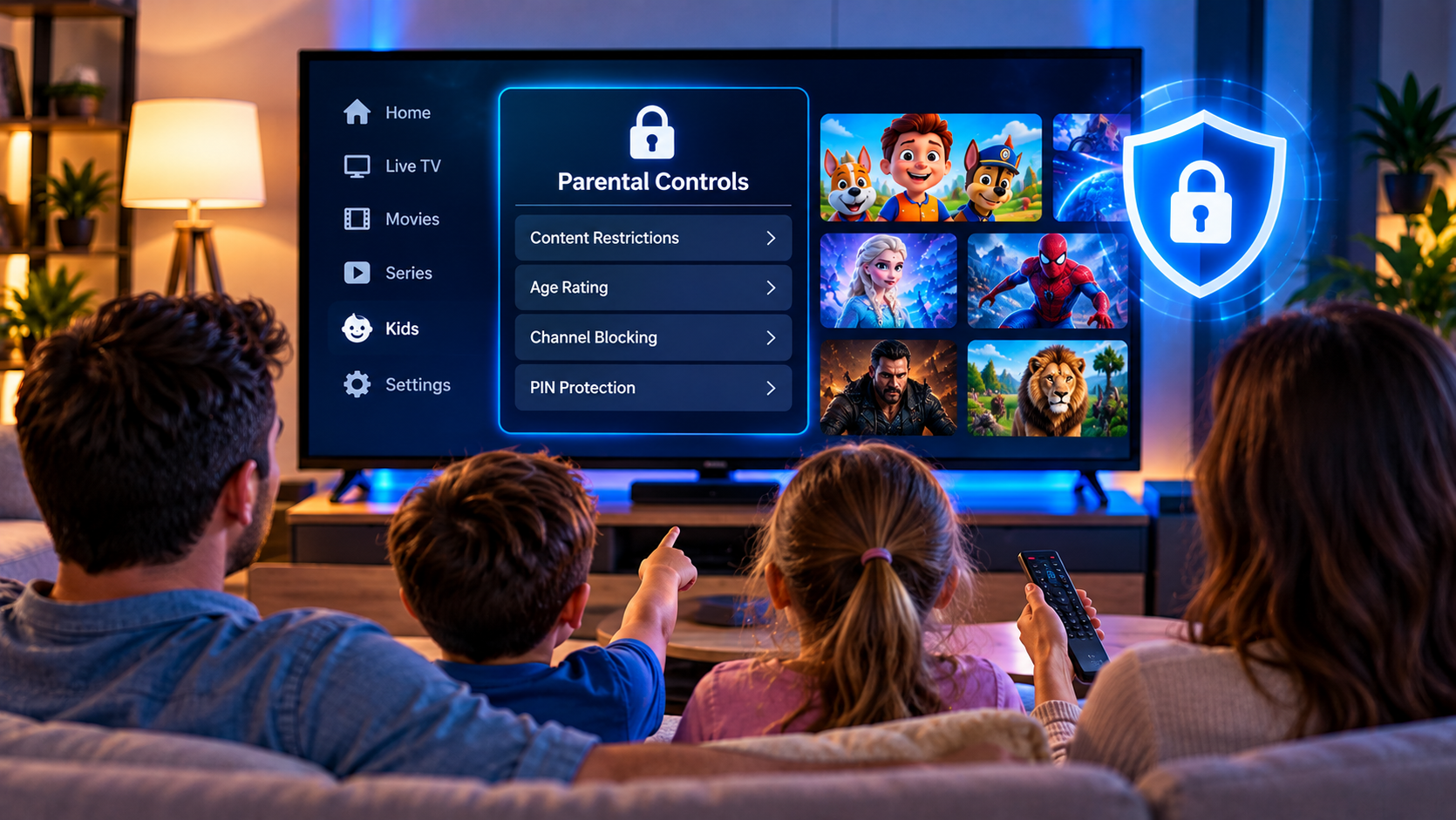
IPTV gives families access to live television, sports, movies, series, international channels, and on demand entertainment from one interface. That variety is useful, but it also means children may be able to reach channels or programs that are not suitable for their age. IPTV parental controls help parents manage that access without removing the entire service from a shared television or streaming device.
Depending on your IPTV player and device, you may be able to lock individual channels, hide complete categories, protect settings with a PIN, create a separate kids profile, or block unsuitable content at provider level. The safest setup uses more than one layer so that children cannot simply switch apps or change a setting to bypass a restriction.
What Are IPTV Parental Controls?
IPTV parental controls are settings that restrict access to selected channels, categories, applications, or account features.
The exact controls depend on your IPTV application and streaming device, but common options include PIN protected channels, hidden channel groups, age based restrictions, locked settings, separate user profiles, and provider side content removal.
A PIN lock is useful when adults still want access to a channel but do not want children opening it freely. Hiding a channel or category goes one step further because the restricted content no longer appears during normal browsing.
For younger children, a dedicated kids profile can provide an even simpler experience by showing only approved channels instead of asking them to avoid unsuitable sections.
Start With Controls on the Streaming Device
Before changing your IPTV player, check the parental settings built into your Smart TV, streaming stick, Android TV box, phone, or tablet.
Device-level controls can prevent children from installing new applications, opening restricted apps, making purchases, or changing account settings.
This matters because locking channels inside one IPTV app offers limited protection if a child can simply install another media player or open another streaming application.
Protect Access With a Device PIN
Create a PIN that your children cannot easily guess.
Avoid obvious numbers such as birthdays, repeated digits, or simple sequences. The exact PIN length depends on the device.
After creating the code, check whether you can restrict application launches, purchases, installation of new apps, settings access, and content based on age ratings.
The available options vary between Fire TV, Android TV, Google TV, Samsung televisions, phones, and other devices, so use the controls that match your household setup.
Lock Channels Inside Your IPTV Player
The next layer is the IPTV application itself.
Many IPTV players include a parental control menu where you can choose individual channels or entire groups that require a PIN.
Start by opening the application settings and looking for terms such as Parental Control, Parental Lock, Channel Lock, or Restricted Content.
Enable the feature, create a secure PIN, and select the channels that should require authorization.
When possible, test the lock immediately. Return to the channel list, select a restricted channel, and confirm that the player asks for the PIN before playback starts.
If you are configuring a new player at the same time, the Sverige IPTV installation guide can help you complete the basic IPTV setup before applying parental restrictions.

Hide Entire Channel Categories
Locking channels individually works when only a few need restrictions. Large IPTV playlists can contain hundreds or thousands of entries, making one by one management impractical.
In that situation, hiding an entire category is often easier.
Look for categories containing adult programming or other material you do not want displayed. Some IPTV players let you hide the group completely, while others allow you to protect it with a PIN.
Hiding is particularly useful in family rooms because children do not even see the category while browsing the channel list.
Remember that hiding and locking are different. Hidden content may simply be removed from normal navigation, while locked content remains visible but requires authorization.
Lock the Settings Menu Too
One of the most important steps is also one of the easiest to overlook.
If your IPTV application lets you lock channels but leaves its settings menu open, someone may be able to enter the parental control section and change your restrictions.
Enable a settings lock whenever your player supports it.
After configuring everything, try accessing the settings without entering the parental PIN. If restrictions can be disabled without authorization, review the configuration before considering the setup complete.
This simple test catches many weaknesses that are easy to miss during initial setup.
Create a Separate Kids Profile
Separate profiles can make IPTV much easier to manage in homes where both adults and children use the same television.
A kids profile can contain only family movies, cartoons, educational programming, children’s channels, and other approved content.
An adult profile can retain the full channel selection while requiring a PIN before anyone can switch to it.
This approach is more convenient than repeatedly unlocking and relocking individual channels because children begin in an environment designed specifically for them.
Not every IPTV application supports independent profiles. If yours does not, you may still be able to hide groups, create a favorites list containing approved channels, or use the restricted profile system built into the streaming device.
Use Favorites to Create a Simple Kids Channel List
Favorites are not a replacement for parental controls, but they can make the interface easier for children.
Add suitable channels to a dedicated favorites list and teach children to browse that section first.
For younger viewers, this reduces the chance of accidentally opening unrelated categories while looking for cartoons or family programming.
However, favorites should be combined with actual restrictions. A favorites list organizes content but does not necessarily prevent access to everything outside that list.
Ask the Provider About Removing Adult Categories
App based parental controls are useful, but provider side blocking can add another layer.
If your IPTV provider can remove adult categories from the playlist, those channels may stop appearing on the account entirely.
This can be preferable for households that never intend to watch such content because there is nothing left for a child to unlock through the IPTV player.
Contact support and ask whether unsuitable categories can be disabled at account level.
After the change, refresh or reload your playlist and check the channel categories again.
Some parents also compare the family viewing and device options offered by services such as JA IPTV when researching how different IPTV setups handle channel organization and household access.
Use Different Controls for Different Ages
A six-year-old and a sixteen-year-old do not necessarily need the same restrictions.
For young children, a simple profile containing approved channels is usually easier to manage.
Older children may need broader access while specific movie categories, adult channels, purchases, or account settings remain protected.
Review the setup as children grow rather than treating parental controls as something that only needs to be configured once.
The goal is not simply to block as much content as possible. It is to create sensible access based on the age of the viewer and the rules of the household.
Protect IPTV on Phones and Tablets
Television controls alone are not enough when children can also watch IPTV on a phone or tablet.
Check the operating system parental controls on every device that has access to the service.
Depending on the platform, parents may be able to limit app installation, restrict purchases, create child accounts, control screen time, or prevent account changes.
You should also review whether the IPTV application keeps its parental settings separately on each device.
A channel locked on the living room television may not automatically be locked on a tablet using the same IPTV credentials.
Test each device separately rather than assuming restrictions synchronize.
Do Not Reuse the IPTV Parental PIN
Using the same PIN everywhere is convenient, but it reduces security if children learn it.
Where practical, keep the IPTV parental PIN different from device unlock codes, purchase authorization codes, and other important credentials.
Do not enter the code where children can easily see it.
You should also avoid storing the PIN in an obvious note beside the television or inside a family account that children can access.
Test the Controls After Every Major Change
Parental controls should be tested just like any other technical setup.
Try opening a locked channel.
Try entering the settings menu.
Try switching from the kids profile to the adult profile.
Try opening the same IPTV account on another household device.
Try searching directly for a restricted channel instead of reaching it through its normal category.
These checks show whether the restrictions work beyond the most obvious route.
Updates to an IPTV application can also change menu locations or settings, so test parental controls again after major app updates or reinstallations.
What If Parental Controls Are Not Working?
Start by restarting the IPTV application and checking that parental controls are still enabled.
If a locked channel plays without asking for the PIN, remove the restriction and apply it again.
For profile problems, confirm that the child is actually using the restricted profile and cannot switch to another one without authorization.
If hidden categories reappear after the playlist refreshes, check whether your player saves group visibility settings locally. You can also ask the provider whether unwanted categories can be removed from the account itself.
When controls behave differently across devices, configure each installation separately.
A Better Family IPTV Setup
For most households, the strongest approach uses several layers rather than relying on one button.
Start with parental controls on the television or streaming device. Then add a PIN inside the IPTV player, hide unsuitable categories, lock the settings menu, and create a kids profile if the application supports one.
Provider side removal can add another layer when there are categories your household never needs.
This setup protects children while keeping the viewing experience convenient for adults.
Frequently Asked Questions
Can You Put Parental Controls on IPTV?
Yes. Many IPTV players and streaming devices offer controls such as PIN protected channels, hidden categories, restricted profiles, and locked settings. Available features depend on the application and device.
How Do I Lock Individual IPTV Channels?
Open the parental control or channel management menu in your IPTV player, create a PIN, select the channel you want to restrict, and apply the lock. Test it afterward to confirm that playback requires authorization.
Can I Hide Adult Channels on IPTV?
Many IPTV applications allow entire groups to be hidden or locked. Some providers may also be able to remove adult categories from your playlist at account level.
Can Children Bypass IPTV Parental Controls?
Weak setups may be bypassed if settings remain unlocked or another profile is accessible. Protect the settings menu, profile switching, and device controls as well as individual channels.
Do Parental Controls Work on Every Device?
Not necessarily. Settings may be stored locally by each IPTV application. Configure and test every television, phone, tablet, or streaming device your children can use.
A secure family setup does not have to make IPTV difficult to use. A sensible combination of channel locks, hidden groups, secure PINs, device controls, and child friendly profiles can keep everyday viewing simple while restricting unsuitable content. For Swedish live TV, sports, movies, series, and multi device streaming with straightforward setup support, visit Sverige IPTV and choose a viewing setup that fits your household.