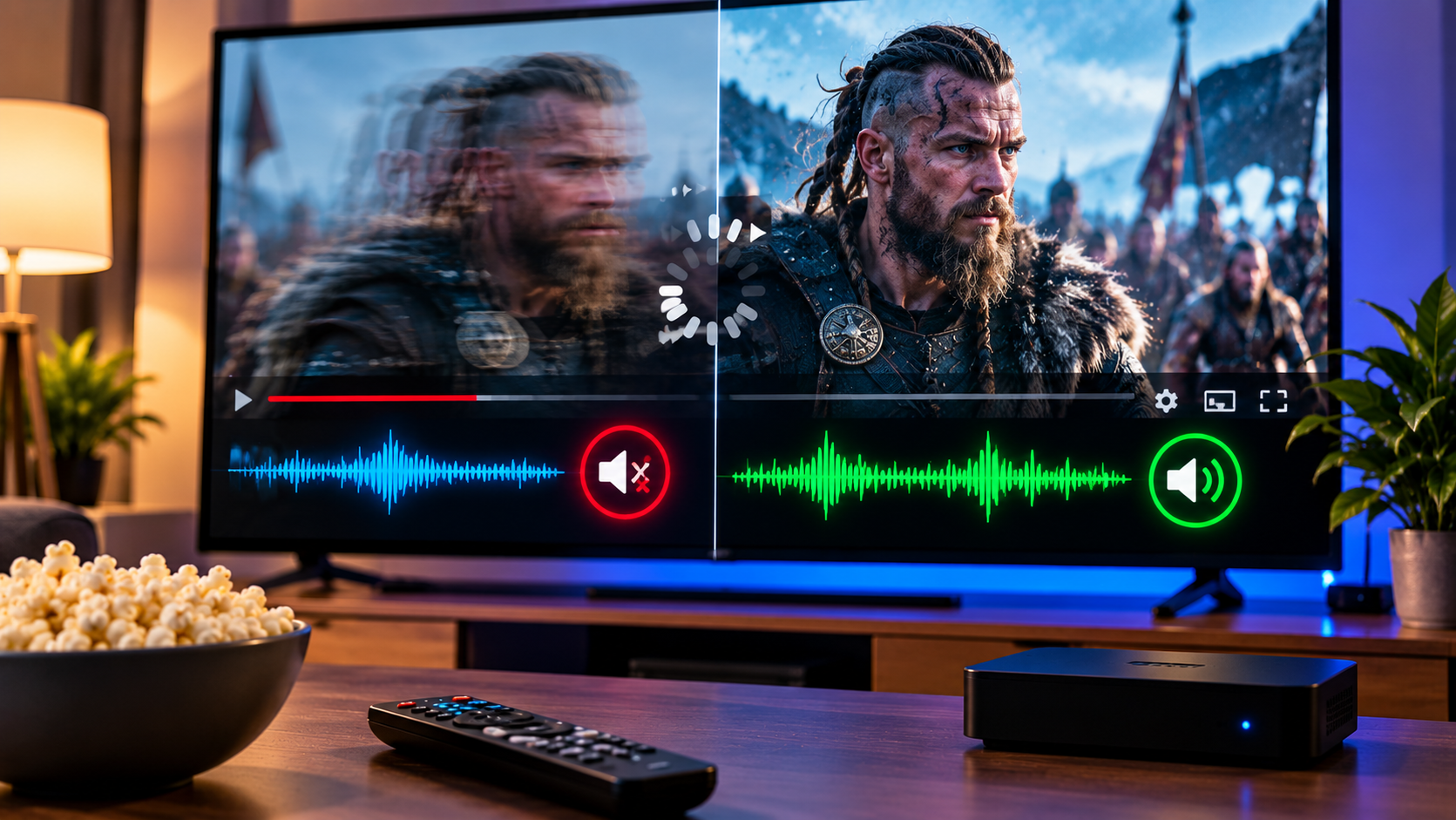
When IPTV audio out-of-sync problems appear, dialogue may arrive before a person’s lips move, sound may lag behind the picture, or the delay may gradually become worse during a live channel. Even a small lip sync error can make sports, films, news, and live television difficult to watch.
The problem does not always come from the IPTV service itself. Audio synchronization can be affected by the IPTV player, streaming device, Smart TV, HDMI connection, soundbar, Bluetooth audio, video decoder, internet stability, or the source stream. The quickest way to fix it is to identify whether the delay affects one channel, every channel, or only one device before changing settings.
What Does IPTV Audio Out of Sync Mean?
Audio and video are transmitted as separate data streams that the player must decode and present at the correct time. When that timing changes, the sound and picture stop matching.
You may notice two common situations.
Audio ahead means you hear speech or sound before the matching action appears on screen.
Audio behind means the video appears first and the sound follows a fraction of a second or several seconds later.
A delay that remains constant often points toward an audio offset, decoder, television, or sound system setting. A delay that becomes progressively worse can indicate stream instability, playback processing, device performance, or a problem with the source.
First Check Whether One Channel or Every Channel Is Affected
Before restarting your router or changing advanced settings, open several channels.
If only one channel is out of sync while the others work normally, your device and internet connection are probably not the first places to investigate. The affected channel may have a synchronization problem at the source.
If every channel has approximately the same delay, check your player, device, television, and audio output settings.
You should also test the same channel on another device when possible. If it is out of sync on your Smart TV but works correctly on your phone, the issue is likely related to the television, player, or connected audio equipment. If the exact same delay appears on multiple devices, the source stream becomes a stronger possibility.
How to Fix IPTV Audio Out of Sync
Start with the simplest fixes before changing audio or decoder settings.
Restart the Channel and IPTV Player
Exit the affected channel completely and open it again. If that does not help, close the IPTV application and restart it.
This simple step can fix temporary timing problems created when the player begins decoding the stream incorrectly.
Do not simply return to the home screen if the application continues running in the background. Fully close it, reopen it, and test the same channel again.
Restart Your Streaming Device
Restart your Smart TV, Android TV box, Fire TV device, phone, tablet, or computer.
Streaming devices continuously process video, audio, program guide information, applications, and network traffic. A restart clears temporary processes and gives the IPTV player a fresh session.
If you are still setting up your player or account, the Sverige IPTV IPTV installation guide can help you confirm that the basic device configuration is correct before changing advanced playback settings.
Use the Audio Sync Setting in Your Player
Many IPTV applications provide an audio offset or audio sync control.
Open the playback controls while watching the affected channel and look for options such as Audio Sync, Audio Delay, AV Sync, or Audio Offset.
Adjust the setting gradually rather than making a large change immediately.
If the sound plays before the picture, you normally need to delay the audio. If the sound arrives after the picture, the required adjustment goes in the opposite direction.
Test the channel after each adjustment until speech matches lip movement.
If only one channel has the problem, apply the offset only to that channel whenever the player allows it. Applying a channel specific correction to every stream can cause previously synchronized channels to become delayed.
Check Your Internet Connection
Internet problems are more commonly associated with buffering, but unstable delivery can also contribute to playback timing problems.
Run a speed test and pay attention to connection stability, not only the maximum download number. Packet loss, Wi Fi interference, and frequent speed fluctuations can interrupt live playback even when your advertised broadband speed looks high.
Restart your router if the connection appears unstable. If your streaming device supports Ethernet, testing a wired connection can help determine whether Wi Fi is contributing to the issue.
Also pause large downloads, cloud backups, game updates, and other 4K streams while testing.
Change the Audio Output Format
Audio processing can create additional delay between an IPTV player and your speakers.
Open the audio settings on your television or streaming device and check whether the output is set to Auto, Dolby Digital, surround sound, passthrough, or PCM.
If you are experiencing persistent lip sync problems, test PCM or stereo output temporarily. If synchronization improves, the delay may be occurring while your television, streaming box, receiver, or soundbar processes another audio format.
You can then experiment with the available modes to find the best combination of sound quality and synchronization.
Check Your Soundbar or Home Cinema System
When video travels directly to the television but audio is processed by a soundbar or AV receiver, the two signals may follow different processing paths.
First, switch temporarily to the television’s built in speakers.
If the IPTV stream suddenly becomes synchronized, the problem is probably somewhere in the external audio chain rather than the stream itself.
Check your soundbar or receiver for an AV Sync or Audio Delay setting. HDMI ARC and eARC configurations can also affect timing depending on the television and audio system.
Some television picture processing features introduce video delay as well. Testing another picture mode can therefore be useful if the problem appears only with external speakers.
Test Without Bluetooth Audio
Bluetooth headphones and speakers introduce additional audio processing and transmission time.
Modern devices compensate for much of this delay, but the result is not always perfect with every IPTV player or audio codec.
Disconnect Bluetooth headphones or speakers and play the channel through the television or device speakers.
If the delay disappears, Bluetooth is part of the problem. Check whether your player or device allows a separate audio offset for Bluetooth playback.
Change the Video Decoder
Some IPTV players let users switch between hardware decoding and software decoding.
Hardware decoding usually uses dedicated components inside the device and can provide smoother playback with lower processor usage. Software decoding relies more heavily on the main processor and can behave differently with particular stream formats.
If audio repeatedly drifts away from the picture, change the decoder setting and test the same channel.
Do not assume software or hardware decoding is always better. Device model, operating system, codec, resolution, frame rate, and IPTV player all affect the result.
Check HDMI Connections
If you use an external streaming box, check the HDMI connection between the device and television.
Disconnect the HDMI cable, reconnect it firmly, and test playback again. You can also try another HDMI port.
If you already have another suitable cable available, testing it can rule out a connection problem.
HDMI problems are less common than player settings or source issues, but checking the cable takes only a minute and prevents unnecessary software troubleshooting.
Update Your IPTV App and Device
Older application versions may contain playback bugs that have already been corrected.
Check for updates to your IPTV player and your device operating system. Smart TVs, streaming sticks, Android boxes, and mobile devices all receive software changes that can affect video decoding and audio output.
After updating, restart the device before testing the channel again.
Avoid changing five settings at once. Make one change, test the stream, and then continue. This makes it much easier to identify what actually solved the problem.
When the IPTV Provider Is the Source of the Problem
Sometimes nothing on your device needs fixing.
If one specific channel is badly out of sync on several devices while other channels work correctly, the incoming stream may already contain the timing error.
This becomes even more likely when the delay is several seconds rather than a minor lip sync difference.
In that situation, changing your television audio delay can hide the problem temporarily, but it does not repair the actual stream. Report the channel name, approximate time, device, and whether the same issue appears on another device.
Users comparing streaming services may also look at providers such as Viking IPTV when researching device support and service options. Regardless of provider, channel specific technical problems are easier to investigate when you provide exact details instead of simply reporting that the audio is broken.
Why Audio Slowly Drifts Out of Sync
A constant delay and a growing delay are not the same problem.
If playback starts correctly but the sound gradually separates from the picture after ten or twenty minutes, restart the channel and observe what happens.
When the stream becomes synchronized again after reopening it but later begins drifting, possible causes include decoder behavior, device performance, frame rate handling, stream timestamps, or problems originating from the source.
Try another player on the same device. Then try the same channel on another device.
This simple comparison tells you far more than repeatedly adjusting the audio offset.
IPTV Audio Out of Sync on Smart TV
Smart TVs combine the IPTV application, video processing, picture enhancement, audio processing, and display in one device.
Start by disabling unnecessary sound effects and testing the television speakers. Then restart the IPTV application.
If your television offers lip sync, digital audio delay, passthrough, or AV synchronization controls, test them gradually.
Also remember that older Smart TVs may struggle with demanding Full HD or 4K streams even when their internet connection is fast enough.
IPTV Audio Out of Sync on Android TV or Fire TV
On Android based devices, check the IPTV player’s audio offset first. Then test another decoder if your application provides that option.
Restart the device and make sure unnecessary applications are not consuming memory in the background.
If you use a soundbar, test the television speakers before changing IPTV settings. That separates a player problem from an external audio problem.
IPTV Audio Out of Sync on Phone or Tablet
Mobile devices can experience synchronization problems because of Bluetooth audio, power saving settings, background applications, or the media player.
Test playback using the built in speaker first.
If the issue disappears when Bluetooth is disconnected, focus on the Bluetooth connection or audio offset settings. If the problem remains, restart the player and test another channel.
A Simple Way to Diagnose the Problem
Use a controlled process instead of changing settings randomly.
First, test another channel.
Second, restart the affected stream.
Third, test the same channel on another device.
Fourth, disconnect Bluetooth equipment and external audio systems.
Fifth, adjust audio sync only if the delay is small and consistent.
Sixth, test another decoder or audio output format.
Finally, contact your IPTV provider when the same channel remains out of sync across multiple devices.
This method helps separate source problems from local playback problems quickly.
Frequently Asked Questions
Why Is My IPTV Sound Ahead of the Picture?
The audio may be processed faster than the video. Use your player’s audio sync control and add a small audio delay until speech matches the picture. Also test your soundbar and television audio settings.
Why Is IPTV Audio Behind the Video?
Audio processing, Bluetooth equipment, surround sound conversion, player settings, or the source stream can cause sound to arrive late. Test PCM audio, built-in speakers, and another channel to isolate the cause.
Can Slow Internet Cause IPTV Audio Delay?
An unstable connection can contribute to playback problems, although buffering is a more common symptom. Test the same channel after restarting your network and compare Wi Fi with Ethernet where possible.
Why Is Only One IPTV Channel Out of Sync?
When every other channel plays correctly, a source issue becomes more likely. Test the affected channel on another device before changing settings for your entire IPTV player.
Should I Change Audio Sync for All Channels?
Usually not when only one channel is affected. A global offset can make synchronized channels incorrect. Use a channel specific adjustment when your IPTV player supports it.
Audio synchronization problems are easier to solve once you determine whether the cause is the channel, player, device, network, or audio equipment. If you want IPTV access for Swedish live television, sports, movies, series, HD, Full HD, and 4K viewing with straightforward device setup, explore Sverige IPTV and choose a setup suited to the devices you use at home.