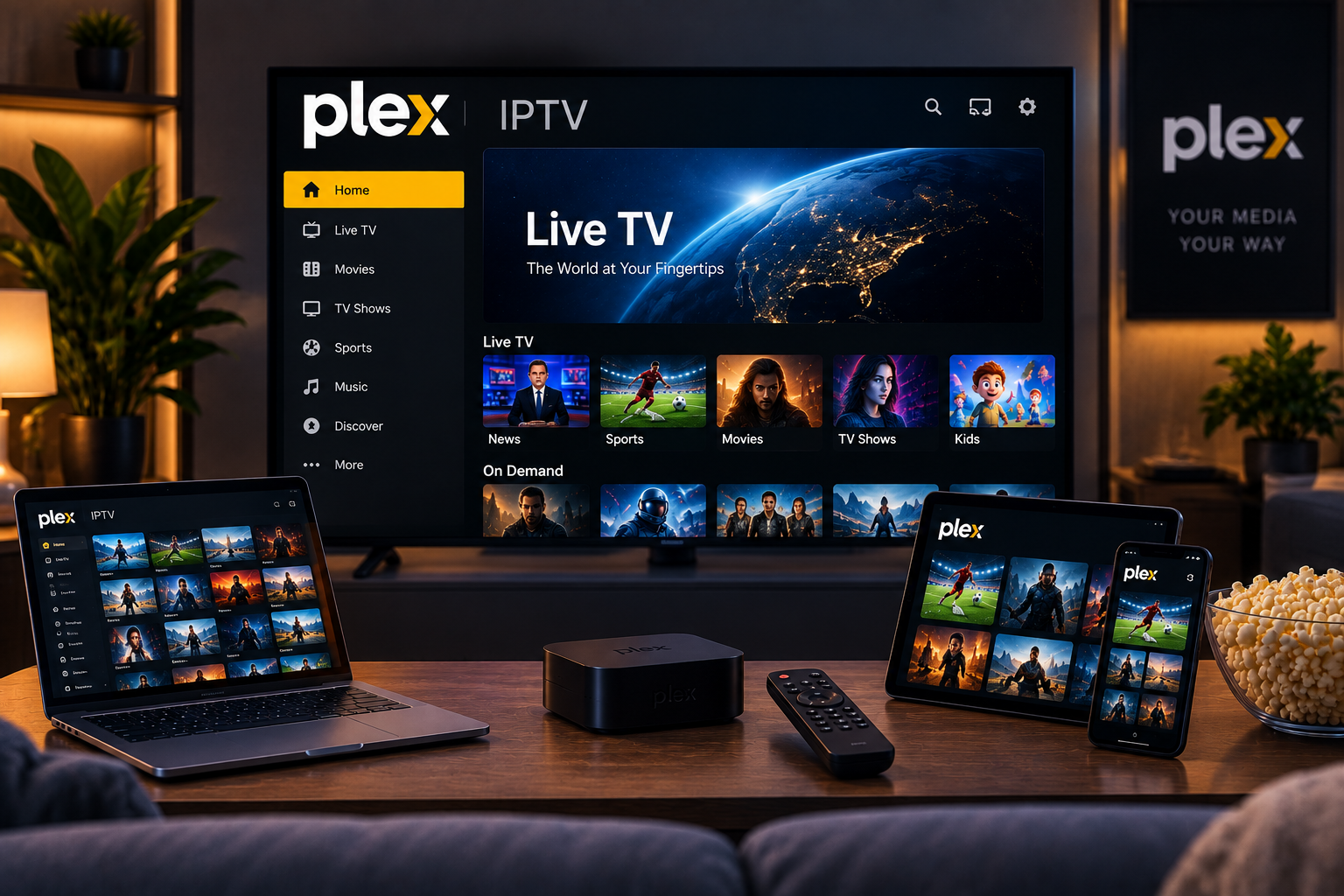
Using Plex IPTV can turn Plex into a more complete home entertainment hub by bringing compatible live television streams together with your existing movies, shows, and personal media.
The setup, however, is not as simple as pasting an M3U playlist directly into Plex.
Plex is designed primarily around personal media libraries and supported television tuners. To connect an IPTV playlist, users normally need middleware such as xTeVe or Threadfin. This software acts like a virtual tuner, translating IPTV playlist information into a format Plex’s Live TV and DVR system can recognize.
Once configured correctly, you can organize IPTV channels inside Plex, connect electronic program guide information, watch supported live streams through Plex apps, and potentially manage everything from one familiar interface.
This guide explains the complete setup process for 2026.
Can You Use IPTV Directly With Plex?
Not directly in the same way you would import an M3U playlist into a dedicated IPTV player.
Plex’s Live TV architecture expects a compatible television tuner. An IPTV playlist, on the other hand, is generally delivered as an M3U URL or file.
That creates a compatibility gap.
Tools such as xTeVe and Threadfin solve this problem by sitting between your IPTV source and Plex.
The basic connection looks like this:
IPTV Provider → M3U/XMLTV → xTeVe or Threadfin → Plex Live TV → Plex Apps
The middleware makes the IPTV source appear to Plex as though it were a network tuner.
What You Need for a Plex IPTV Setup
Before beginning, prepare the following components.
Plex Media Server
You need Plex Media Server running on a compatible computer, server, or NAS.
Your server should remain powered on whenever you want to access IPTV through Plex because it manages the connection between your Plex clients and the virtual tuner.
IPTV M3U Playlist
Your IPTV source should provide an M3U playlist URL or compatible playlist file.
The playlist normally contains:
- Channel names
- Stream URLs
- Channel groups
- Logos
- TV guide identifiers
Make sure you are authorized to access and use the channels supplied by your IPTV service.
XMLTV or EPG Information
An XMLTV file or URL contains television guide information.
It can provide details including:
- Current program
- Upcoming show
- Start time
- End time
- Channel mapping
An IPTV stream can work without detailed guide information, but navigation becomes much easier when channels are correctly matched with an EPG.
xTeVe or Threadfin
You will normally need one of these tools to create the virtual tuner Plex can detect.
xTeVe has long been widely used for this purpose, while Threadfin is based on xTeVe and offers another actively used option for managing M3U playlists and EPG data.
xTeVe vs Threadfin for Plex IPTV
Both tools serve essentially the same core purpose.
xTeVe
xTeVe can:
- Read M3U playlists
- Import XMLTV data
- Filter IPTV channels
- Map guide data
- Create a virtual tuner
- Send compatible streams to Plex
- Apply stream buffering
Its relatively straightforward interface makes it a common choice for home Plex installations.
Threadfin
Threadfin follows a similar architecture and can be particularly useful for users who want a newer xTeVe-derived project.
Your choice will usually depend on which tool works more reliably with your server environment.
Beginners can start with one rather than attempting to configure both simultaneously.

How to Set Up Plex IPTV Step by Step
Step 1: Install Plex Media Server
Start by installing Plex Media Server on your chosen device.
Common options include:
- Windows PC
- macOS computer
- Linux server
- Compatible NAS
- Dedicated home server
Complete the normal Plex configuration and confirm that your existing library works before adding IPTV.
This makes troubleshooting much easier because you know Plex itself is already functioning correctly.
Step 2: Install xTeVe or Threadfin
Install your chosen M3U proxy on a device that can remain available whenever you use Plex IPTV.
Many users run it on:
- The same computer as Plex
- A NAS
- A Linux server
- A Docker container
- A dedicated home server
After installation, open the middleware’s web management interface from your browser.
You will normally access it through the local IP address of the device running the software.
Step 3: Add Your M3U Playlist
Inside xTeVe or Threadfin, locate the playlist configuration area and enter the M3U URL supplied by your IPTV source.
The system should begin importing available channels.
Large IPTV packages can contain thousands of channels, so importing everything without filtering is usually unnecessary.
Instead, select only the categories you genuinely watch.
For example, Swedish viewers may want:
- Swedish television
- Nordic channels
- Sports
- Movies
- News
- Children’s programming
- International entertainment
If you want to understand what kinds of channels may be available before configuring your player, review the Sverige IPTV channel selection and prioritize the categories relevant to your household.
Step 4: Reduce Your Channel List
Filtering is one of the most important parts of the configuration.
IPTV packages can contain huge collections divided across countries, languages, sports categories, regional feeds, and backup channels.
Sending all of them into Plex can make channel mapping difficult and may create unnecessary problems.
A smaller playlist offers several advantages:
- Faster configuration
- Easier navigation
- Better EPG matching
- Less clutter
- Simpler troubleshooting
- Faster guide updates
Start with your most important channels.
You can always add more later.
Step 5: Add Your XMLTV EPG
If your IPTV source provides an XMLTV URL, add it to your middleware.
After importing the guide, you need to connect each television channel to the correct EPG entry.
This process is known as channel mapping.
For example:
Channel: Swedish Sports HD
EPG ID: matching Swedish Sports schedule
Incorrect mappings can cause the television guide to show the wrong programs even when the channel itself works correctly.
Step 6: Map and Organize Channels
Review each enabled channel and confirm:
- Channel name
- Channel number
- EPG mapping
- Channel logo
- Stream URL
- Group/category
Do not rush this stage.
Good organization is one of the main reasons to use IPTV through Plex instead of opening an enormous raw M3U playlist in a basic media player.
Proper mapping produces a much cleaner Live TV interface.
Step 7: Add the Virtual Tuner to Plex
Once xTeVe or Threadfin is configured, open the Plex Web App.
Navigate to the Live TV and DVR settings and begin the DVR or tuner setup.
Plex may automatically detect the virtual tuner on your local network.
If automatic detection fails, manually enter the local network address generated by your middleware.
Plex will then scan the channels exposed by the virtual tuner.
Confirm that the number of channels matches what you enabled rather than the entire original IPTV playlist.
Step 8: Configure Guide Information
After Plex recognizes the tuner, review the program guide configuration.
Your mapped EPG should populate information such as:
- Channel names
- Current programs
- Upcoming broadcasts
- Time slots
If several channels appear without guide information, return to xTeVe or Threadfin and check their XMLTV mapping.
A missing EPG usually does not mean the stream itself is broken.
Step 9: Test Plex IPTV Playback
Open a supported Plex client and test several channels.
Do not test only one stream.
Try:
- Swedish television
- Live sports
- Entertainment
- News
- HD or FHD channels
- Channels with different stream formats
Watch each channel long enough to identify stability problems.
Also test during the hours when you normally watch television.
Does Plex Pass Matter for IPTV?
This part often creates confusion.
Plex has several different Live TV features, and they should not be treated as identical.
The normal Plex Live TV/DVR system officially supports compatible tuner hardware and antennas. Some premium DVR capabilities, including recording broadcasts, require Plex Pass.
When an IPTV proxy is used, Plex is being presented with a virtual tuner rather than native IPTV functionality.
Therefore, feature availability can depend on your Plex configuration, current Plex policies, server version, and how the middleware integrates with Live TV/DVR.
If DVR recording is important to you, review the current Plex requirements before building your setup around that feature.
Can Multiple People Watch Plex IPTV?
Possibly, but there are two different limits to understand.
Plex Server Capacity
Your server needs enough CPU, memory, network bandwidth, and potentially transcoding capability to handle simultaneous viewers.
IPTV Connection Limit
Your IPTV subscription may allow only a specific number of simultaneous streams.
If the subscription supports one connection and two Plex users attempt to watch different IPTV channels simultaneously, one stream may fail.
Plex cannot override your IPTV provider’s connection restrictions.
When comparing other IPTV services such as Viking IPTV, check simultaneous connection rules separately from device compatibility. A service working on five device types does not necessarily mean five people can stream at the same time.
Why Does xTeVe Need to Stay Running?
A common beginner question is why IPTV stops working when the computer running xTeVe is turned off.
The reason is simple.
xTeVe or Threadfin is the bridge between Plex and the IPTV source.
If the bridge disappears, Plex can no longer communicate with the virtual tuner.
For an always-available setup, run your middleware on hardware that stays powered on, such as:
- NAS
- Home server
- Mini PC
- Linux server
- Always-on Docker host
Common Plex IPTV Problems and Fixes
Plex Cannot Find the Tuner
Check that:
- xTeVe or Threadfin is running
- Plex and the proxy can communicate over the network
- Firewall rules are not blocking the connection
- The tuner IP address is correct
- The relevant ports are accessible locally
Channels Appear but Will Not Play
Test the original M3U stream outside Plex.
If it does not work in another compatible player, the problem is likely the stream rather than Plex.
IPTV Buffers Constantly
Buffering may result from:
- Provider congestion
- Weak Wi-Fi
- Insufficient internet bandwidth
- Server performance
- Plex transcoding
- Stream format
- Middleware buffer settings
Where possible, use Ethernet for the server and high-demand streaming devices.
Wrong Program Guide Information
Incorrect EPG data usually means the channel is mapped to the wrong XMLTV identifier.
Review the channel mapping inside your IPTV proxy.
Plex Uses Too Much CPU
Your Plex server may be transcoding the live stream.
Transcoding converts media into another format that the receiving device can play.
This process can use considerable CPU power.
Check Plex’s playback information to determine whether the stream is being directly played or transcoded.
Direct Play vs Transcoding
Direct Play is usually preferable for IPTV because Plex sends the stream to the client without converting the video.
Advantages can include:
- Lower CPU usage
- Reduced server load
- Faster playback
- Better quality preservation
Transcoding may still be necessary when the original codec or container is incompatible with the viewing device.
A powerful server can handle this more easily than a low-powered NAS.
Is Plex the Best IPTV Player?
Not necessarily for everyone.
Plex IPTV makes the most sense for users who already operate a Plex server and want live television integrated with the same ecosystem.
Advantages include:
- One media interface
- Live TV guide
- Multi-device Plex apps
- Channel organization
- Potential DVR integration
- Centralized server management
However, dedicated IPTV players may be easier for people who simply want to enter an M3U or Xtream login and immediately start watching.
Plex offers greater integration, but that flexibility comes with additional configuration.
FAQ
Can I Add an M3U Playlist Directly to Plex?
Plex does not provide normal native M3U playlist import for IPTV. Users commonly use a virtual tuner solution such as xTeVe or Threadfin.
Does Plex IPTV Work on Smart TVs?
Once IPTV has been successfully integrated into Plex Live TV, compatible Plex applications can provide access on supported Smart TVs and other devices.
Do I Need xTeVe for Plex IPTV?
You need some method of translating the IPTV source into a tuner-compatible format Plex understands. xTeVe and Threadfin are two commonly used approaches.
What Is XMLTV?
XMLTV is a format used to provide television schedule information. It helps create the electronic program guide displayed alongside IPTV channels.
Why Does Plex IPTV Buffer?
Possible causes include internet problems, Wi-Fi quality, provider congestion, transcoding, weak server hardware, stream compatibility, or middleware settings.
Can Plex Record IPTV Channels?
Recording functionality depends on the Live TV/DVR setup, Plex requirements, the virtual tuner configuration, and your right to record the content involved. Plex’s official DVR recording features require Plex Pass.
Final Thoughts
A reliable Plex IPTV setup is less about installing one application and more about correctly connecting several components: your IPTV source, M3U playlist, XMLTV guide, xTeVe or Threadfin, Plex Media Server, and your viewing devices. Start with a small channel list, map the EPG carefully, test stream stability, and confirm simultaneous connection limits before expanding the system. If you want IPTV access focused on Swedish television, sports, movies, series, and multiple devices, explore Sverige IPTV and choose the setup that best fits your Plex environment.